Radiant Flow
 Radiant Raw
 Radiant Photo


Radiant Flow
Your catalogs and Sessions, open in Radiant Flow.
Open Capture One Catalog or Session…Radiant Flow › File
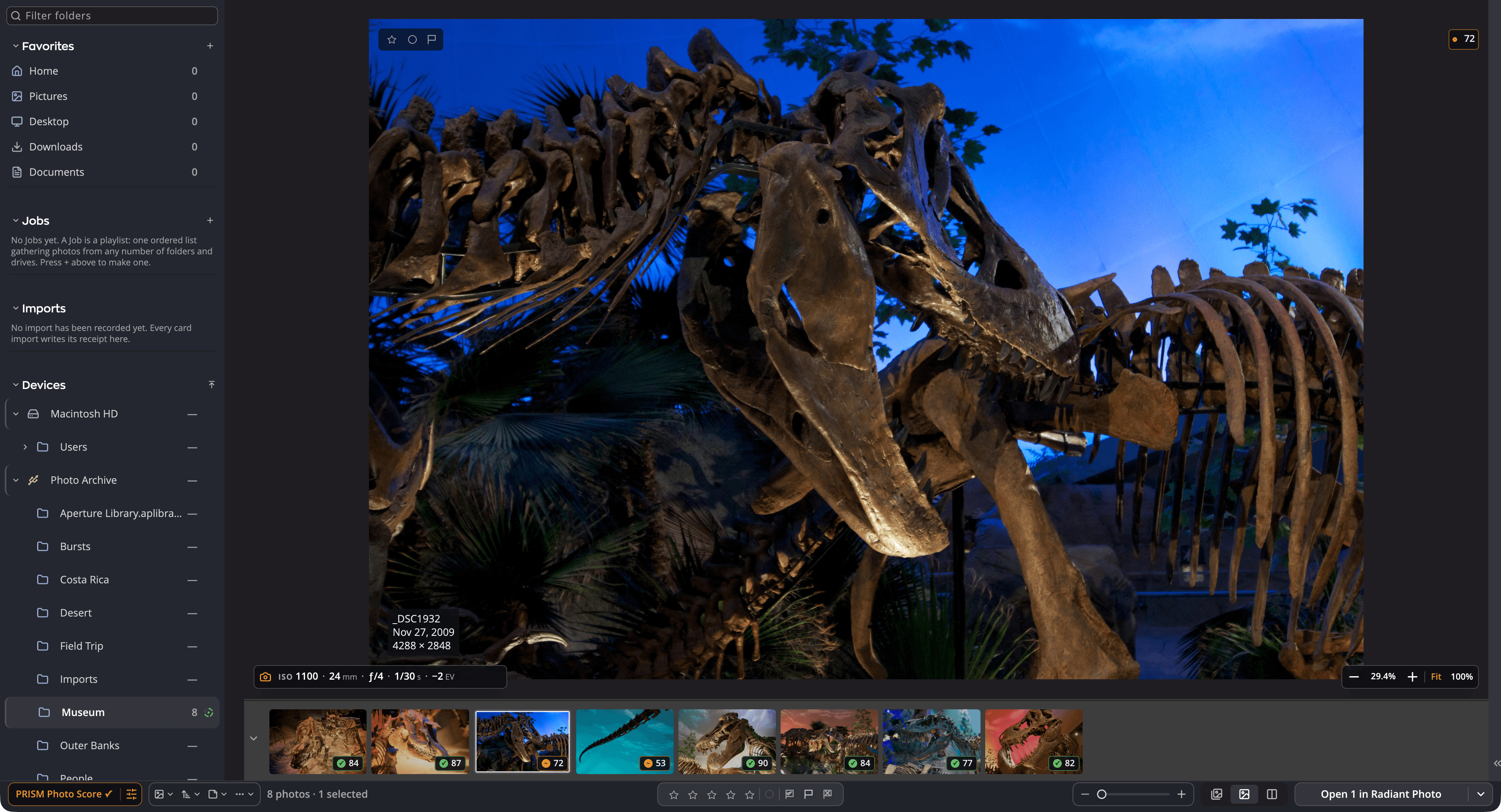
Radiant Flow shows a Capture One catalog or Session beside your folders: All Images, its folders and its albums in the sidebar, every photo in a fast grid. It reads a copy, so you can browse while Capture One has the same catalog open.
How it works
- In Radiant Flow, choose File › Open Capture One Catalog or Session….
- On a Mac, pick the catalog’s .cocatalog file, or the .cosessiondb file inside a Session’s folder. On Windows, pick the catalog’s .cocatalog folder or the Session’s folder.
- It appears in the sidebar under Capture One, and its All Images opens in the grid.
- Filter by rating, color tag or keyword, group by year, month or day, and look closer in Quick Look or Single Photo.
- Open the keepers in Radiant Photo.
Where you save time
- Cull where culling is fastGet through a whole Session in Flow’s grid and Quick Look before you adjust a single photo in Capture One.
- Nothing to import or moveFlow reads the catalog where it is. Your photos stay in their folders, and Capture One keeps track of them.
- Straight to a photoOn a Mac, File › Show in Capture One brings Capture One to the front with that photo selected.
Good to know
- Flow reads catalogs and Sessions from Capture One 16, and from Capture One 17 with the note Unverified version beside the name.
- Flow shows your original files. A photo you adjusted in Capture One carries a small mark, and its adjustments show only on small thumbnails.
- An image with two or more variants shows as one stack. Smart albums are listed but can’t be opened, and photos here can’t be moved or renamed from Flow.