Radiant Flow
Radiant Flow
Years of projects, back on screen.
Open Aperture Library…Radiant Flow › File
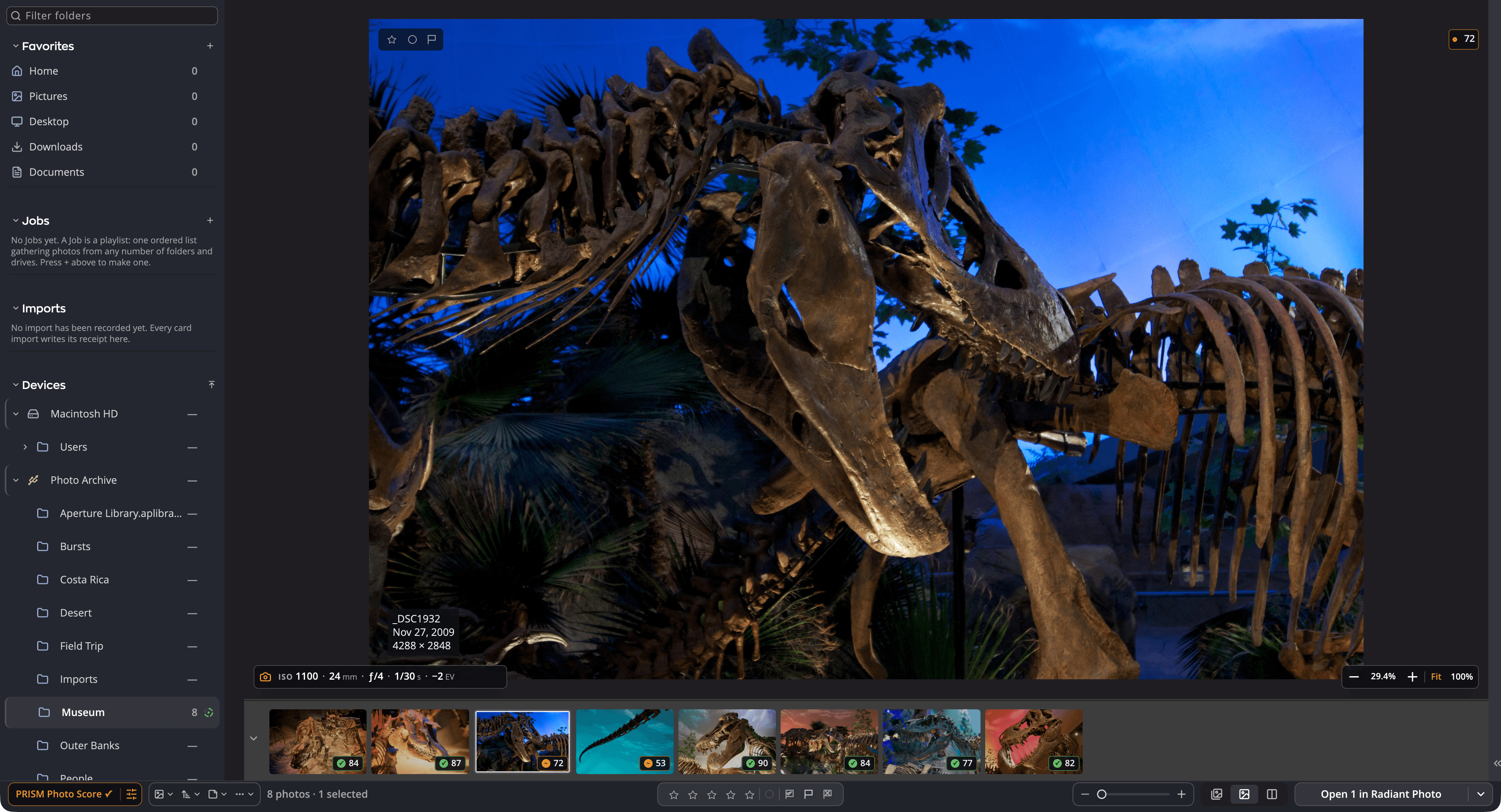
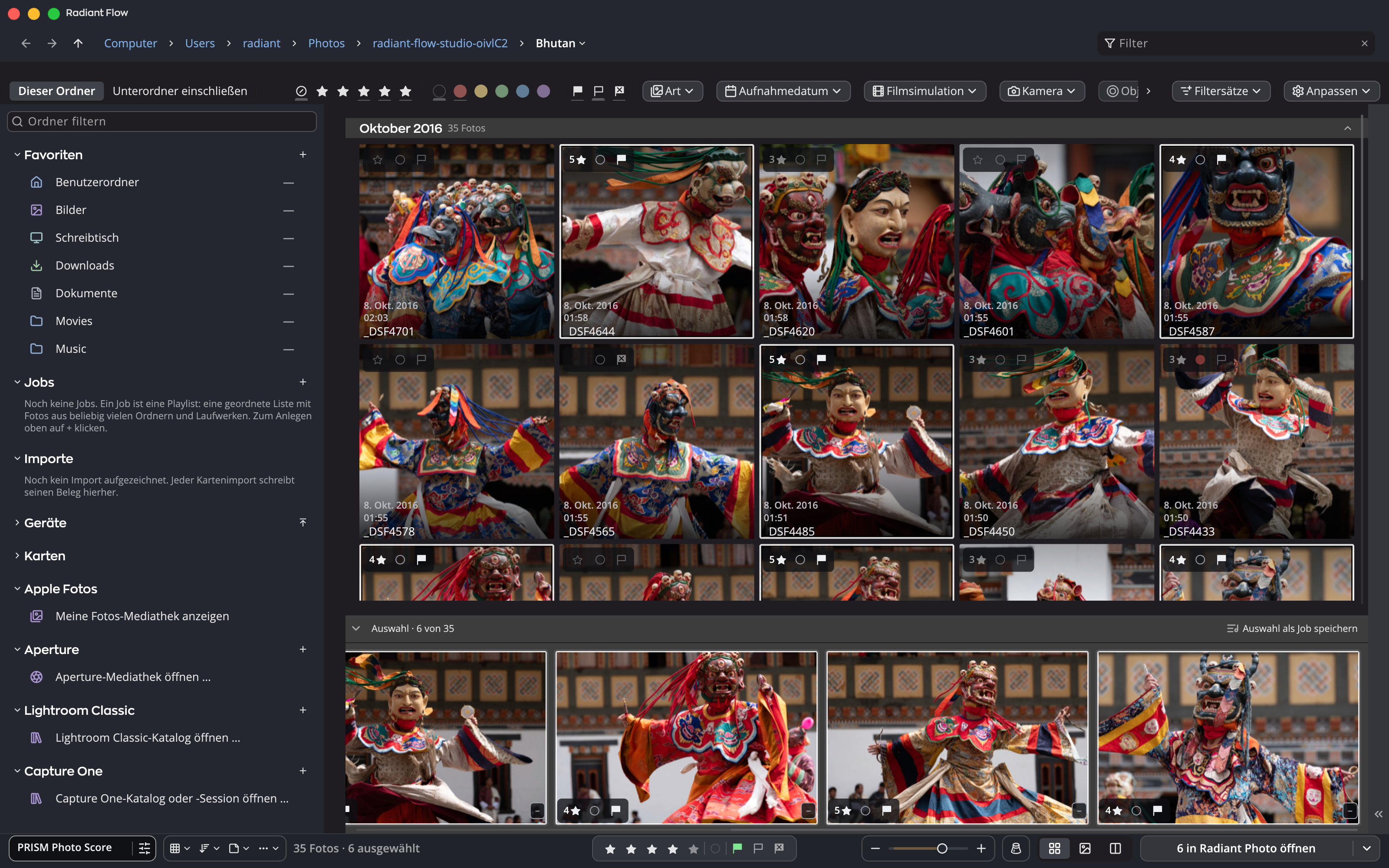
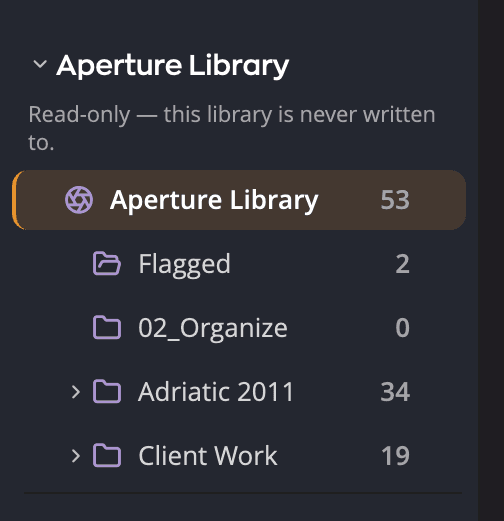
Radiant Flow shows an Aperture library in its sidebar, with its projects, folders and albums, and every photo in the grid. The thumbnails are the previews Aperture made, with your Aperture adjustments. Nothing is copied, and nothing in the library changes.
How it works
- In Radiant Flow, choose File › Open Aperture Library….
- Pick the library. On Windows, a library is an ordinary folder, so you pick that folder.
- The library appears in the sidebar’s Aperture section, marked read-only, and its photos open in the grid.
- Click a project, a folder or an album to show it, and filter by Rating, Flag, Label or Keywords.
Where you save time
- See it before you move itLook through the whole library first, and decide what is worth rescuing before a single file is copied.
- It works without the originalsBecause the thumbnails are Aperture’s own previews, you can look through a library even when its originals are on a drive that isn’t connected.
- It stays on the listEvery library you open stays in the sidebar, so you can come back to it. Remove from Sidebar takes one off the list and doesn’t touch the library.
Good to know
- It works with Aperture libraries and iPhoto libraries, including the copies Apple’s Photos migration leaves behind.
- While you look through a library, ratings, flags, labels and metadata can’t be changed, and file commands such as Rename and Move To are grayed out.
- A smart album shows a dash in place of a count, because Radiant Flow does not run its rule.
- Quick Look shows Aperture’s preview, which can look softer at 100% than the original would.