Radiant Imaging Labs

Works with · Capture One

Radiant and Capture One, on the same photos.

Capture One stays the home of your photos. Radiant Flow opens its catalogs and Sessions for a fast cull. Radiant Raw and Radiant Photo sit in its Edit With menu, and whatever you finish comes back as a new variant beside the original, which never changes.

InRadiant FlowRadiant RawRadiant Photo

  • Flow opens catalogs and Sessions
  • Marks sync both ways on a Mac
  • Raw and Photo under Edit With
  • Results return as new variants
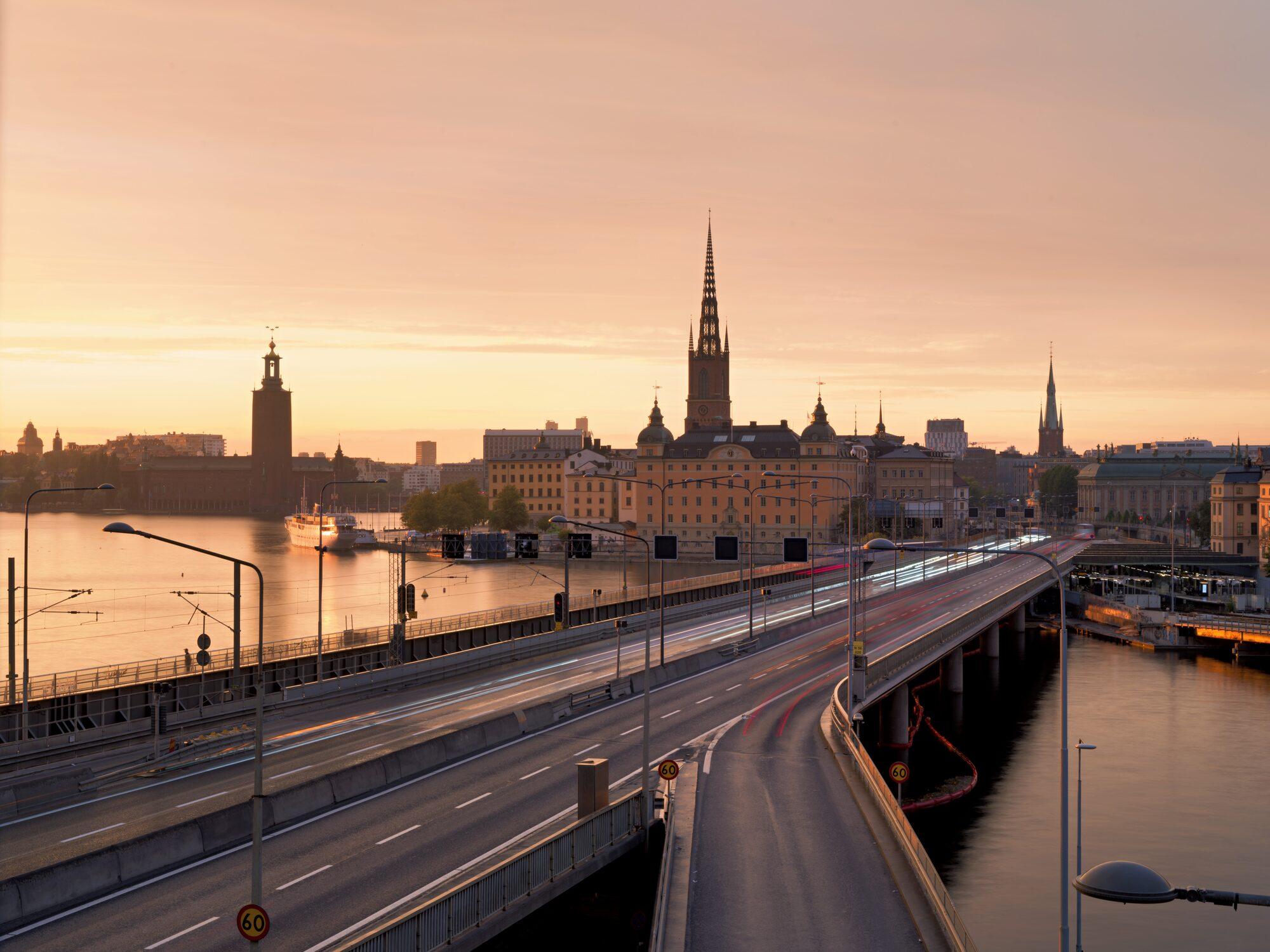
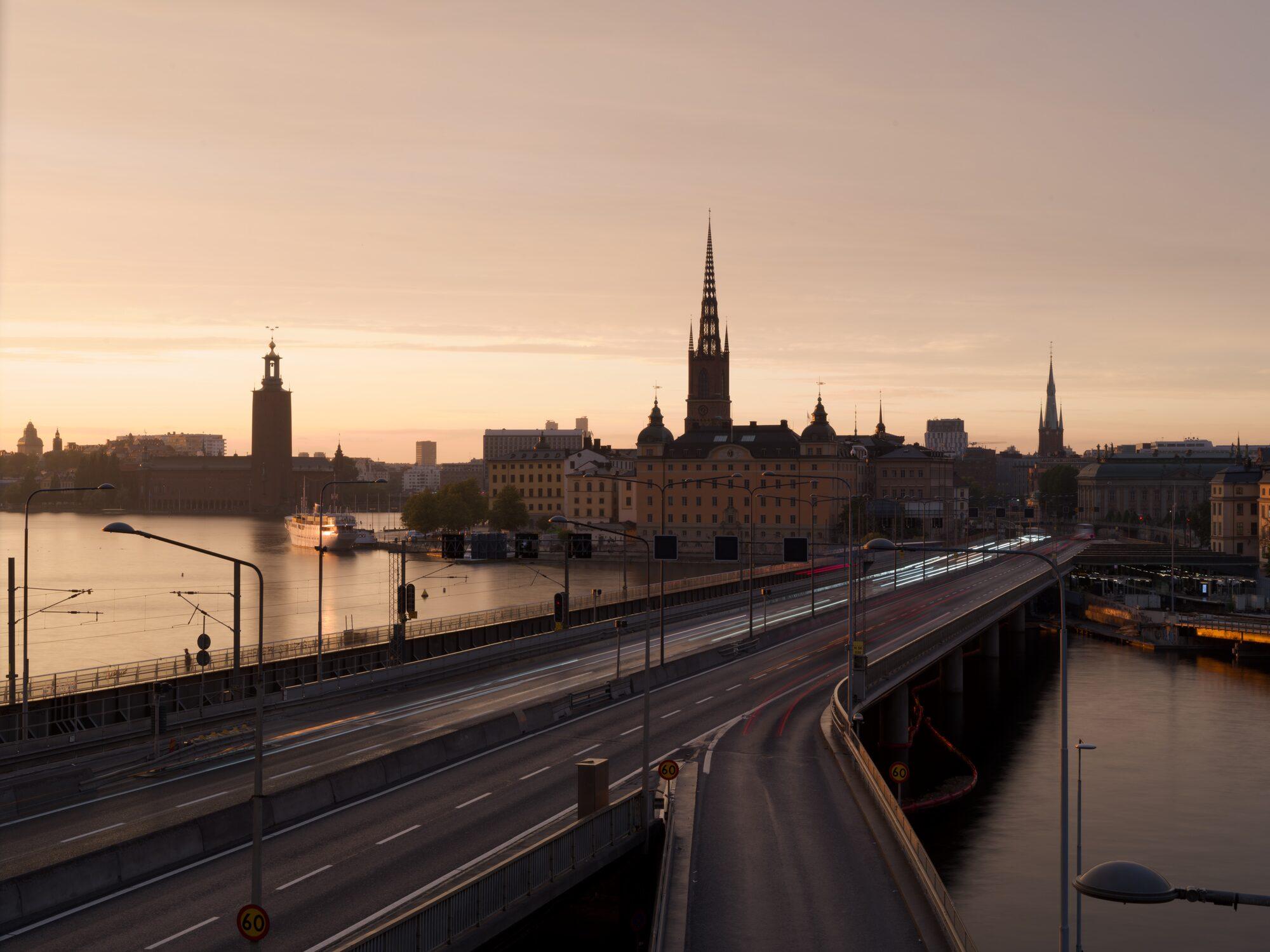
After: Golden light over Stockholm’s old town, traffic streaking past below.Before: Golden light over Stockholm’s old town, traffic streaking past below.
Photo: Elia Locardi

Three apps, one catalog

What each Radiant app does with Capture One.

Each has its own section below: how it works, step by step, what goes out and what comes back.

Radiant Flow

Your catalogs and Sessions, open in Radiant Flow.

Open Capture One Catalog or Session…Radiant Flow › File

Radiant Flow shows a Capture One catalog or Session beside your folders: All Images, its folders and its albums in the sidebar, every photo in a fast grid. It reads a copy, so you can browse while Capture One has the same catalog open.
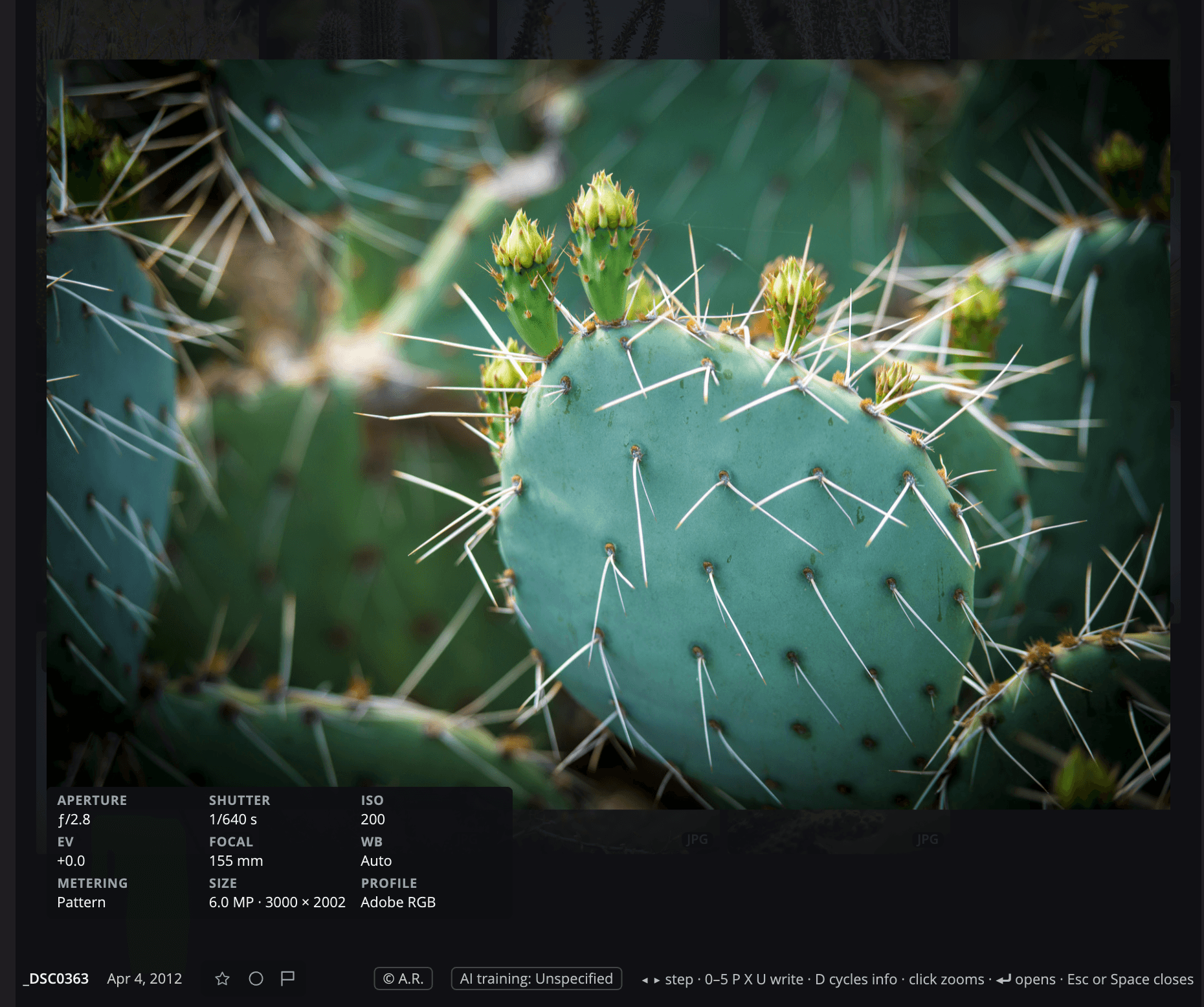
Quick Look in Radiant Flow: one photo large, its exposure details in a corner, and the rating bar and key hints under it.
Space opens one photo large. Space or Esc closes it.
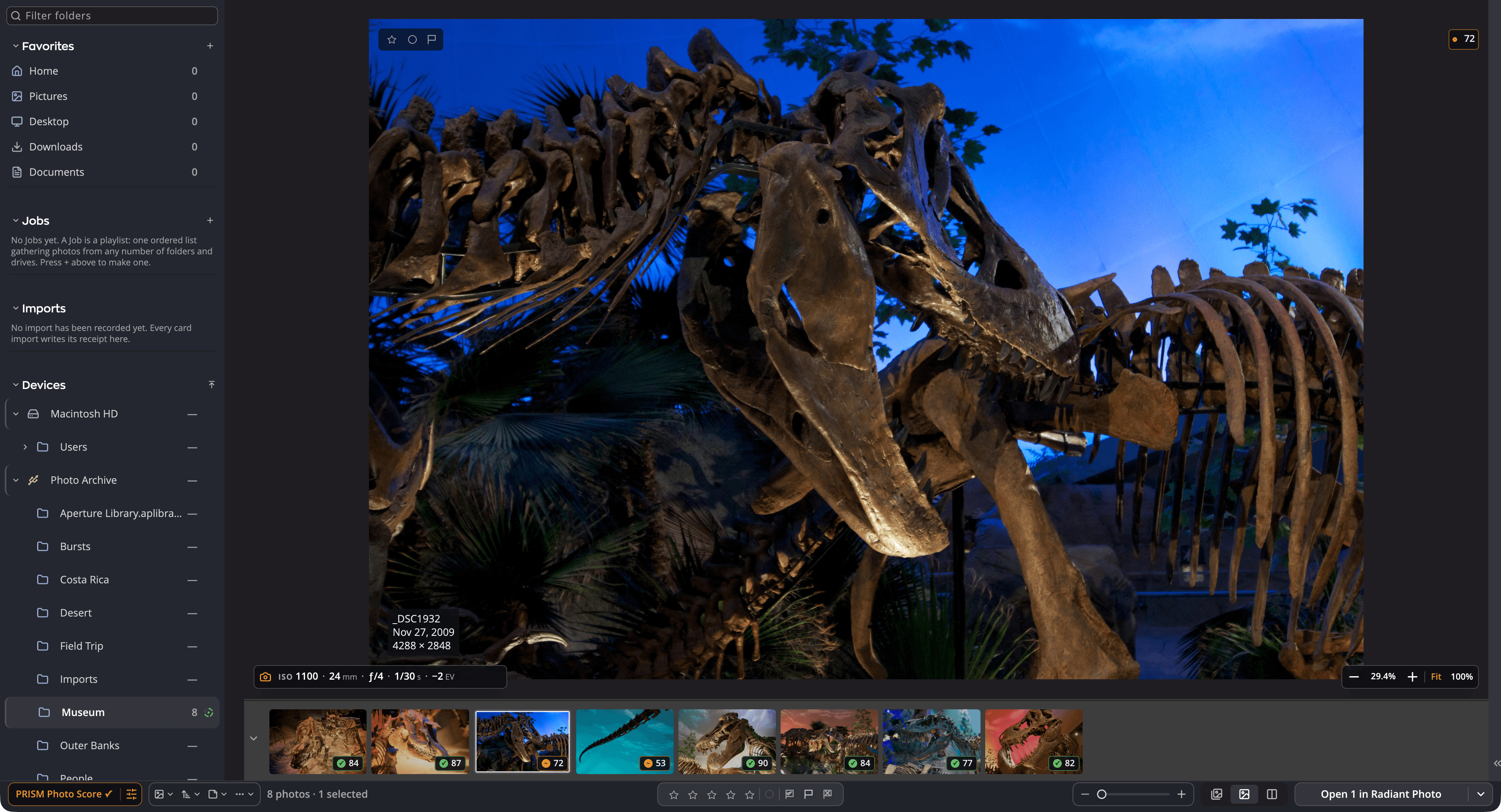
Single Photo in Radiant Flow: one photo fills the window, the sidebar on the left and a filmstrip of the others under it.
One photo at a time, with a filmstrip to move through the rest.

How it works

  1. In Radiant Flow, choose File › Open Capture One Catalog or Session….
  2. On a Mac, pick the catalog’s .cocatalog file, or the .cosessiondb file inside a Session’s folder. On Windows, pick the catalog’s .cocatalog folder or the Session’s folder.
  3. It appears in the sidebar under Capture One, and its All Images opens in the grid.
  4. Filter by rating, color tag or keyword, group by year, month or day, and look closer in Quick Look or Single Photo.
  5. Open the keepers in Radiant Photo.

Where you save time

  • Cull where culling is fastGet through a whole Session in Flow’s grid and Quick Look before you adjust a single photo in Capture One.
  • Nothing to import or moveFlow reads the catalog where it is. Your photos stay in their folders, and Capture One keeps track of them.
  • Straight to a photoOn a Mac, File › Show in Capture One brings Capture One to the front with that photo selected.

Good to know

  • Flow reads catalogs and Sessions from Capture One 16, and from Capture One 17 with the note Unverified version beside the name.
  • Flow shows your original files. A photo you adjusted in Capture One carries a small mark, and its adjustments show only on small thumbnails.
  • An image with two or more variants shows as one stack. Smart albums are listed but can’t be opened, and photos here can’t be moved or renamed from Flow.
Radiant Flow

Rate in Flow. Capture One has it a second later.

Let Radiant Flow control Capture OneSystem Settings › Privacy & Security › Automation

On a Mac, the ratings, color tags, keywords and captions you set in Radiant Flow go to Capture One, which makes each change in its own catalog. Nothing is written into your photo files, and no sidecar appears beside them.

Radiant Flow

No flags here: Capture One has none, so a photo in its catalog can’t be flagged.

What Capture One has

  • DSCF4266.RAFNo marks yet
  • DSCF4301.RAFNo marks yet
  • DSCF4340.RAFNo marks yet

Select a photo, then rate or label it.

A model of two-way sync on a Mac, not Capture One’s window. The pauses are the demo’s: Flow sends a change about a second after you make it, and tries again every 30 seconds while changes wait. On Windows, Radiant Flow only reads a catalog or Session. Photo: Elia Locardi

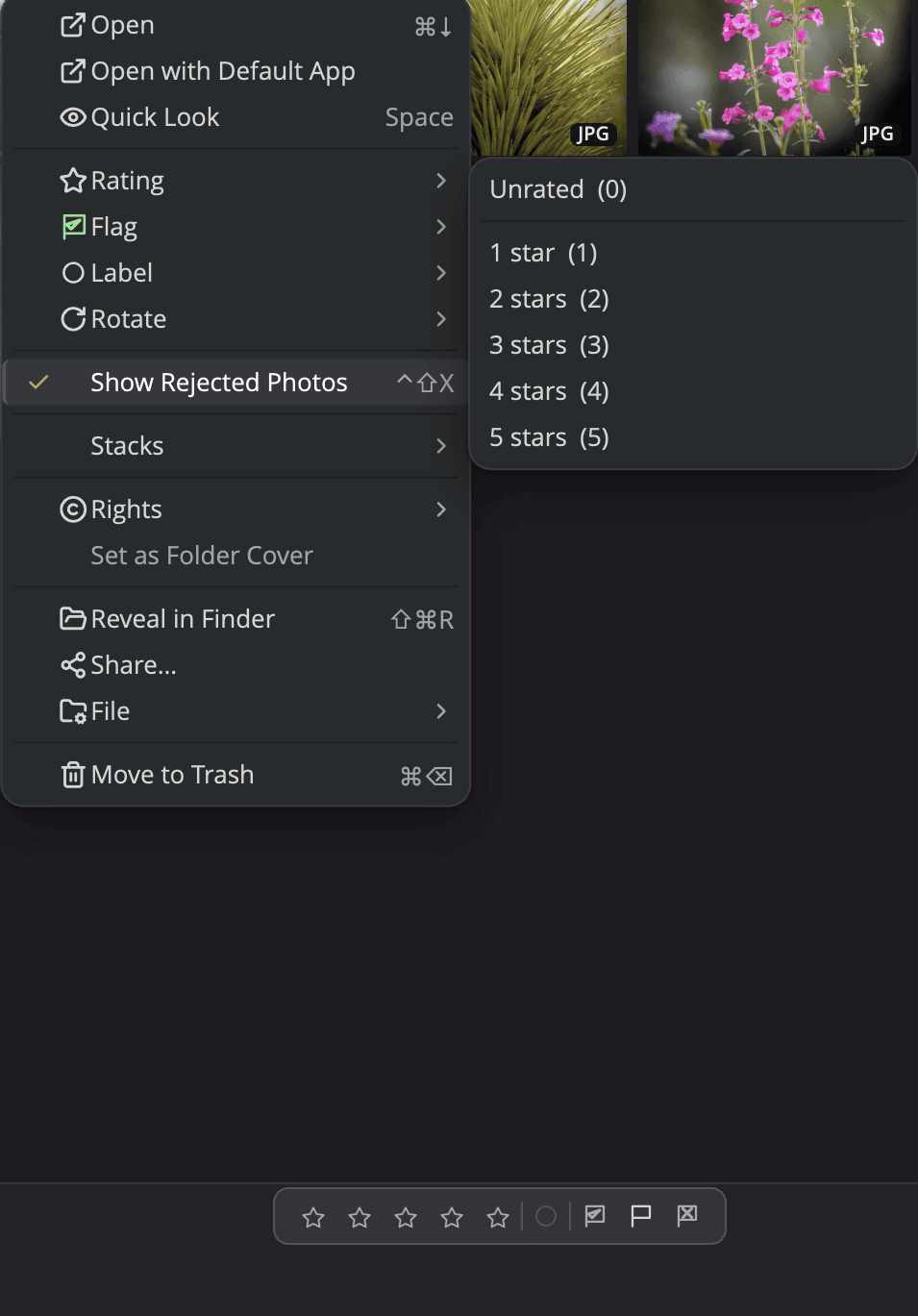
Radiant Flow’s Photo menu with Rating open, from Unrated to 5 stars, above the bar of stars, label and flags.

How it works

  1. Open the catalog or Session in Radiant Flow, with Capture One running and the same catalog open.
  2. The first time, macOS asks whether Radiant Flow may control Capture One. Click Allow.
  3. Rate, label, add keywords or write a caption in Flow.
  4. About a second later Capture One has the change. A label becomes the color tag of the same color.
  5. While Capture One is closed, or has another catalog open, your changes wait and go when it is back.

Where you save time

  • Cull onceThe stars and color tags from your cull are already in Capture One when you start adjusting. Nothing to mark twice.
  • It catches up by itselfChanges made while Capture One was closed wait, even when you quit Flow, and go the next time the catalog is open in both.
  • A record of what changedSync History in Flow’s Metadata panel shows what became of each change to a photo.

Good to know

  • On Windows, Flow only reads the catalog or Session. Make those changes in Capture One, then refresh it in Flow.
  • Flags, the location and a gray label can’t go: Capture One has no flags and no gray color tag, and doesn’t let another app change a location.
  • If a photo changed in both apps, Settings › Sidecars › When a photo changes in two apps decides which change stays. Keywords from both are always kept.
  • Two-way sync is tested with Capture One 16.9.

Radiant Flow

Hand a finished cull to Capture One as a Session.

Send Job to › Capture One…Radiant Flow › File

Culled a shoot in plain folders? Send the Job to Capture One and Radiant Flow builds a new Session from copies of the photos, with your ratings and color labels beside each one in XMP, where Capture One reads them when it first meets the files.

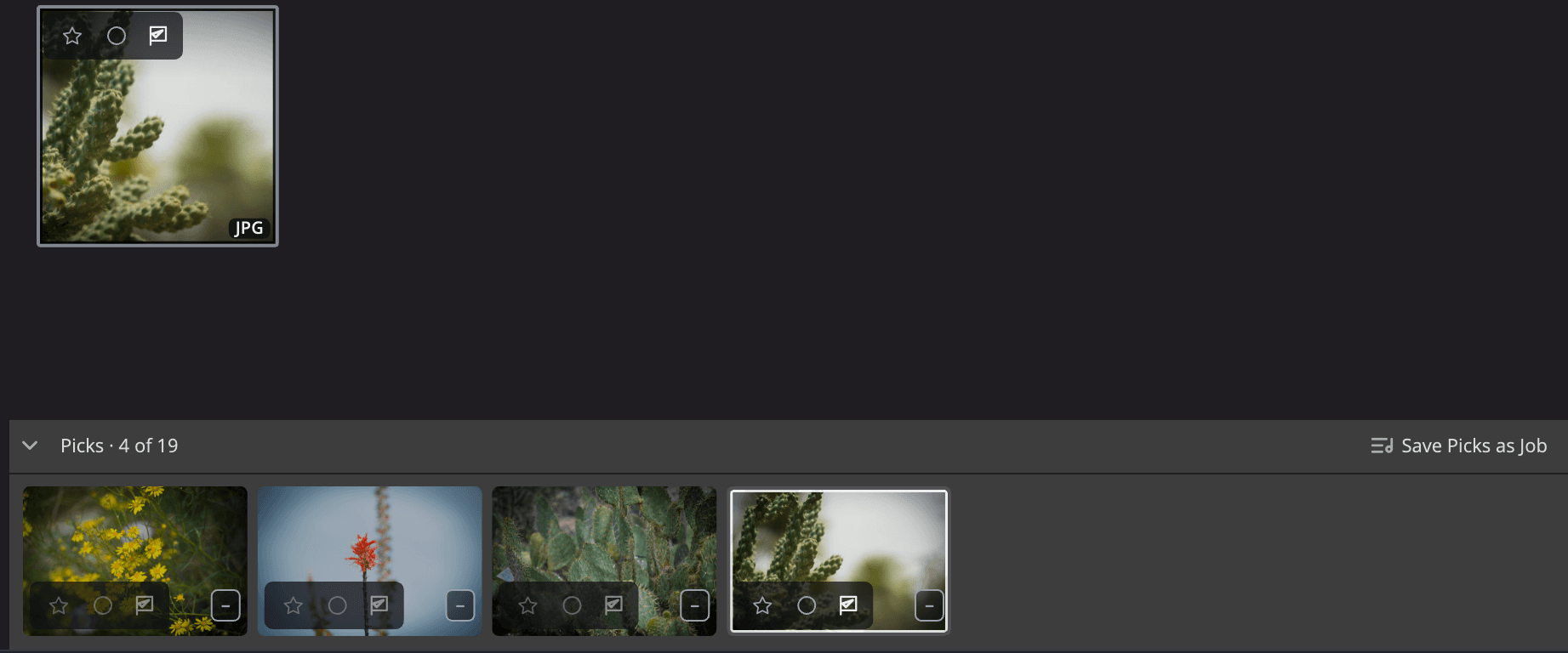
The Picks strip in Radiant Flow: four picked photos of 19, and the button Save Picks as Job.

How it works

  1. In Radiant Flow, open the Job and choose File › Send Job to › Capture One….
  2. Under Send, choose All members or Picks, then set the Place and the Session name.
  3. With Put picks in Selects, the rest in Capture on, your picks wait in the Session’s Selects folder.
  4. Click Send. With Open the Session in Capture One on, Capture One opens it.

Where you save time

  • A Session that starts sortedYour picks are in Selects and the rest in Capture before you have opened Capture One. The cull is not repeated.
  • Your originals stay putThe Session is made of copies. The photos you culled stay where they were, with their own sidecars.
  • Send only what changedReceipts… keeps each send, and Send changes… updates the same Session with the photos you changed since.

Good to know

  • Flow never writes Capture One’s database. The marks travel in each copy’s XMP.
  • After a later Send changes…, Capture One shows the new marks only when its Auto Sync Sidecar XMP setting is Load or Full Sync.

Radiant Raw

Develop the raw in Radiant Raw. Keep the catalog.

Radiant RawCapture One › Image › Edit With

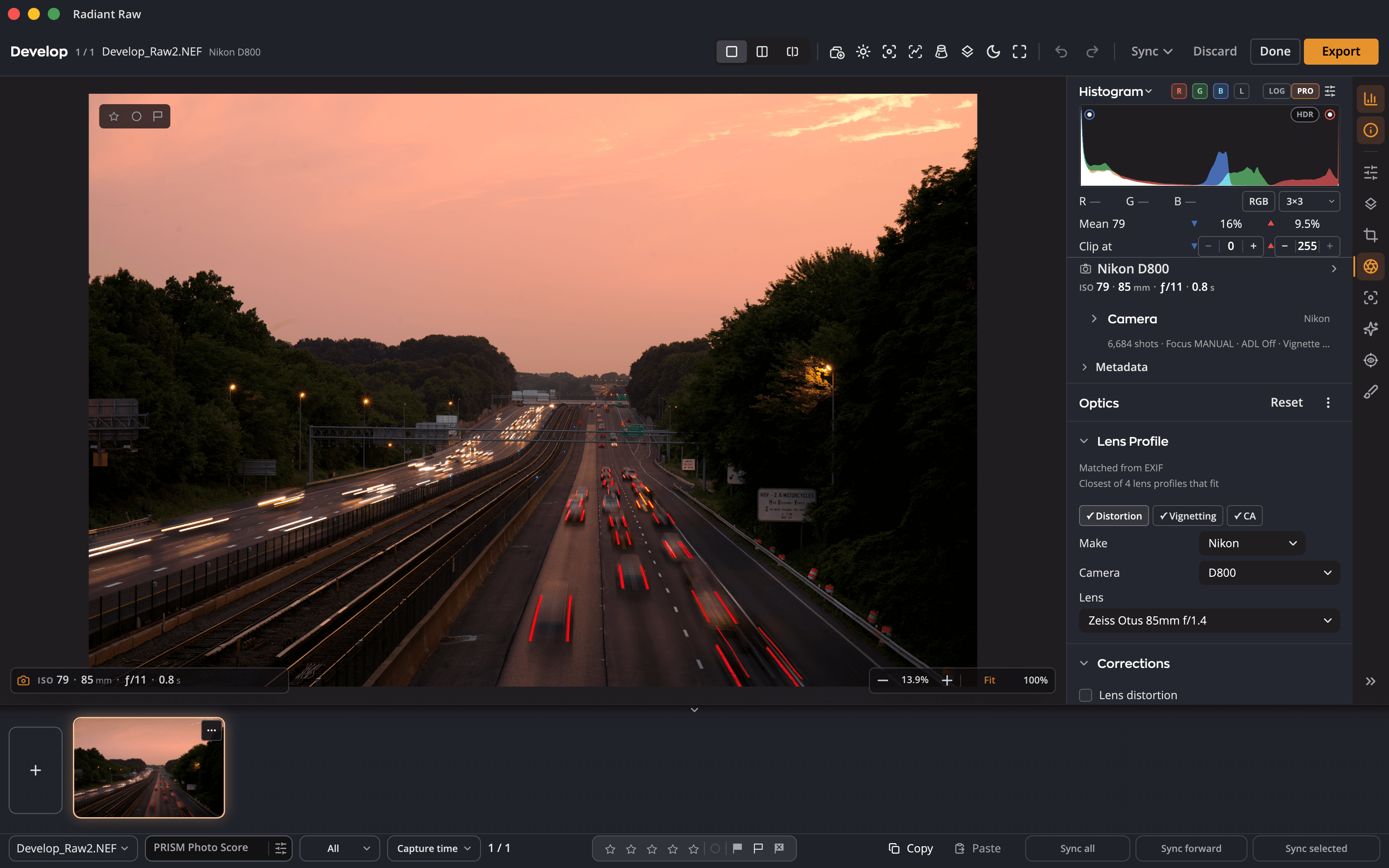
When your selection includes a raw photo, Edit With also lists Radiant Raw. It sends each photo’s original raw file, not a copy Capture One made, and what you develop comes back as a new variant beside it.

Radiant Raw’s develop window on the Optics page, with a raw file open.

How it works

  1. In Capture One, select one or more raw photos and choose Image › Edit With › Radiant Raw.
  2. Keep the settings of the plug-in’s recipe and start the edit. The raw file itself is what goes.
  3. Radiant Raw opens with the photos, and Capture One waits for you.
  4. Develop them, then click Done to bring every photo back. Cancel brings none back.
  5. Each comes back as a 16-bit TIFF beside its raw file, named after it: IMG_0001.CR3 returns as IMG_0001-Radiant.tif.

Where you save time

  • The raw itself, not a renderingRadiant Raw gets the original raw file, so nothing is baked in before you start developing.
  • Back where you can find itCapture One adds the TIFF as a new variant beside the original, so the result is in the catalog without an import.
  • Your develop is keptRadiant Raw saves every setting for the photo beside the raw file, in IMG_0001.CR3.radiant.

Good to know

  • It needs Radiant Raw, installed, activated and opened once, and Radiant Photo on the same computer: Radiant Photo’s installer adds the plug-in to Capture One.
  • The result is a TIFF, not stacked with its original. There is no DNG choice here, as there is in Lightroom Classic.
  • Send photos from one folder at a time. On a Mac, Capture One otherwise asks where to keep the results.
  • For a raw file in a Session that Radiant Raw hasn’t developed yet, a banner offers what you set in Capture One: crop, straighten, white balance, exposure and curves. Click Read them in, or Ignore them.

Radiant Photo

Finish a variant in Radiant Photo, and get it back.

Radiant PhotoCapture One › Image › Edit With

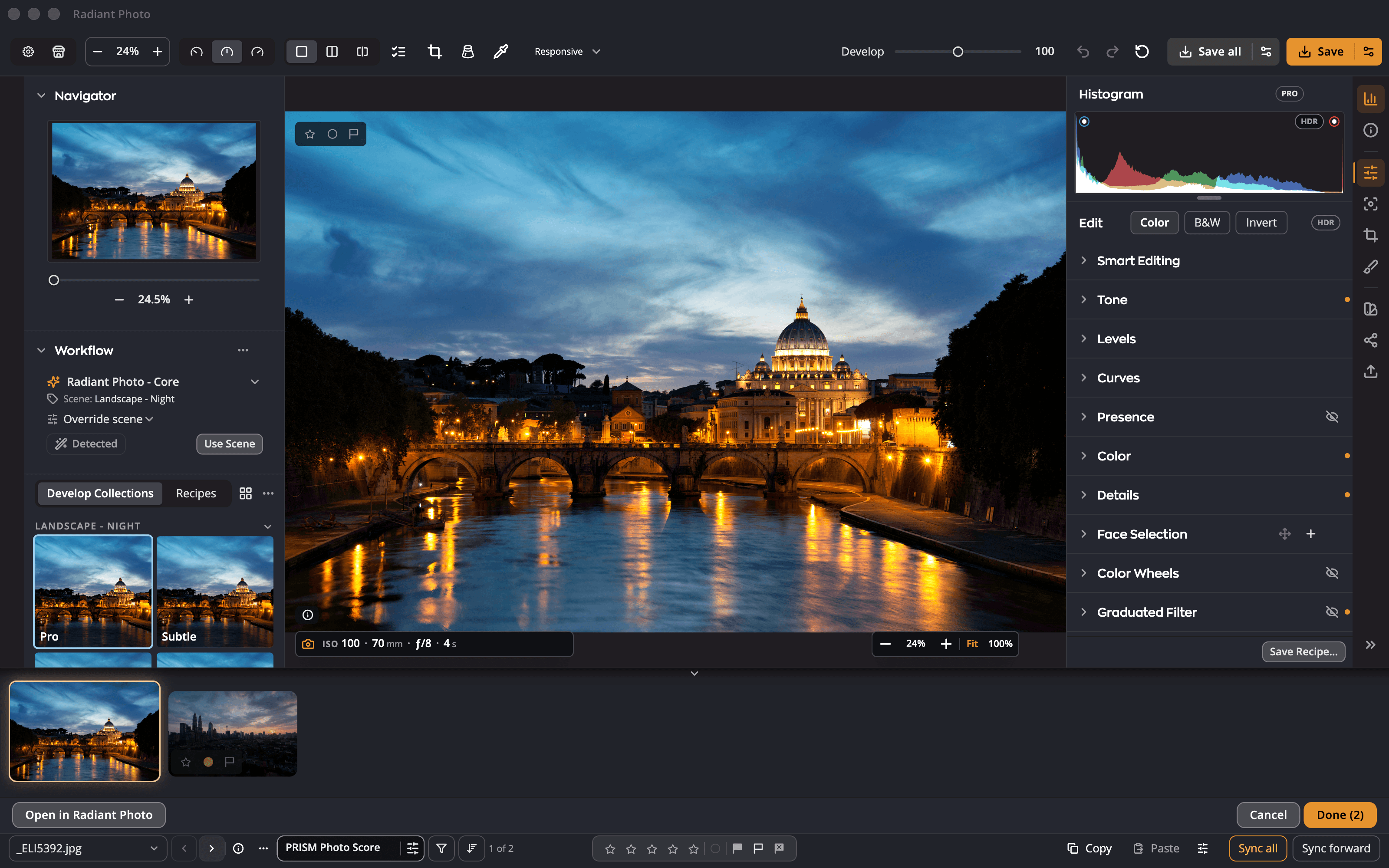
Select one variant or forty and choose Radiant Photo. Capture One renders each with your adjustments and crop, every Radiant Photo tool is there to finish it, and Done sends each one back as a new variant.

Dubai’s towers rising out of morning fog at sunrise.
Capture One
  1. Capture One

    DSCF4412.RAFYour variant, with its adjustments.

    What goes outA 16-bit Adobe RGB (1998) TIFF, rendered with your adjustments and crop.

  2. Radiant Photo Host

    What comes backDSCF4412-Radiant.tif

  3. Capture One

One variant is selected in Capture One.

A model of the round trip, not Capture One’s window. The photo is real: as shot, and as finished in Radiant Photo. Photo: Elia Locardi

Radiant Photo Host with two photos sent from Capture One: Open in Radiant Photo, Cancel and Done on the bar under the filmstrip.

How it works

  1. In Capture One, select one or more variants and choose Image › Edit With › Radiant Photo.
  2. Keep the settings of the plug-in’s recipe and start the edit.
  3. Radiant Photo Host opens with every variant. A bar under the photo shows Cancel and Done.
  4. Edit as usual, then click Done to send every photo still open back to Capture One. Cancel sends none back.

Where you save time

  • Your Capture One work goes with itThe photo arrives with your adjustments and crop applied, as a 16-bit Adobe RGB (1998) TIFF, with its keywords, rating, copyright and GPS location.
  • It never interrupts youJobs from Capture One run in Radiant Photo Host, a separate app that comes with Radiant Photo, so whatever you have open in Radiant Photo stays as it is.
  • Carry on from your editSend a result to Radiant Photo again, and Reopen Previous Settings edits the photo it was made from, starting from that edit. Start Over edits the result as it is now.

Good to know

  • Your original variant and its adjustments don’t change. The result is a new variant beside it.
  • Reopen Previous Settings starts from the render made at the first edit, so later changes to the original in Capture One aren’t picked up.
  • On a Mac, Radiant Photo Host needs Full Disk Access, as Radiant Photo does: it writes the edited files into your photos’ folders.

Radiant Photo

One Look. One Strength. Apply.

Radiant Photo Quick LookCapture One › Image › Edit With

For when a set needs a style, not an editing session. Radiant Photo Host shows the photo before and after, you choose one Look and its Strength, and every selected variant comes back with it. Those two controls are all there is: try them here.

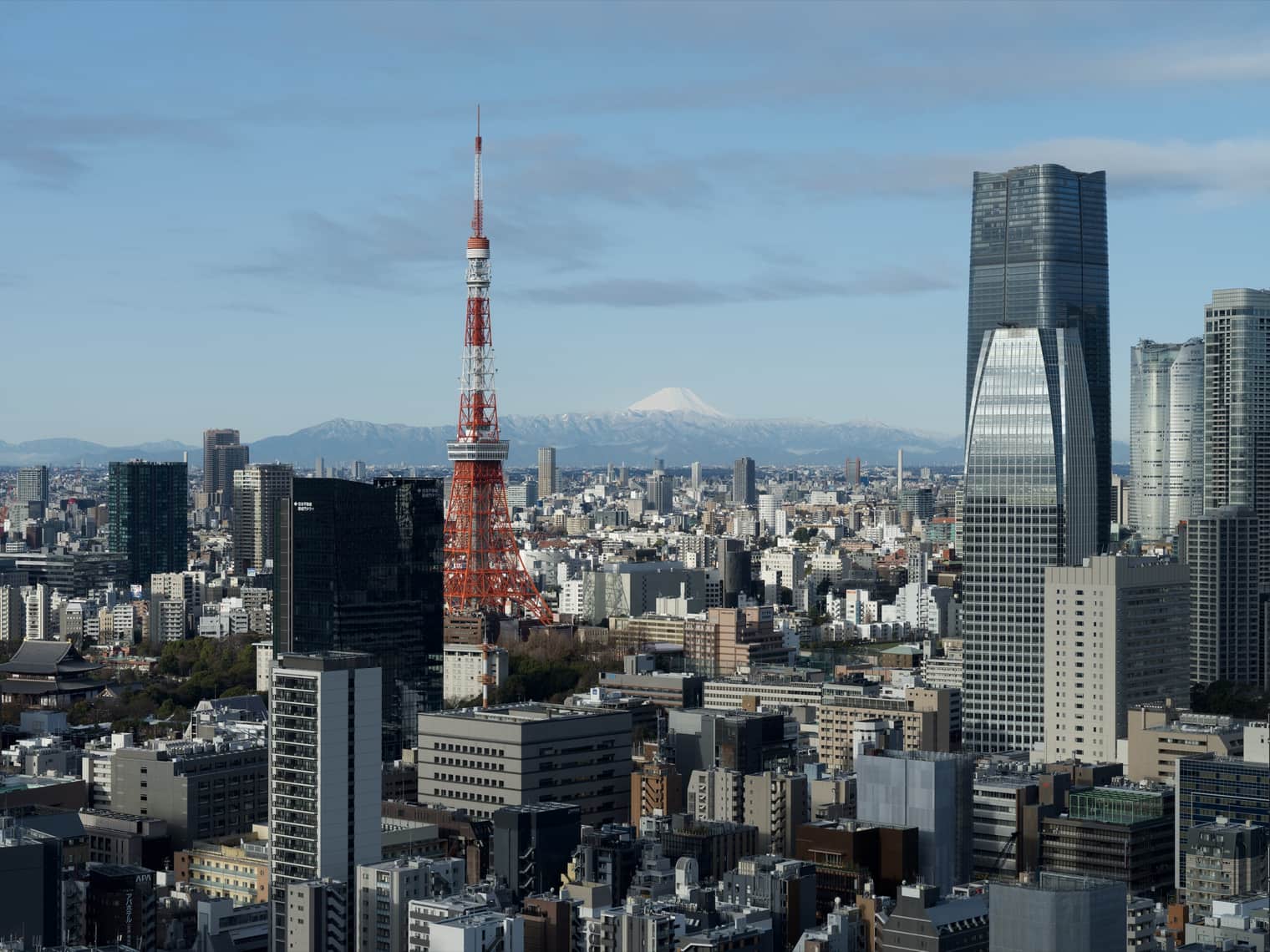
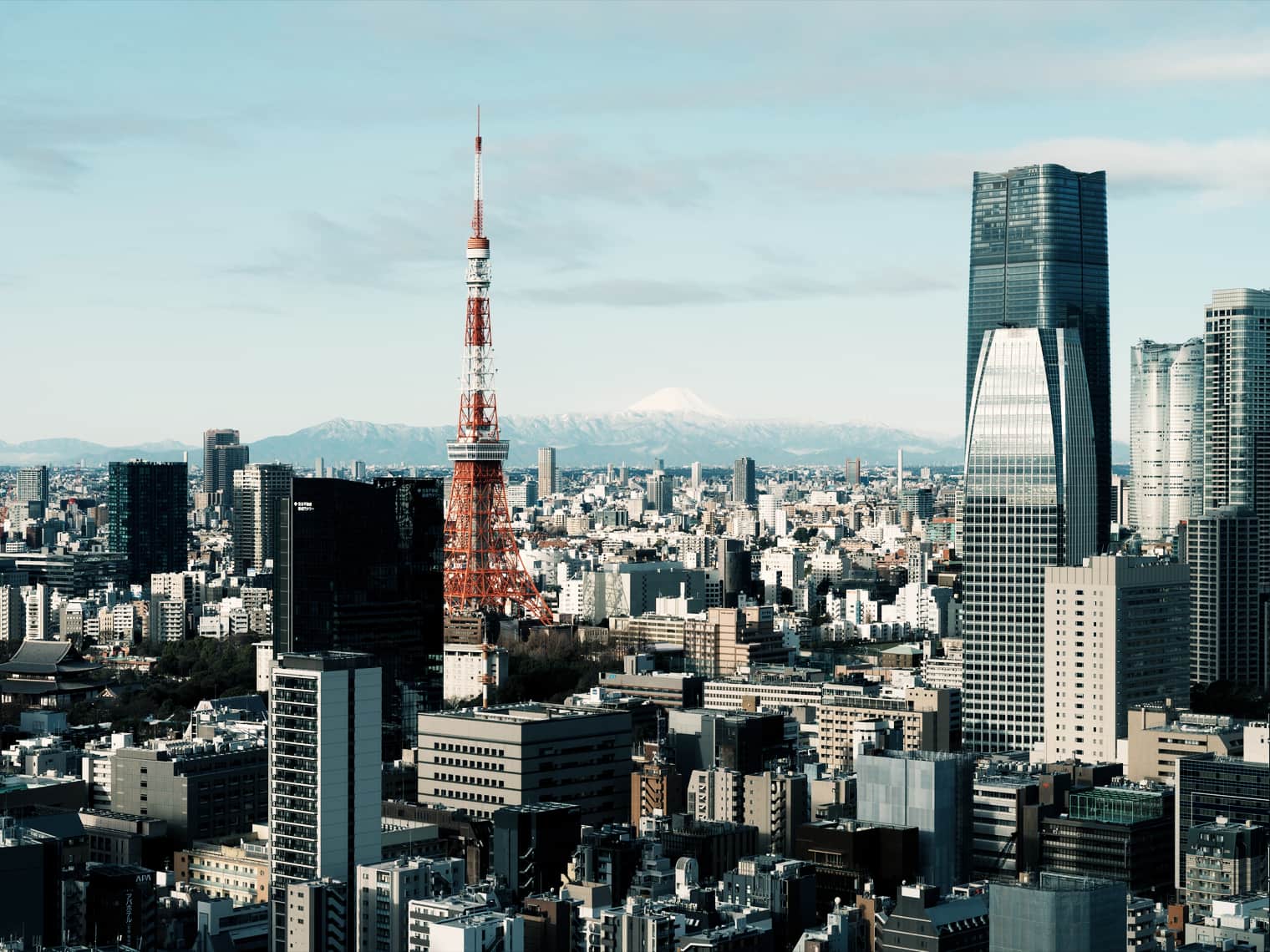
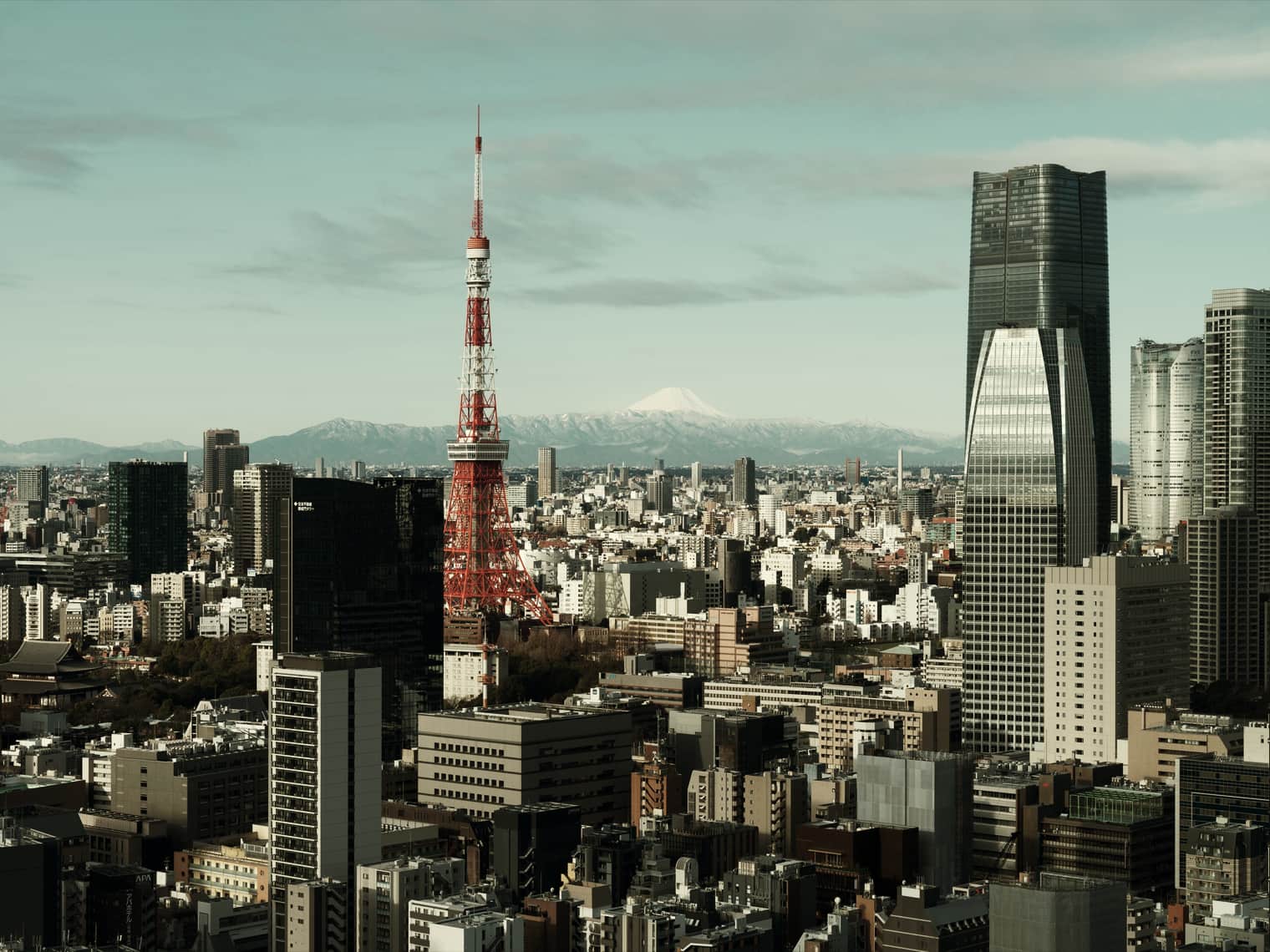
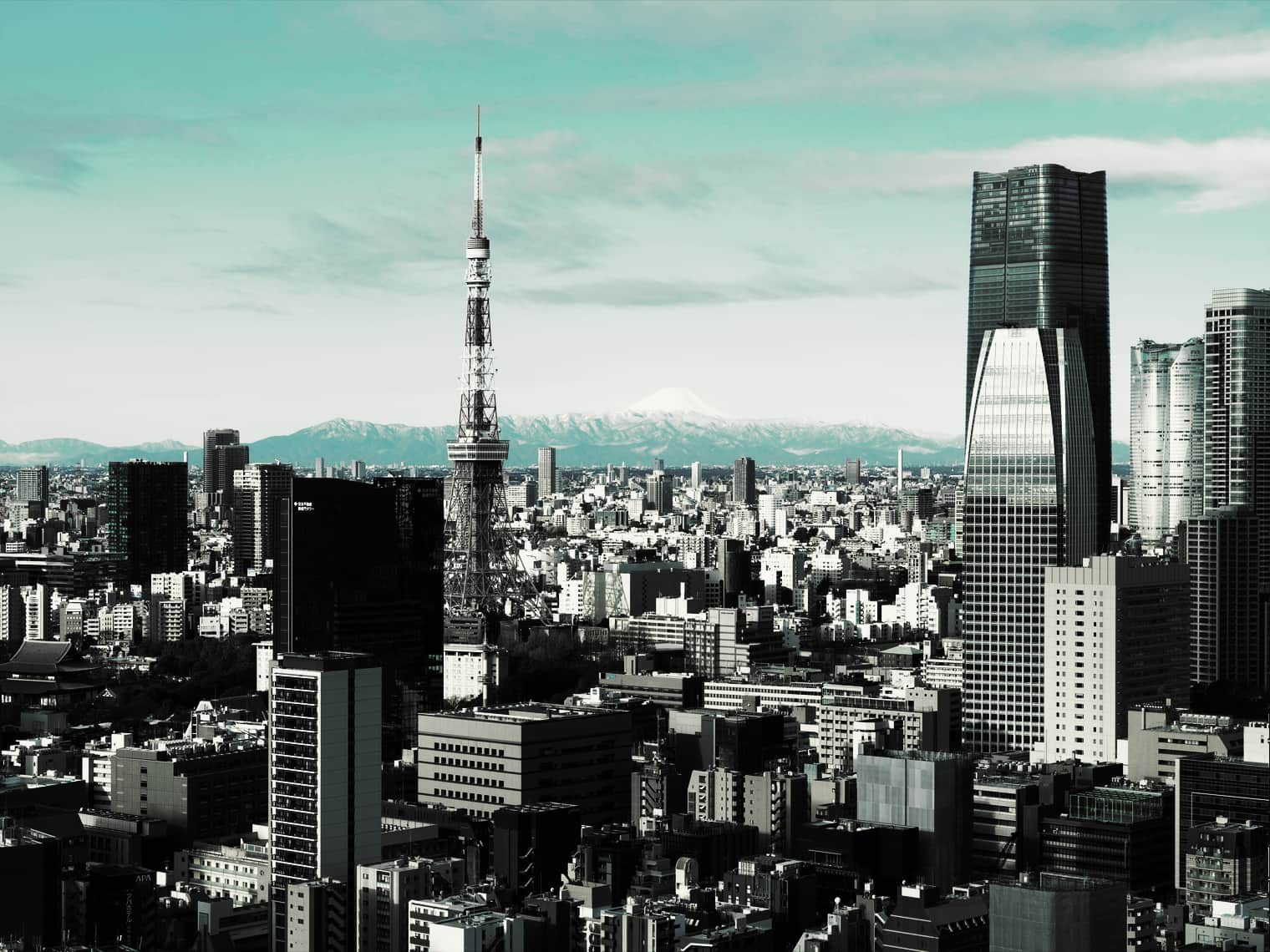
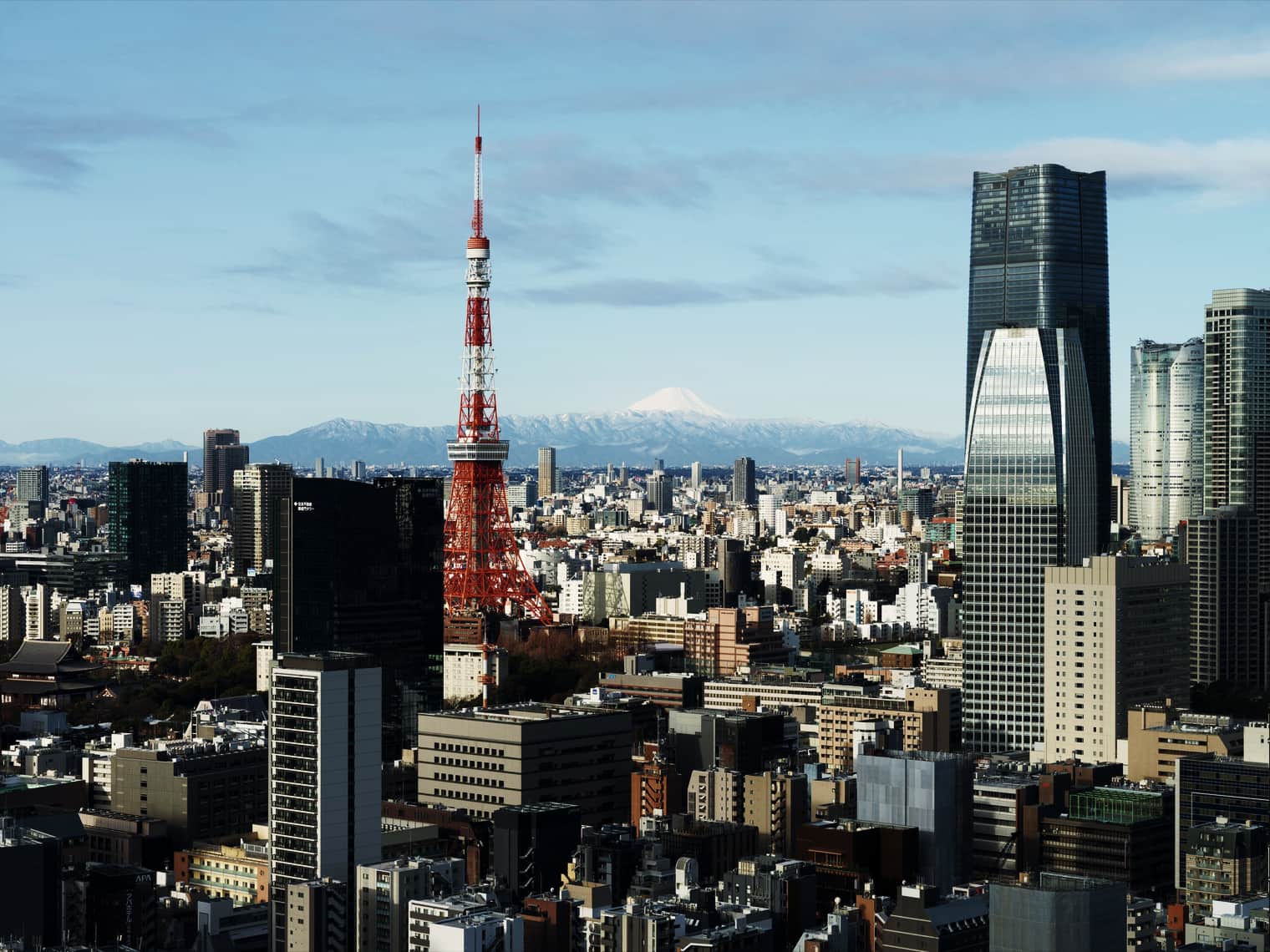
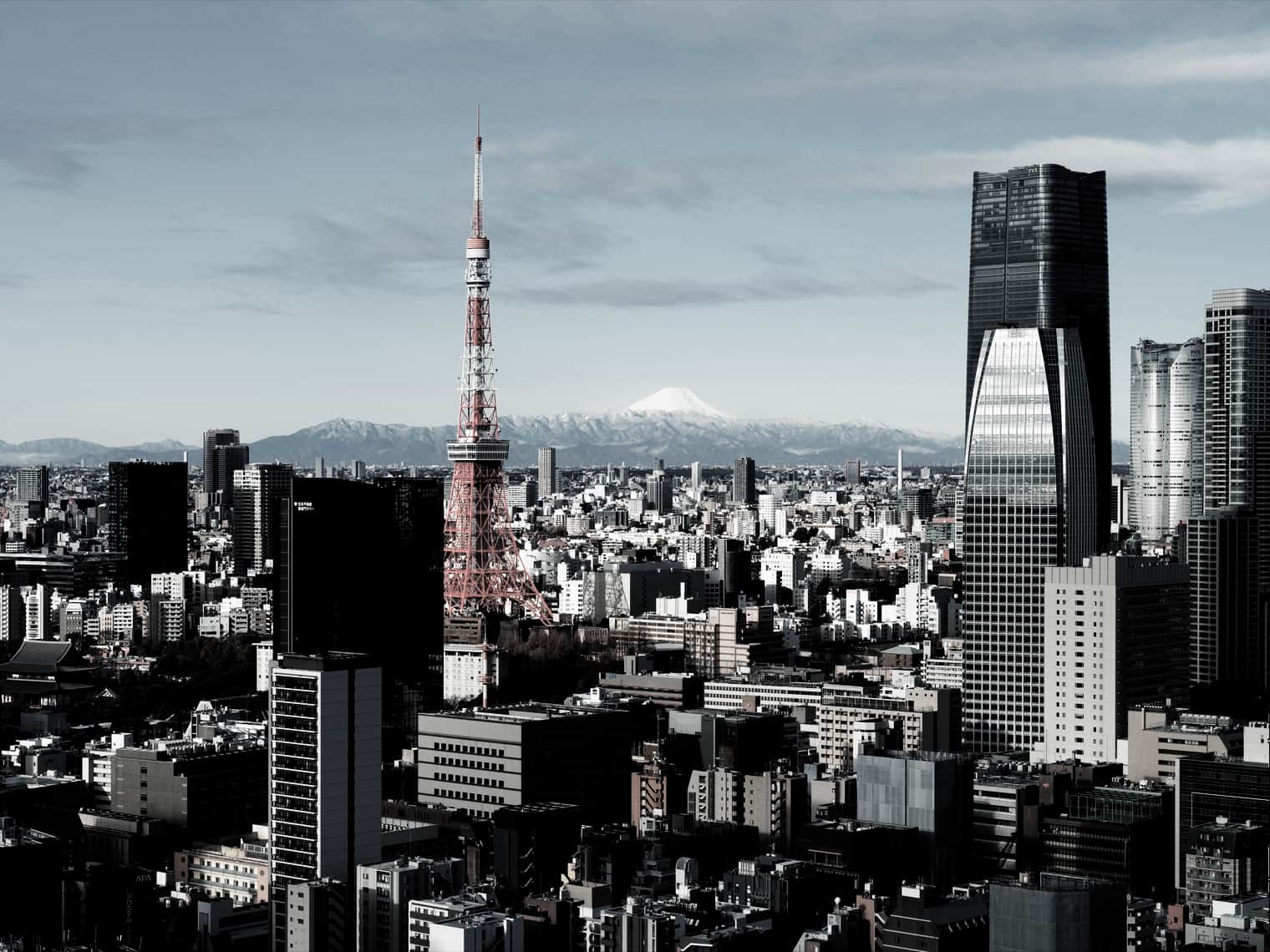
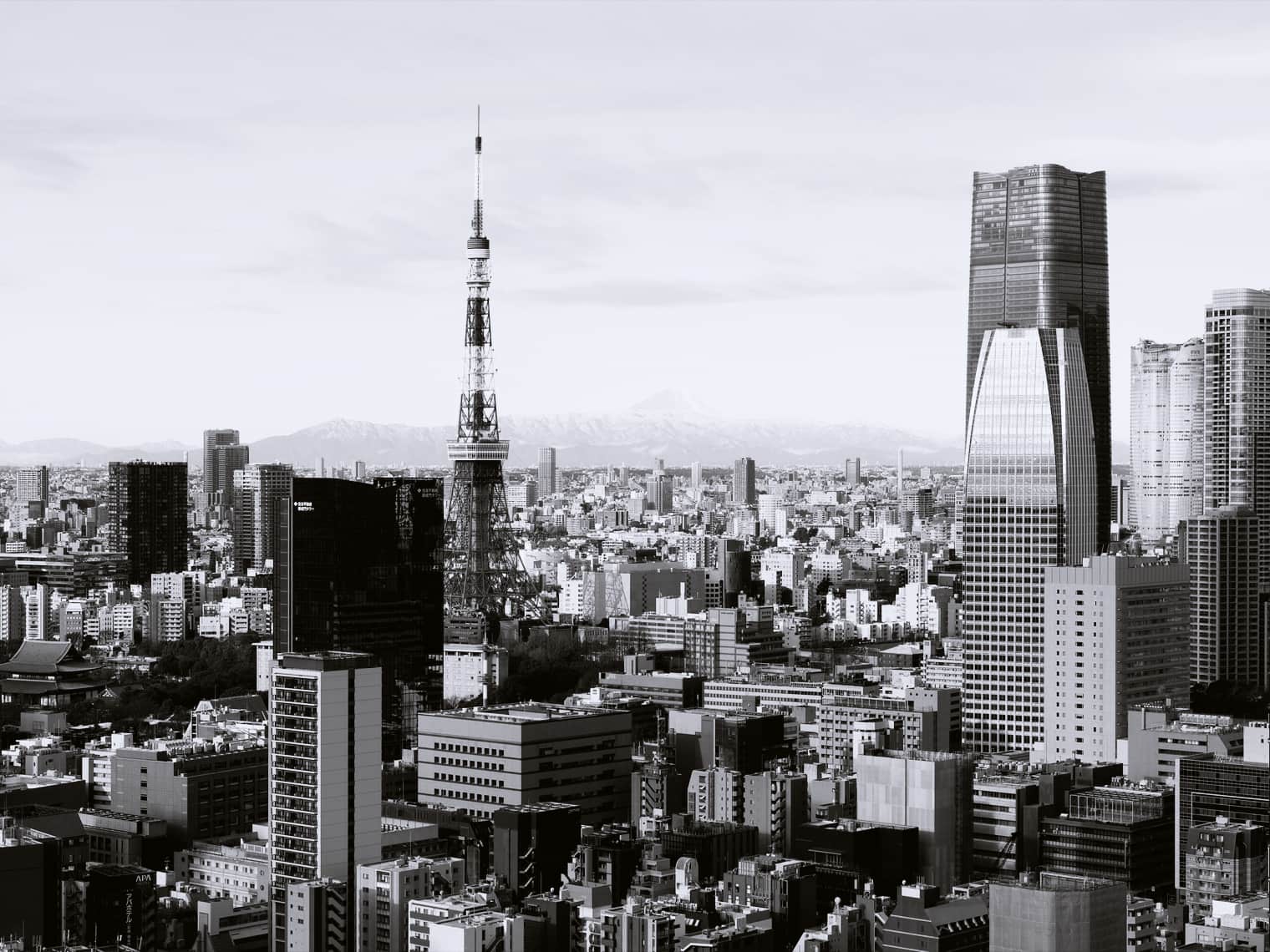
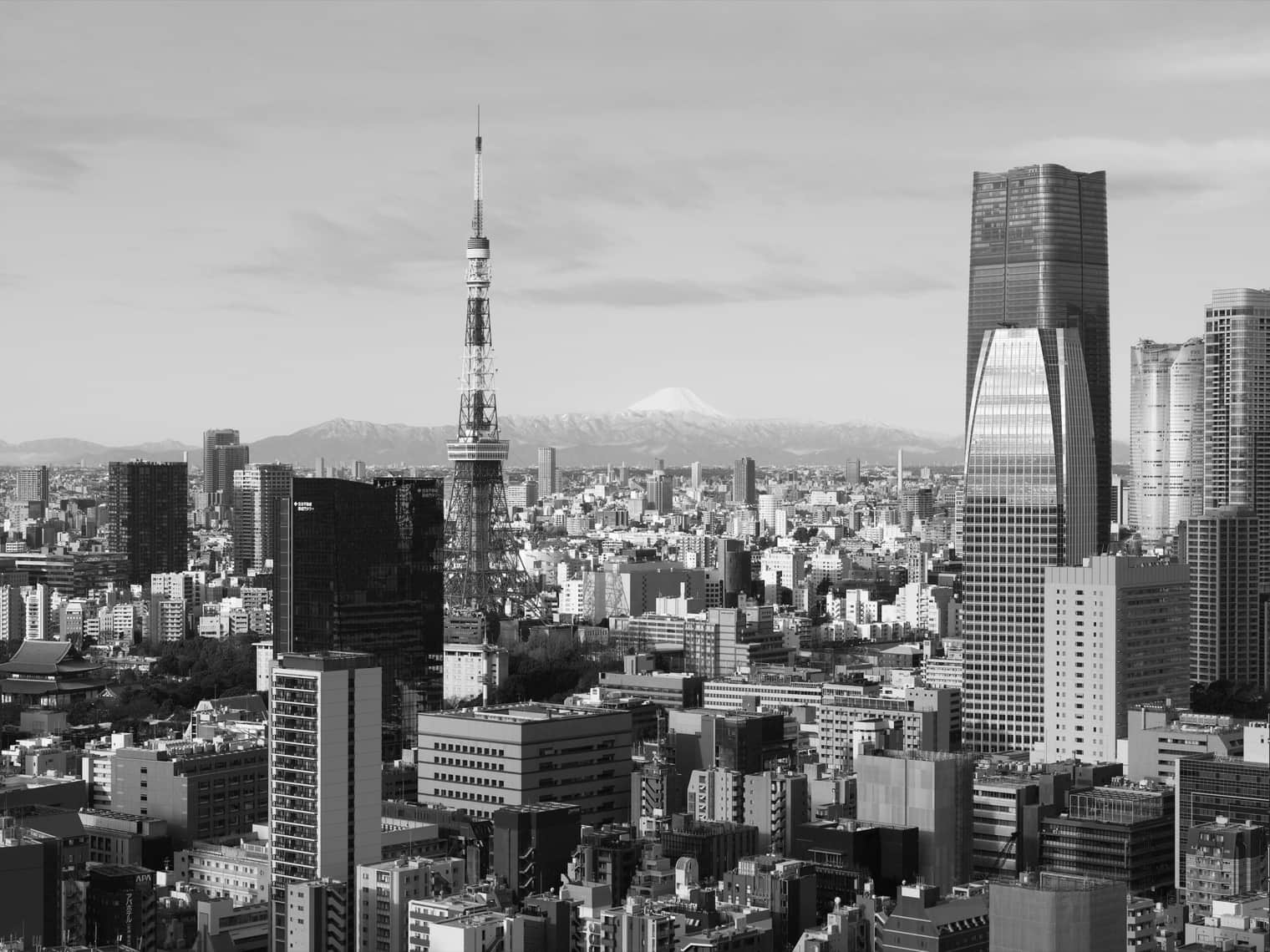
Tokyo Tower, with Mount Fuji on the horizon.

Look Browser

A demo on this page with nine of Radiant Photo’s Looks on one photo. Each picture was made ahead of time from the Look’s own color table. The demo’s Strength stops at 100; in the app it goes on to 200. In Radiant Photo, the Look Browser shows every Look on your own photo as you point at it.

Photo: Elia Locardi

How it works

  1. In Capture One, select one or more variants and choose Image › Edit With › Radiant Photo Quick Look.
  2. Keep the recipe’s settings and start the edit.
  3. Choose a Look and set its Strength.
  4. Click Apply. With several photos, the button shows how many. Each comes back to Capture One as a new variant.

Where you save time

  • A style without a sessionNo panels, no pages of sliders. Two controls stand between your selection and a finished set.
  • A way out when you need itMore Edits in Radiant Photo opens the same photos in the full editor the moment one of them deserves more.

Good to know

  • Cancel sends none back.
  • It works the same on a Mac and on Windows.

Radiant Photo

Finished files in a folder, and no editor opens.

Radiant PhotoCapture One › Image › Publish

For the proofs that just need to look right. Publish gives each variant its own Perfect Look and saves the result in a folder you choose. Radiant Photo Host makes the files, the editor never opens, and nothing is added to Capture One.

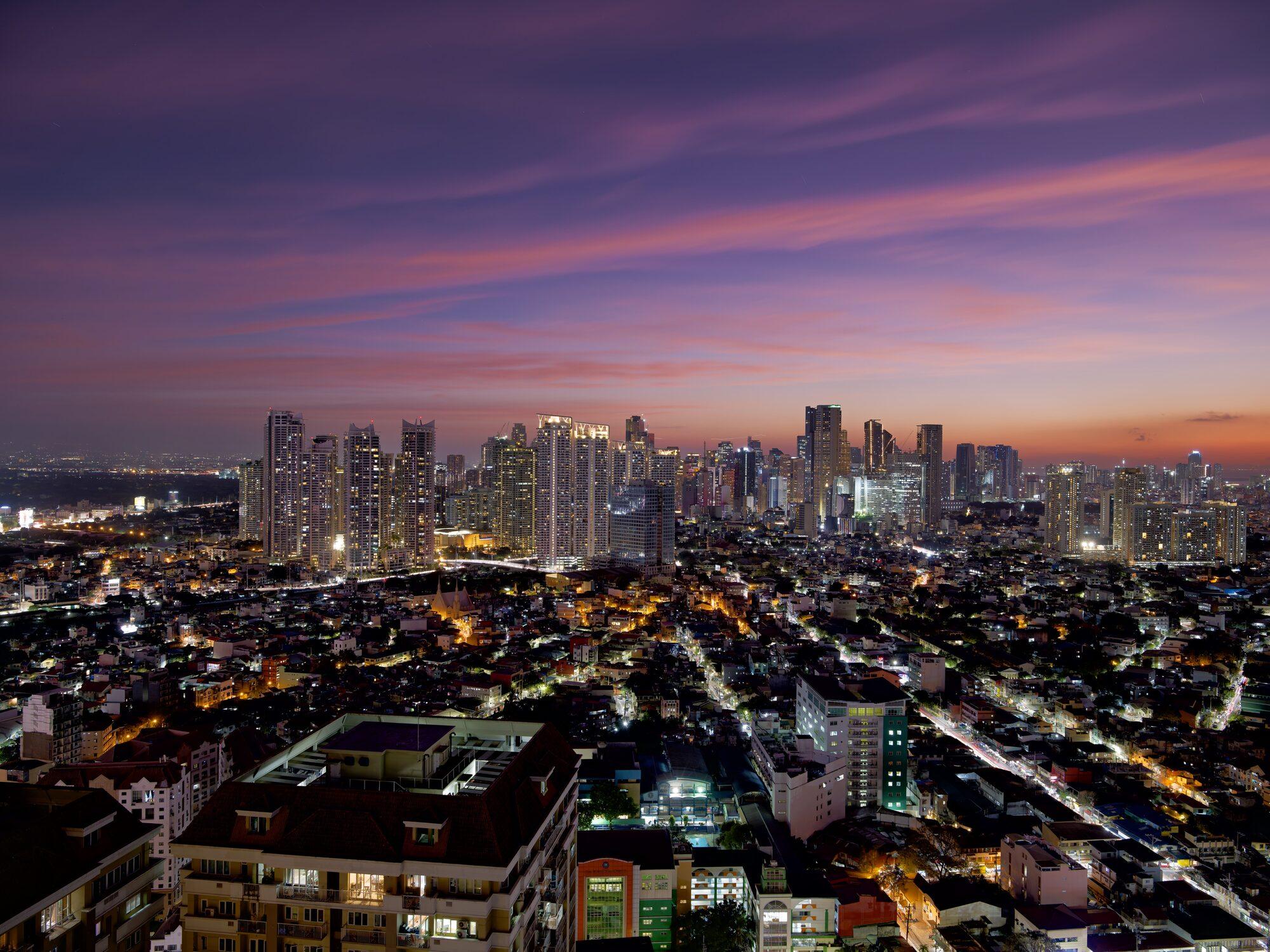
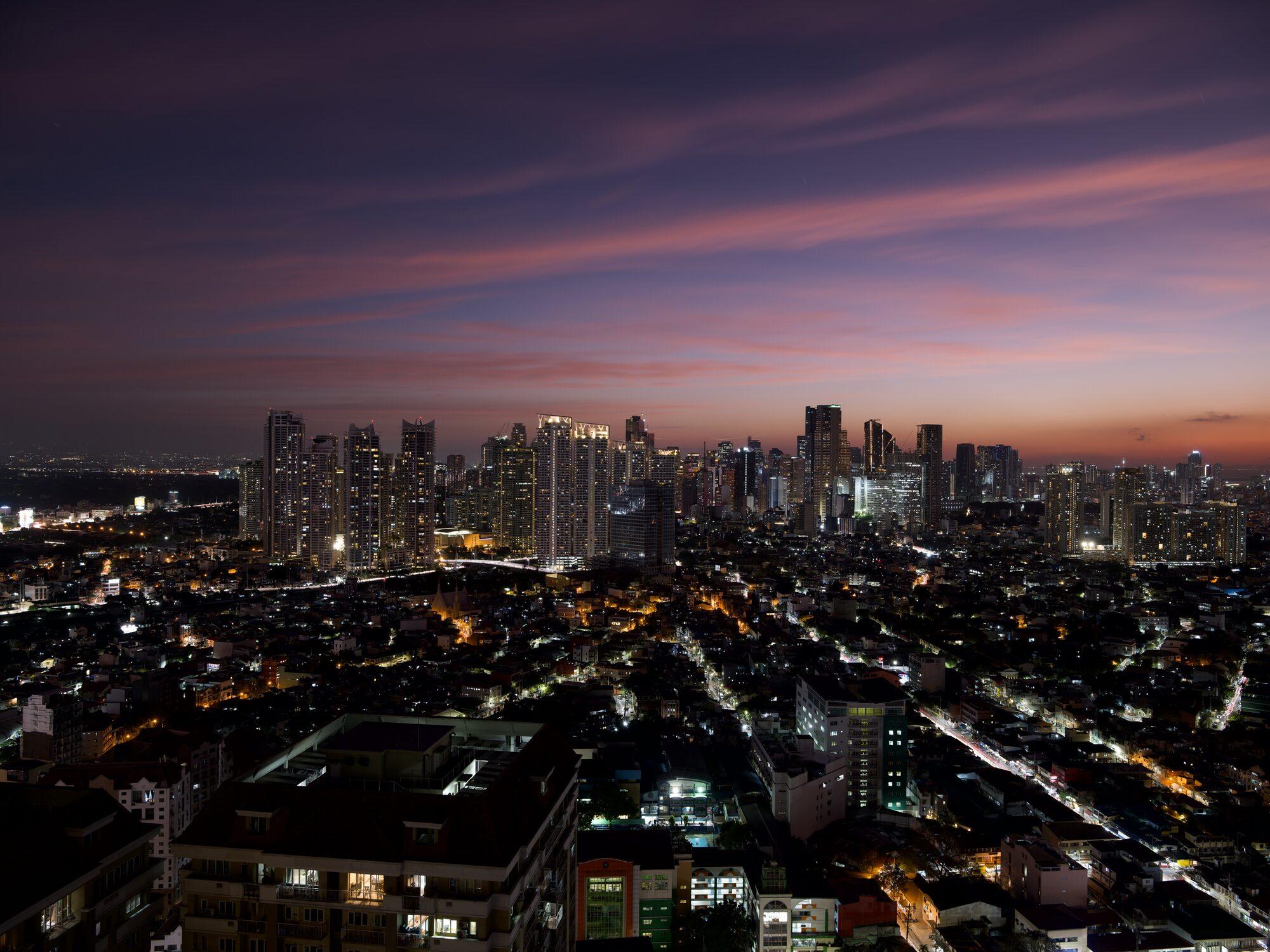
After: Manila’s towers at blue hour, as the streets light up.Before: Manila’s towers at blue hour, as the streets light up.
Photo: Elia Locardi

How it works

  1. In Capture One, select one or more variants and choose Image › Publish › Radiant Photo.
  2. In the recipe, choose TIFF or JPEG. It starts as a 16-bit Adobe RGB (1998) TIFF.
  3. In the plug-in’s own Radiant Photo tab, set the Folder and the Name suffix.
  4. Start the publish. Capture One shows the progress, and reports how many photos were rendered at the end.

Where you save time

  • A whole selection, hands offEach photo is corrected for its own scene while you keep working in Capture One. There is nothing to click per photo.
  • Ready to deliverThe files land in one folder with the names you set: IMG_0001 is saved as IMG_0001-Radiant.jpg.
  • A Look you check firstOn a Mac, the Look setting can be A suggested Look for each photo in place of Perfect Look.

Good to know

  • With no Folder set, the files go into a Radiant Photo folder in your Pictures folder.
  • A JPEG is written at quality 91, and never in ProPhoto RGB: if the recipe asks for that, the file is written in Adobe RGB (1998).
  • On Windows there is no Look setting, and each photo gets its Perfect Look.

Edit With

What goes out, and what comes back.

Radiant RawRadiant Photo
What Capture One sendsEach photo’s original raw fileA render of each variant, with your adjustments and crop
Comes back asA 16-bit TIFFA 16-bit TIFF in Adobe RGB (1998), unless you change the recipe
Where it landsBeside the raw file, as a new variantBeside the original, as a new variant
NamedIMG_0001-Radiant.tif, then IMG_0001-Radiant-2.tifWith the Name suffix, -Radiant to start
Your originalThe raw file doesn’t changeThe variant and its adjustments don’t change
Your settingsSaved beside the raw file, in a .radiant fileReopen Previous Settings, or Start Over
CancelBrings none backSends none back

Compatibility

On a Mac and on Windows.

On a MacOn Windows
Radiant Flow opens a catalog or SessionYesYes, read-only
Ratings, color tags, keywords and captions go to Capture OneYes, while Capture One has the catalog openNo. Make them in Capture One
Show in Capture OneYesNo
Edit With › Radiant RawYesYes
Edit With › Radiant Photo and Quick LookYesYes
Publish › Radiant PhotoPerfect Look, or a suggested Look for each photoPerfect Look

What you need

System requirements.

Capture One
On the same computertested with Capture One 16.9Radiant Flow reads catalogs and Sessions from Capture One 16, and from 17 marked Unverified version
Radiant Photo
Installed and activatedits installer adds the plug-in to Capture One for your user accountquit Capture One while you install
Radiant Raw
For Edit With › Radiant Raw: installed, activated and opened once
Radiant Flow
For catalogs, Sessions and Jobstwo-way sync on a Mac uses macOS Automation, which you allow once
Mac
macOS 14 Sonoma or laterApple silicon or Intel processor
Windows
Windows 10 version 22H2, or Windows 1164-bit PCOn a PC with an ARM processor, Windows 11 runs each Radiant app through its built-in emulation

The manuals have the details. Using Radiant Photo with Capture One · Support · Pricing

Questions

Straight answers.

Does anything change in my Capture One catalog?

Only what you ask for. Edit With adds each result as a new variant; your original variants and their adjustments don’t change. Radiant Flow never writes the catalog itself: on a Mac it asks Capture One to set the ratings, color tags, keywords and captions you change.

Can I rate in Radiant Flow on Windows and see it in Capture One?

Not in a catalog or Session: on Windows, Flow only reads those. Rate in Capture One and refresh the catalog in Flow, or cull the shoot in folders and send the Job to Capture One as a new Session.

Do my Capture One adjustments go to Radiant?

To Radiant Photo, yes: Capture One renders each variant with your adjustments and crop. Radiant Raw gets the original raw file instead. For a photo in a Session it offers to read in your crop, straighten, white balance, exposure and curves from Capture One, and you choose. Radiant Flow shows the original files.

Can Radiant Raw send a DNG back to Capture One?

No. Each photo comes back from Radiant Raw as a 16-bit TIFF. The DNG choice is there from Lightroom Classic only.

Which Capture One versions does it work with?

Radiant Photo is tested with Capture One 16.9. Radiant Flow reads catalogs and Sessions from Capture One 16, and from Capture One 17 marked Unverified version.

Where do I find the plug-in?

Radiant Photo’s installer adds it to Capture One for your user account. Quit Capture One while you install, then look under Image › Edit With and Image › Publish.

Install Radiant, and keep Capture One.

Radiant Photo’s installer adds the plug-in. Radiant Flow opens your catalog the same day.