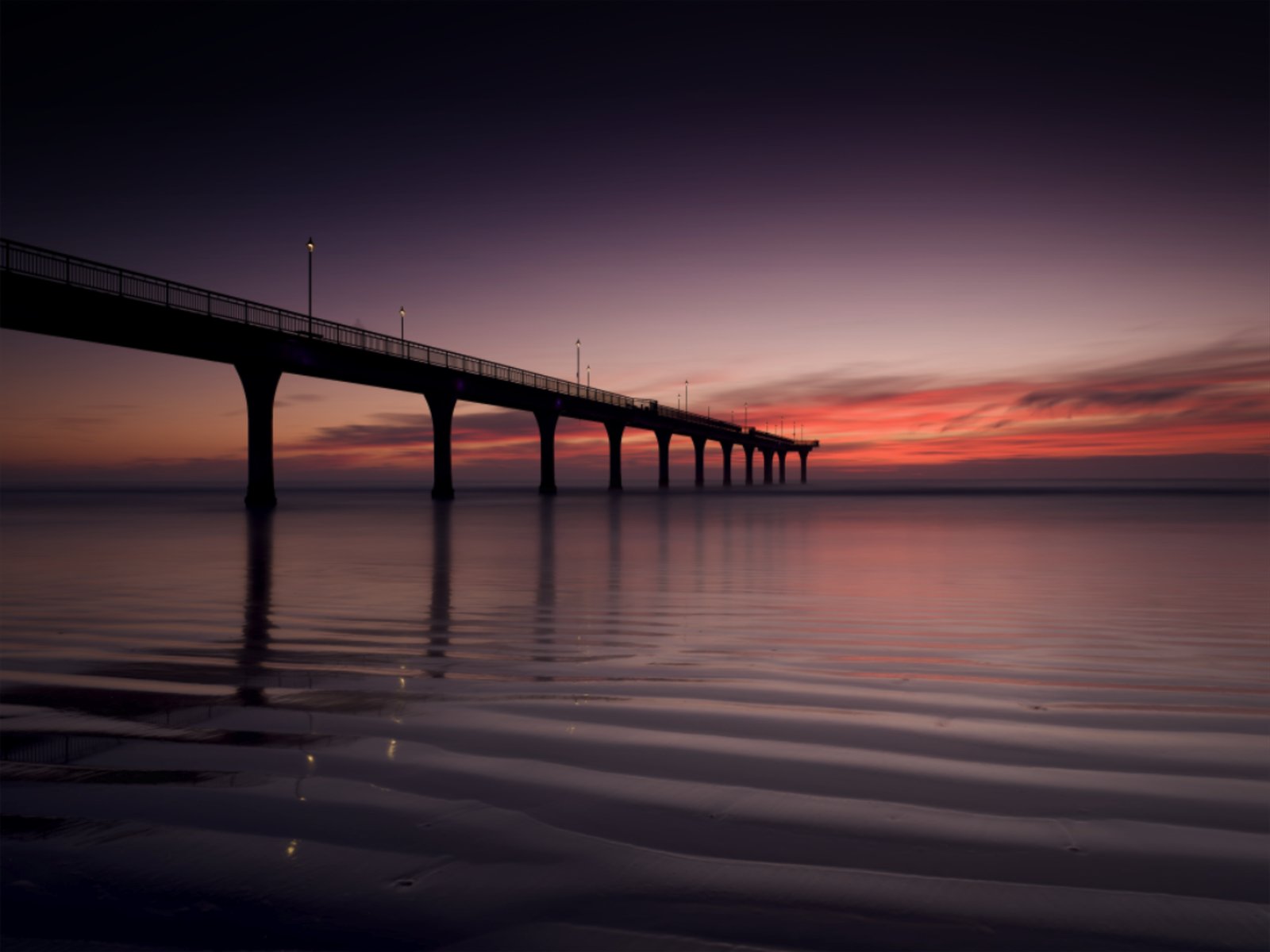
Radiant Photo
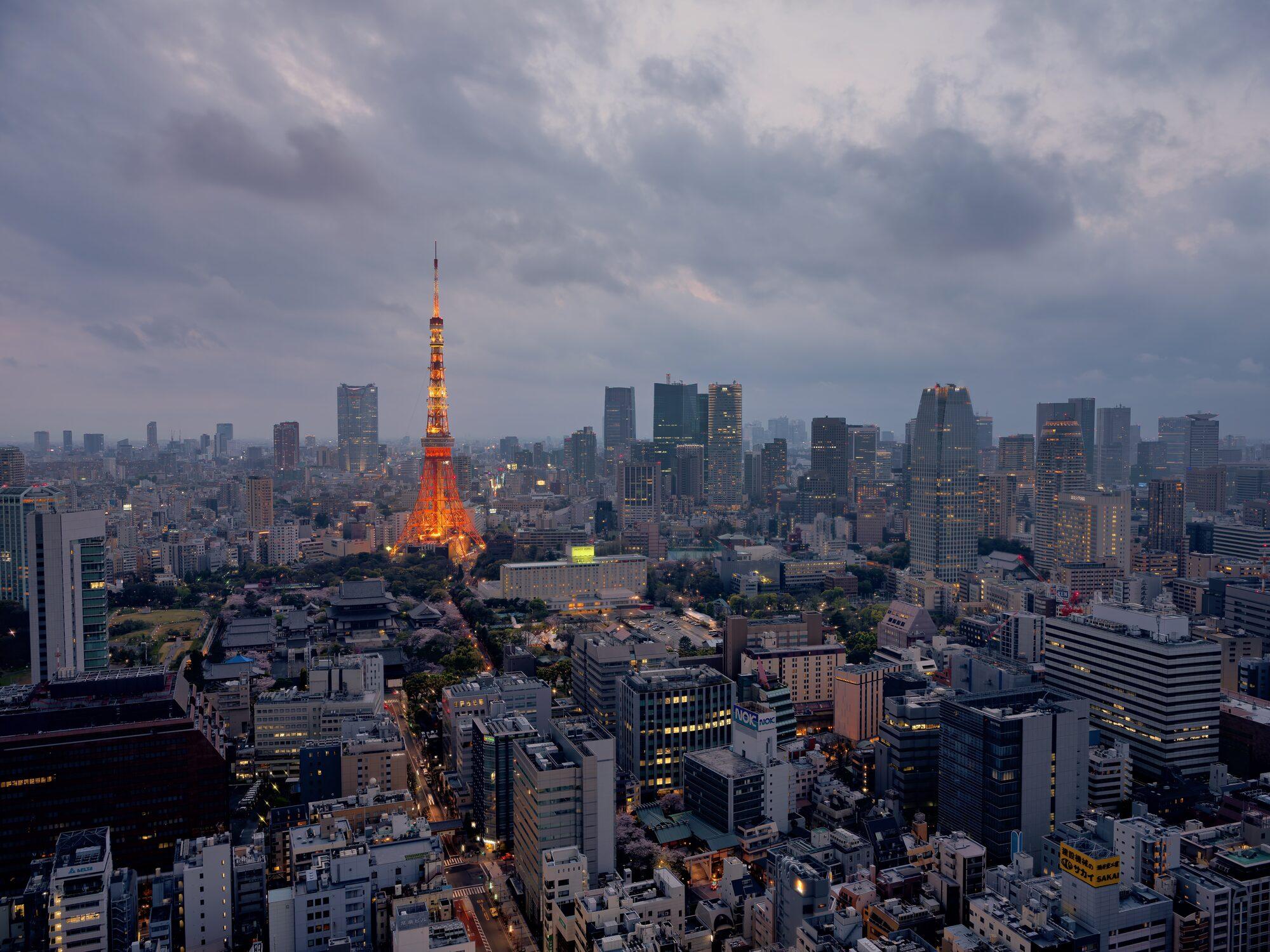
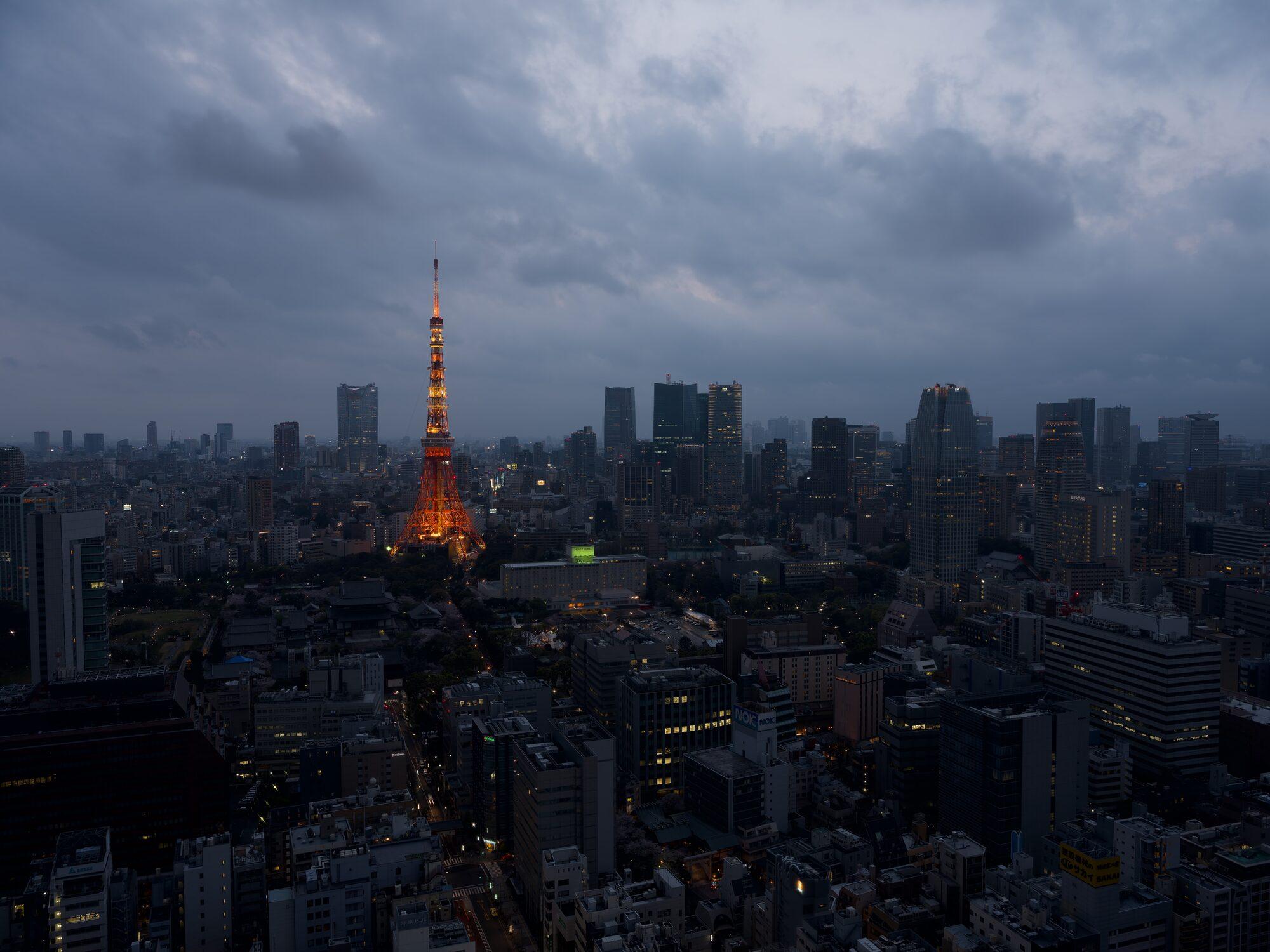
Radiant Photo
Your layer, in the full Radiant Photo editor.
Radiant Photo 2.5...Photo Editor › Expert › Filter › Radiant Imaging Labs
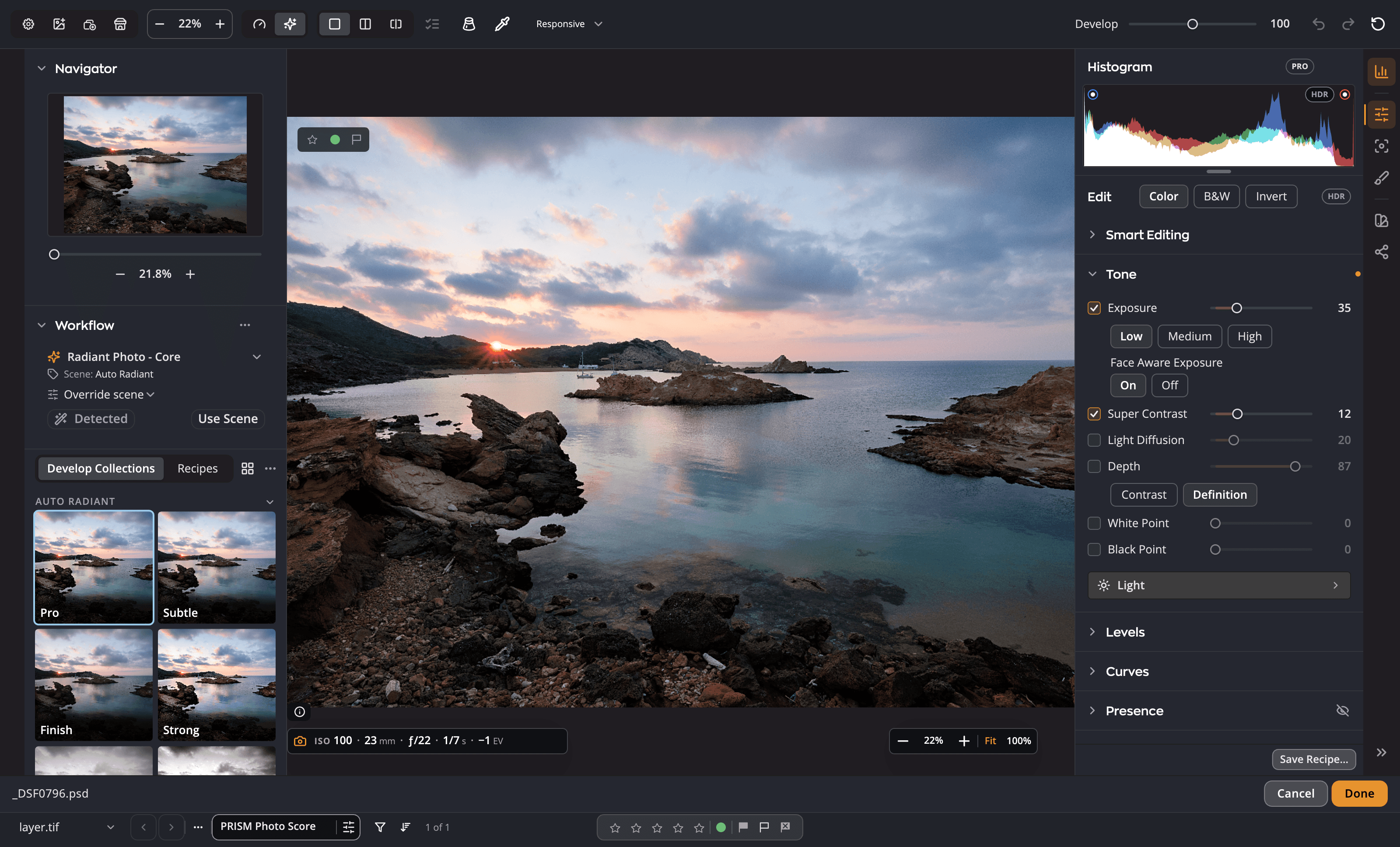
Run the filter from the Photo Editor’s Expert mode and your layer opens alone in Radiant Photo’s editor, as it does from Photoshop. Correct it, give it a Look, work on a portrait, then click Done and the edit is back on the layer.
How it works
- Open a photo in Photoshop Elements’ Photo Editor, and switch to Expert mode. From Photoshop Elements 2024, Adobe names that mode Advanced.
- Choose Filter › Radiant Imaging Labs › Radiant Photo 2.5....
- The editor opens with your layer alone. Edit as much or as little as you like.
- Click Done to send the edit back, or Cancel to leave the layer as it was.
Where you save time
- No file round tripNo exporting a copy, no opening it again, no lining it up. The layer goes out and comes back in place.
- Nothing to set upThe installer finds each Photoshop Elements from 2022 to 2027 and puts the filter in. There is no folder to point at.
- The same filter Photoshop loadsIt keeps its name, Radiant Photo 2.5..., and its place under Filter › Radiant Imaging Labs, so what you learn here holds in Photoshop too.
Good to know
- Photoshop Elements has no Smart Filters, so the edit becomes part of the layer. Duplicate the layer first to keep your original underneath.
- The Radiant panel is for Photoshop. In Photoshop Elements you get the filter.
- Photoshop Elements 2021 and older are left as they are.