
Guide
6 ways to protect your files with Radiant Flow
Six ways Radiant Flow keeps your photos safe, from where it writes your marks and checked card copies to the Trash, your rights, watermarks and drives.
Radiant Flow doesn't edit your pictures. It checks the copies it makes from a memory card, and it asks before it moves photos to the Trash. In this guide you see six ways Flow protects your files, and set the options that decide how far it goes.
1. Know what Flow writes, and where
Flow doesn't edit your pictures. It writes your ratings, flags, labels, rotation and metadata either inside the photo
or in a small .xmp sidecar file beside it, so Lightroom Classic and other apps can read them too. A raw file such
as CR3, NEF or ARW is never opened to write: its details always go to a sidecar. With the default settings, Flow
also writes inside JPEG, TIFF and DNG files. If you never want those files changed, turn off writing inside the
photo:
- Open Settings: on a Mac, Radiant Flow > Settings… (⌘,); on Windows, Edit > Settings… (Ctrl+,).
- Click Sidecars and find Save to.
- Check or uncheck Sidecar (.xmp) and Inside the photo. Radiant Raw and Radiant Photo share this choice.
To see exactly what a file carries, open the Raw XMP section of the Metadata panel.
2. Import from a card with a checked copy
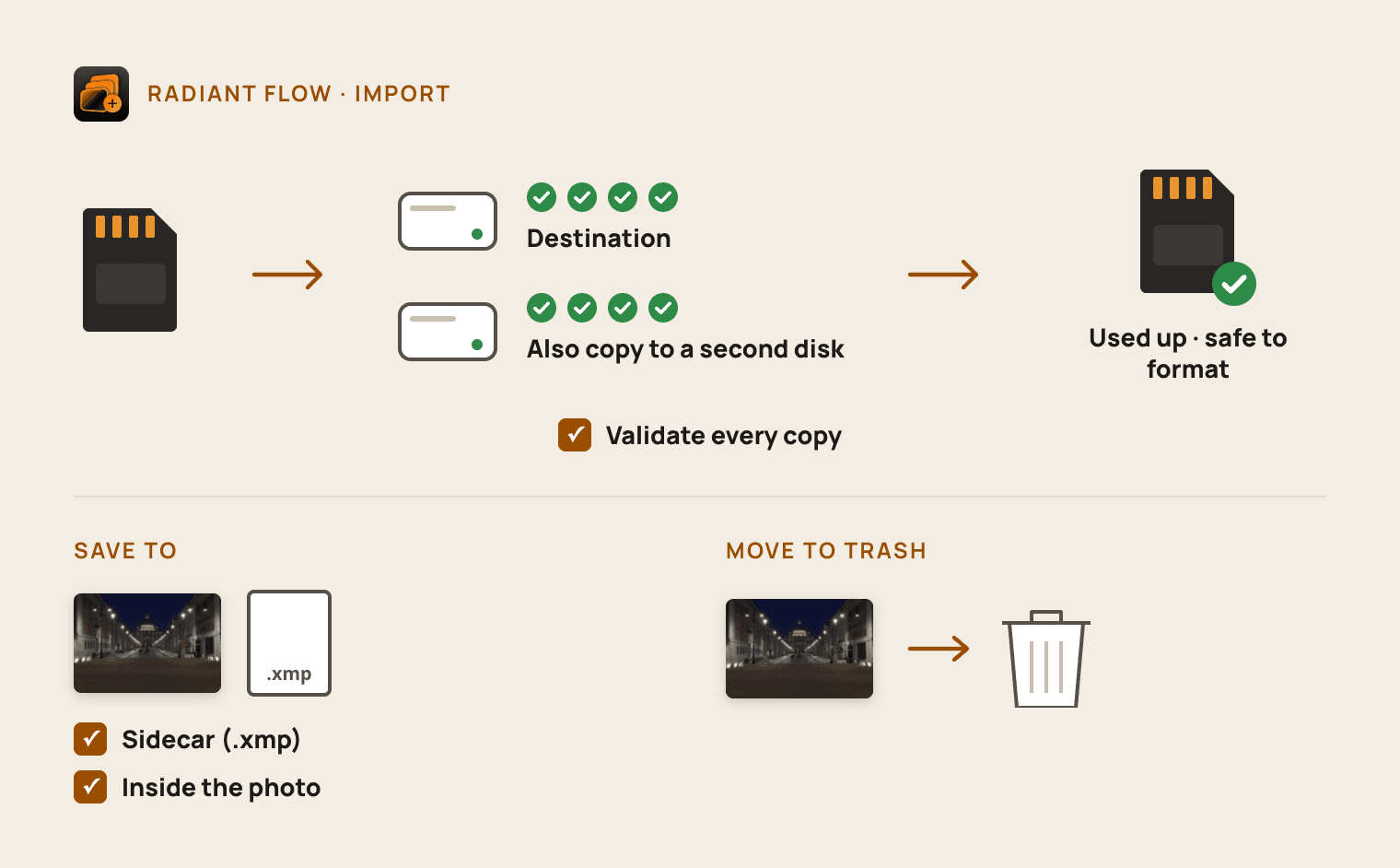
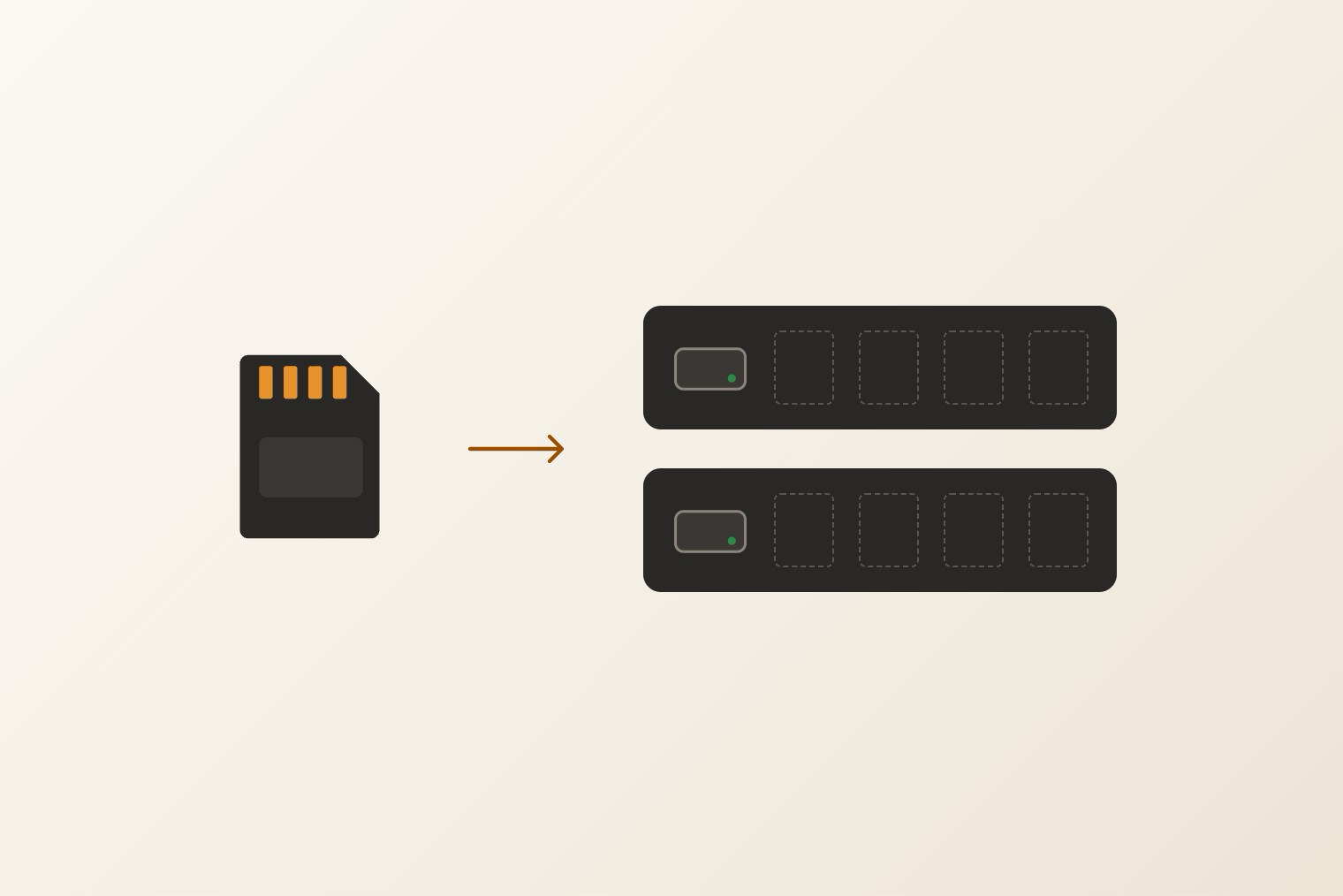
When you import from a memory card, Flow copies the photos to the folder you choose. Validate every copy is on from the start: Flow reads every copy back and compares it with the original, and the receipt says how many copies verified in each place. Turn on Also copy to a second disk, and Flow copies every photo to a second folder too, usually on another disk. You can copy to up to four places in all.
- Insert the card and click Import… on the banner, or choose File > Import from Card… (⇧⌘I, Ctrl+Shift+I on Windows).
- Under Destination, click Choose… and pick a folder.
- Under Backup Location, turn on Also copy to a second disk and choose the second folder.
- Under After Import, leave Validate every copy on.
- Click the Import button, read the summary, and click it again to start.
Flow calls a card Used up · safe to format only when every photo and video on it landed and every copy verified.
Tip
Before you format a card you have doubts about, open its report from Cards in the sidebar and click Read every file back.
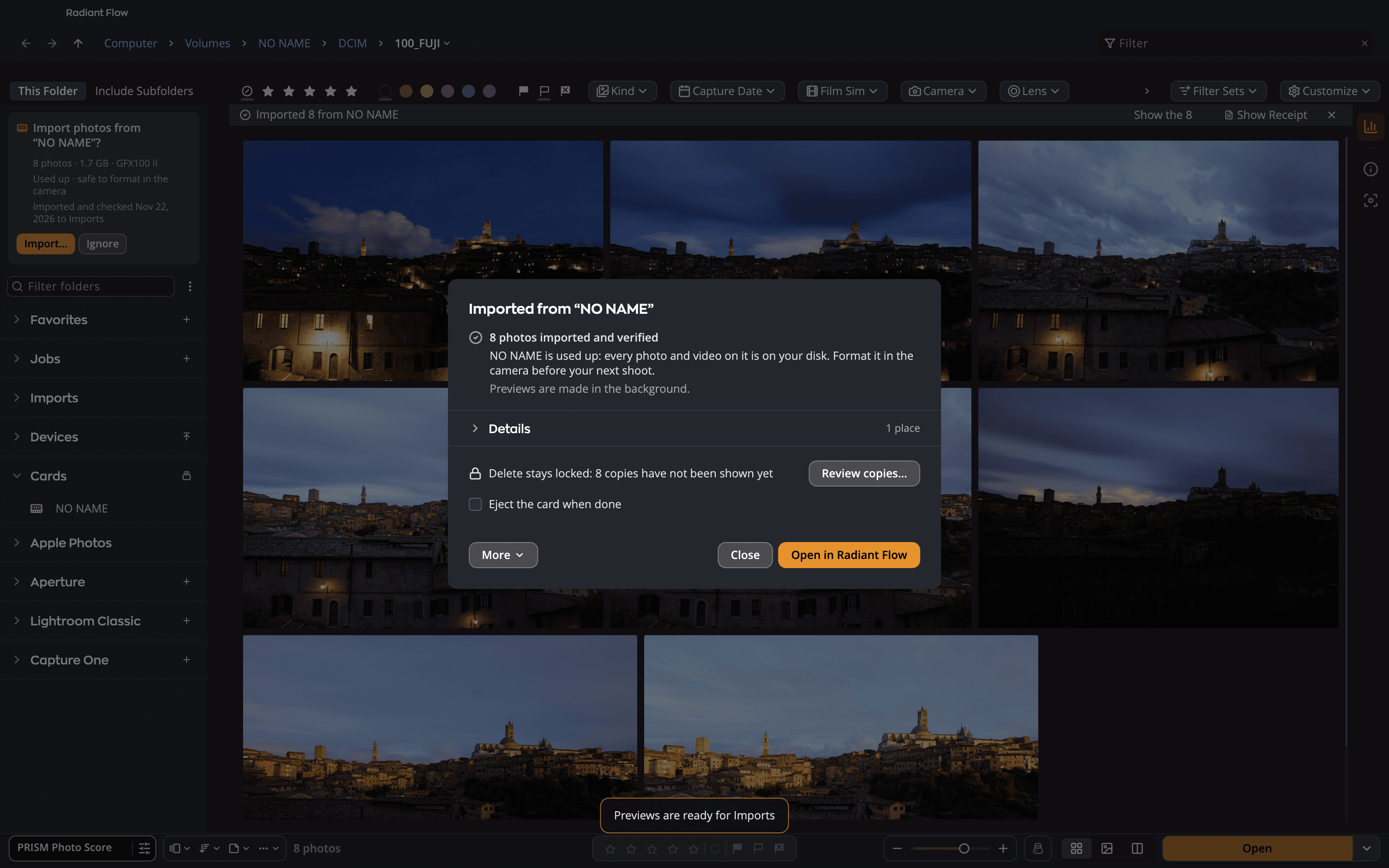
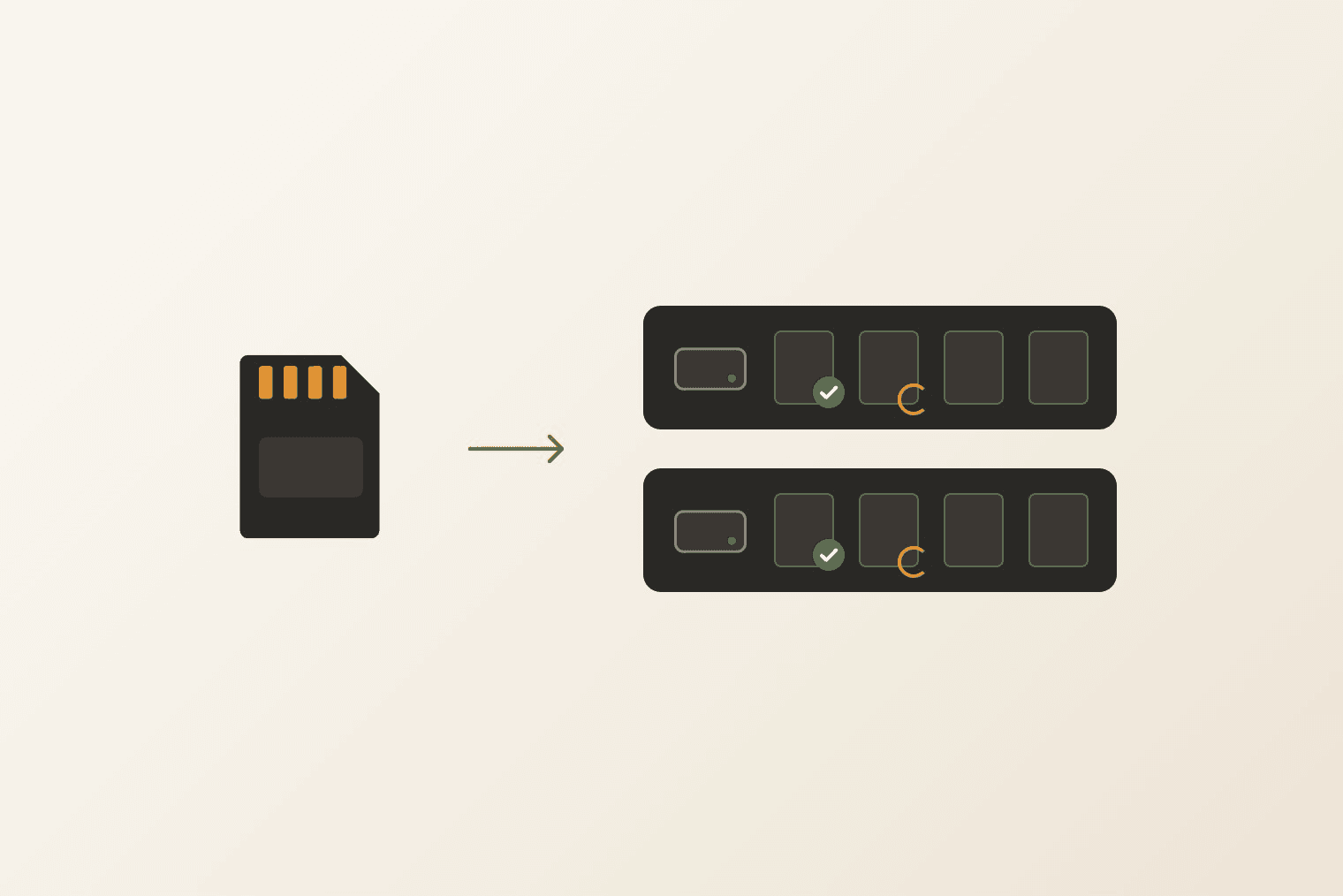
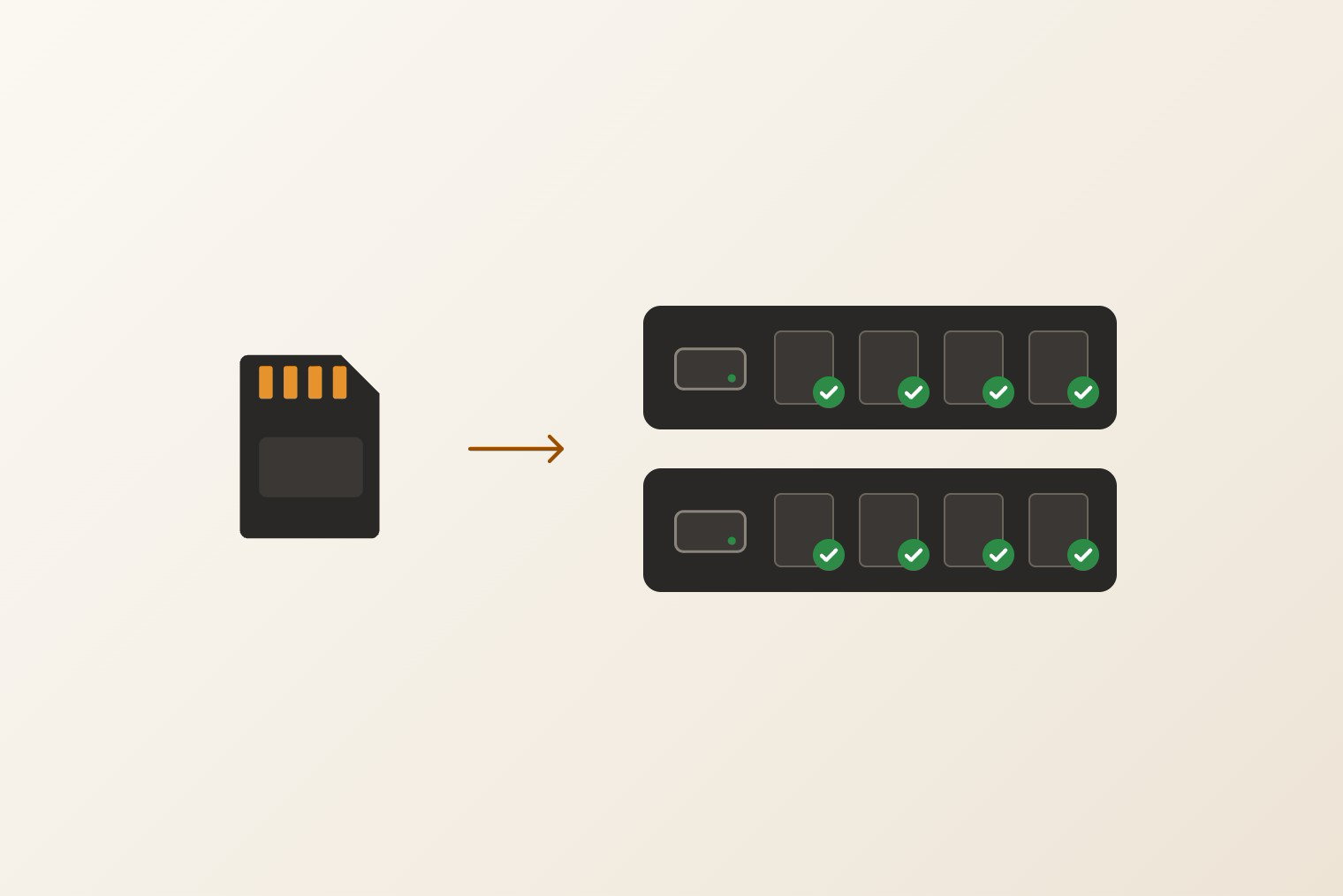
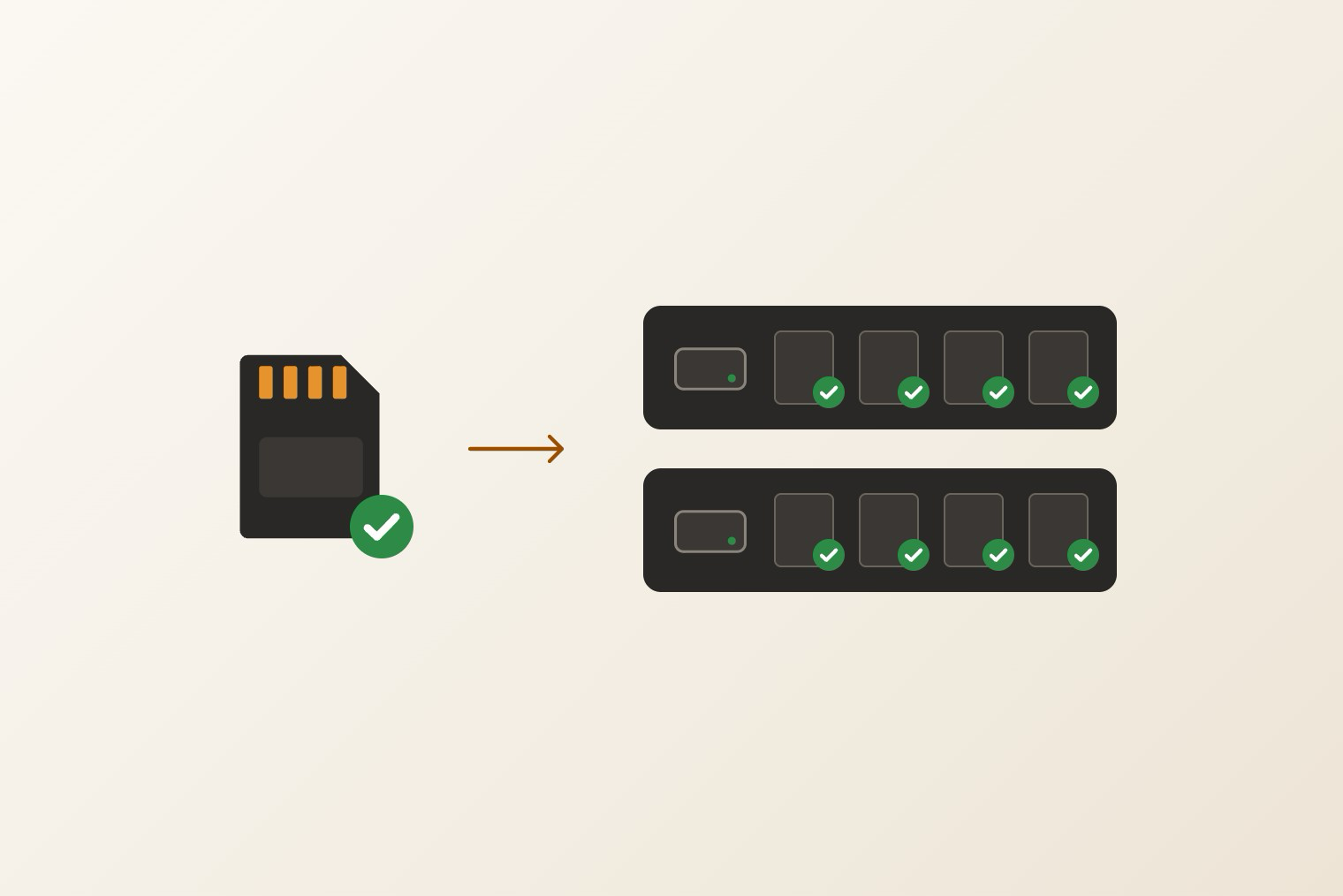
- Validate every copy
- Used up · safe to format
3. Move photos to the Trash, and get them back
Move to Trash doesn't erase anything. It puts the photos in the Trash (the
Recycle Bin on Windows), and their .xmp and .radiant sidecars go with them. Flow asks first, and the question
counts the photos, so you know how many will move.
- Select the photos.
- Choose File > Move to Trash or press ⌘⌫. On Windows, choose File > Move to Recycle Bin, or press Ctrl+Backspace, Delete or Ctrl+Delete.
- Read the count and click Move to Trash (Move to Recycle Bin on Windows).
Flow has no undo of its own for this, but you can put photos back until you empty the Trash or the Recycle Bin:
- On a Mac, open the Trash in the Finder, select the photos and choose Put Back.
- On Windows, open the Recycle Bin, select the photos and choose Restore.
Important
Once you empty the Trash or the Recycle Bin, the photos are gone for good.
Delete Rejected Photos… clears every rejected photo the grid is showing in one pass. Its sheet says which folder it covers and whether filters are hiding photos. Flow doesn't move photos to the Trash at all on a memory card, in Apple Photos, or in a Lightroom Classic, Capture One or Aperture catalog or library.
4. Put your name and rights on your photos
A copyright card is a saved set of creator, rights and keyword fields that you apply to many photos in one go. Your cards are shared with Radiant Photo.
- To make a card, choose Edit > Rights > Manage Cards…, click Metadata in the Settings sidebar, then New. Fill in the fields and click Save.
- Select the photos, then choose Edit > Rights
Apply Card and the card. Your default card is ⌥⌘K (Ctrl+Shift+H on Windows). You can also right-click a photo and choose Rights.
- Check the preview sheet. It shows the values before anything is written, and asks about each conflict, such as photos that already carry a different value.
- Click the apply button. It counts your photos, for example "Apply to 24 photos". Nothing changes until you do.
To take it back, click Undo in the message, or choose Edit > Undo (⌘Z, Ctrl+Z on Windows).
The same Rights menu can also mark photos as not for AI training. That's a notice for other apps and websites, and it changes nothing in Radiant.
Tip
To do both as you import, choose a card in Apply copyright card and tick Add a “no AI training” notice under After Import. Flow writes both after it checks each copy.
5. Watermark your contact sheets
In Radiant Flow, only contact sheets carry a watermark, and your photo files are never marked. Share… sends your original files as they are. Watermarks are shared with Radiant Raw and Radiant Photo, so one you made in either app is ready here.
- Choose File > Watermarks…, make a watermark with New, and click Done. Changes save as you go.
- To make it your default, click its ⋯ button and choose Make Default.
- Choose File > Contact Sheet… and pick the watermark in the Watermark row.
- Under Where the mark goes, choose On each photo to burn the mark into each photo, or Across the page. With Across the page, the part over the paper is a separate image that a PDF editor can remove.
If a mark can't be drawn, for example because its logo is missing, that photo prints without it. The sheet's Watermark row tells you before you print. Printing the sheet itself is in 5 hidden tools in Radiant Flow. To sign the photos you save from Radiant Photo, see Sign your photos with a watermark.
6. Copy, move and unplug drives safely
Move To and Copy To never overwrite a file. A name already used in the folder gets a number, and the sidecars travel with the photos. You can undo a move, but not a copy, and a copy leaves your originals where they were.
- Select the photos and choose File > Move To or File > Copy To, then a folder.
- To undo a move, click Undo in the message, or choose Edit > Undo (⌘Z, Ctrl+Z on Windows).
- To eject a drive, hold the pointer over it in Devices and click ⏏, or right-click it and choose Eject EOS_DIGITAL.
When you drag photos onto a folder, the folder's label says Move here or Copy here. On the same drive the photos move, and on another drive they're copied. If a photo you rename, move or trash is in a Lightroom Classic or Capture One catalog in the sidebar, Flow asks first. Otherwise the catalog would show the photo as missing.
Note
If a drive is disconnected before Flow can write your marks, Flow keeps them. It shows a strip such as "3 photos waiting to be written", and tries again when the drive comes back. If the strip stays, fix the cause and click Retry.
A drive you eject or unplug leaves Devices and comes back when you connect it again. If the grid looks out of date, choose File > Rescan (⌘R, Ctrl+R on Windows).
The controls in this guide
Each one opens its page in the manual.