
Radiant updates
From Card to Keepers: How Radiant Flow Handles the First Hour After a Shoot
Radiant Flow is a fast photo browser for the work that comes before editing (looking, choosing, labeling, copying and checking), and it sits right beside the photo catalog you already use.
You know the evening. The shoot went well, and a memory card on the desk holds a few hundred frames, maybe a few thousand. A handful are keepers. The rest are near-duplicates, test shots, a blink, a missed focus.
Before you can edit any of them, you have to see them all, pick the keepers, put your name and copyright on them, and get them onto a drive you trust, ideally two. That first hour is what Radiant Flow was made for.
A browser, not a catalog
Radiant Flow is a photo browser. It works on your cards, drives and folders exactly where they are. Click a folder and its photos show up right away, even before Flow has finished looking through its subfolders. You don’t have to import photos into Flow just to look at them.
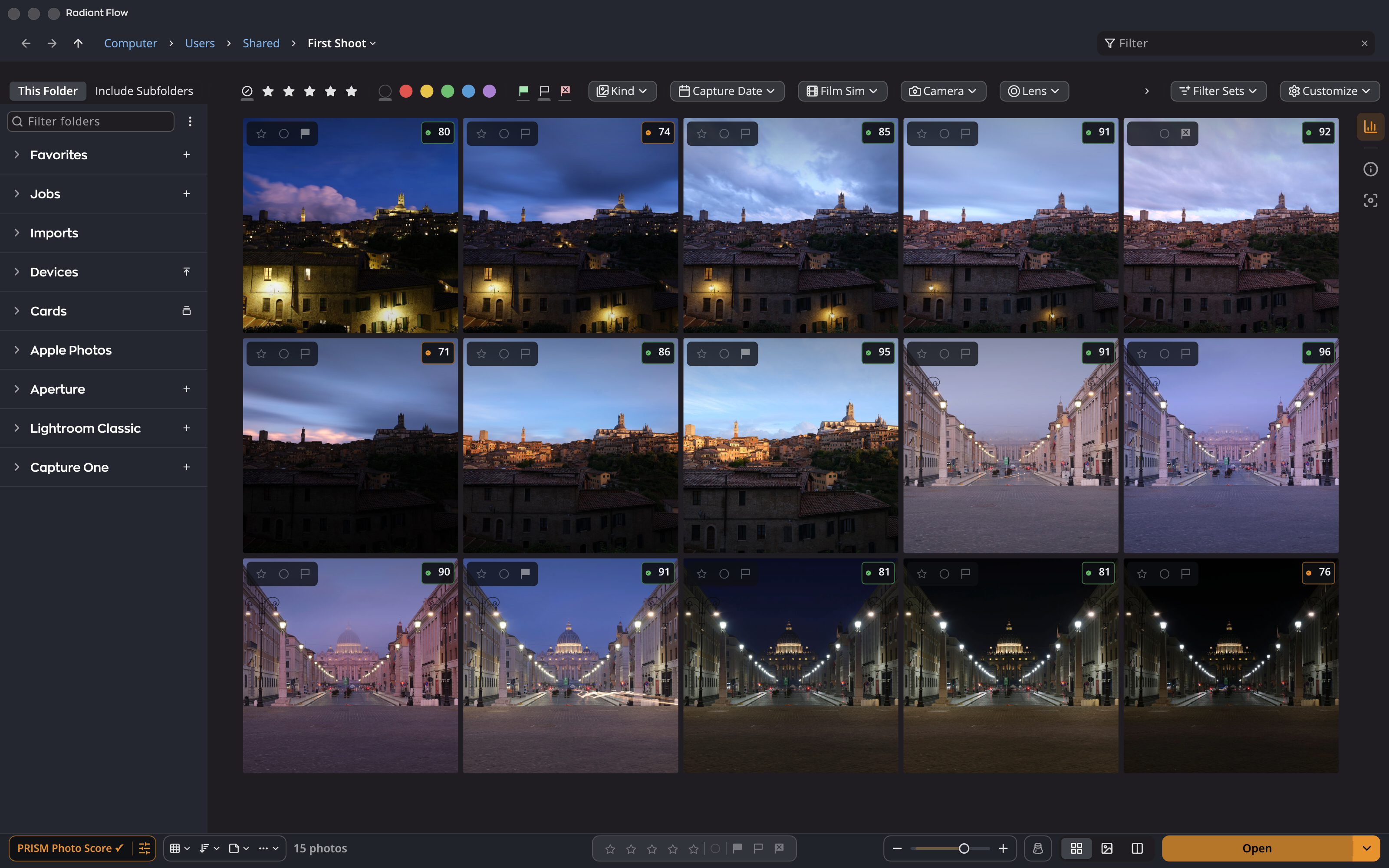
Click a folder and its photos are there, ready to rate, flag and label.
A photo catalog is a library: it brings photos in, keeps a database of everything about them, and lets you search, organize and edit across your whole collection. A browser is a window onto what’s on a disk right now.
Flow writes your choices where other apps can read them: ratings, flags, labels, keywords and copyright go into your photos or into small XMP “sidecar” files saved beside them. (Many catalogs can write them to files too.) On a memory card or a read-only disk, Flow holds them for you; from a card, your ratings, flags and labels go onto your copies once the import verifies them. There’s no library to build, sync or back up, just a preview cache Flow can rebuild at any time and a few small lists of its own, such as your Favorites and the cards you’ve imported. So Flow works with your catalog, not instead of it.
One evening with Flow
The card goes in
In Flow, importing simply means copying photos off the card onto your drives. Put a card in the reader and a small banner in the sidebar offers to do it. It’s never a pop-up you have to dismiss, and nothing copies until you press Import. (In Settings › Import you can instead choose Open the Compact Importer, or have Flow do nothing.)
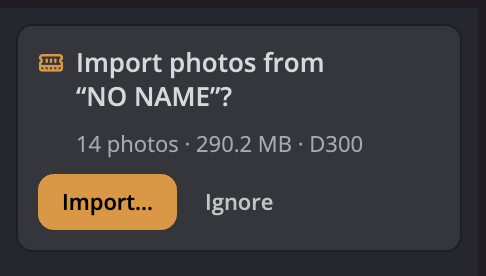
The banner offers; nothing copies until you press Import.
Settings › Import › When a card is inserted. Click an option to see what it does.
Choose what comes off, and where it goes
Click Import… on the banner (or choose File › Import from Card…) and every photo and video on the card appears as a thumbnail. Frames you’ve already imported are badged and left unchecked, so a second pass offers only what’s new. A filter bar can also leave photos out by format, rating, flag or color label. Choose One folder per shoot date so photos land in folders named for the day they were taken, not the day you import them, and add your backup drive for a second copy in the same pass. A preview shows exactly where the first photo will land.
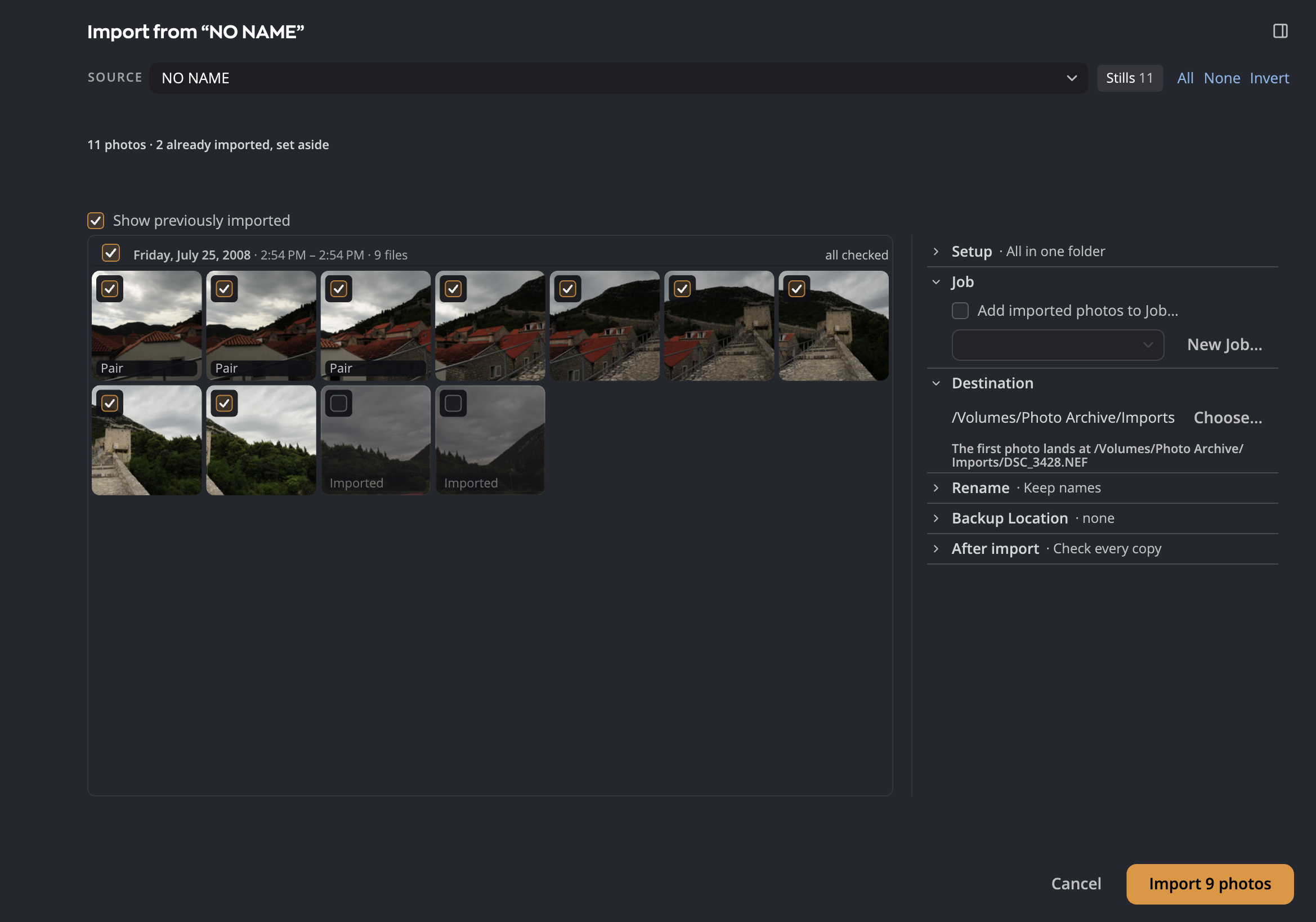
Photos you’ve already imported are marked Imported and left unchecked, so a second pass offers only what’s new.
Validate every copy is on by default: every file is read back from the disk it landed on and checked against the original, so the check covers the bytes that were actually written. The import never writes anything to the card and never overwrites a file; a taken name gets a number. Videos are copied and checked too.
Read the receipt
When it’s done, the receipt says it plainly:
271 photos and 8 videos imported and verified in both places
A file that fails is removed from the destination and reported; the original on the card is never touched. Only once the copies verify and you’ve looked over every copy can you delete originals from the card, and only those verified in every destination. Each one is re-checked just before it’s removed, so a swapped card is refused.
Cull with one key per photo
Walk the grid with the arrow keys and mark each photo as you go: 1–5 for stars, P to pick, X to reject, U to clear the flag, and 6–9 and the minus key (−) for red, yellow, green, blue and purple labels. Add Shift to move to the next photo. Whatever you press applies to everything selected, with Undo, so you can rate 400 photos with one key.
When a burst leaves you four near-identical frames, select them and press Space to open Survey, which lays them side by side; drop the weaker ones until the keeper remains. The Magnifier, linked across the frames, shows the same eye in all four, and focus peaking highlights the sharpest edges. PRISM Photo Score can point you to the strongest frames; it suggests, but never rejects anything for you. To look closely at one frame, open the Focus page in the right rail: the Magnifier, the camera's Focus Points and Focus Peaking are all there.
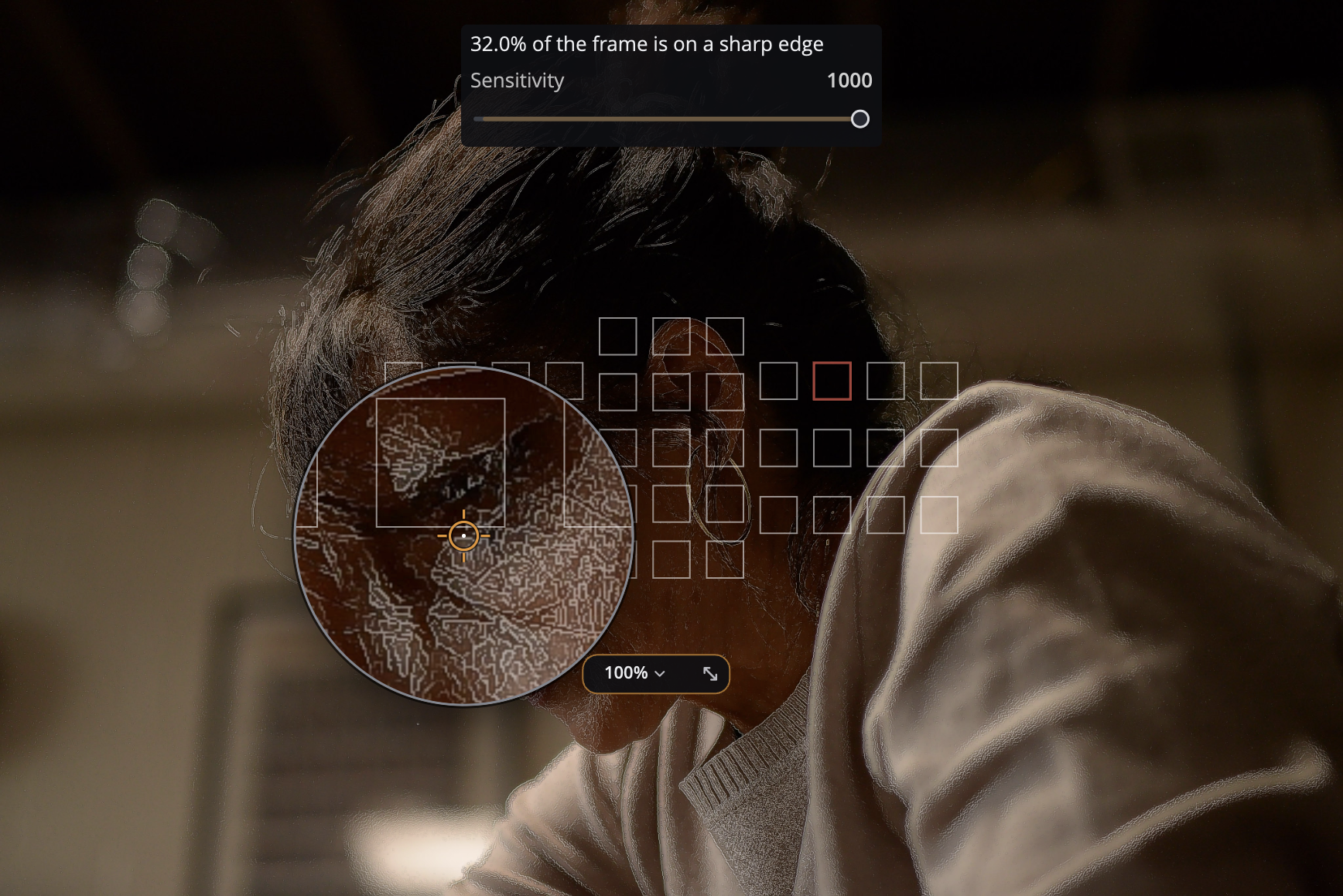
One frame up close: the Magnifier at 100%, the camera’s Focus Points, and Focus Peaking tracing what is sharp.
Put your name on it
Save your creator, contact and copyright details once (choose Remember as stamp), then stamp them on the whole shoot before anyone else sees it. Edit titles, headlines, captions, keywords, credit, usage terms and location across many photos at once, in the standard IPTC fields other apps read. Blank fields never erase what the other selected photos already carry, and keywords are added, not replaced.
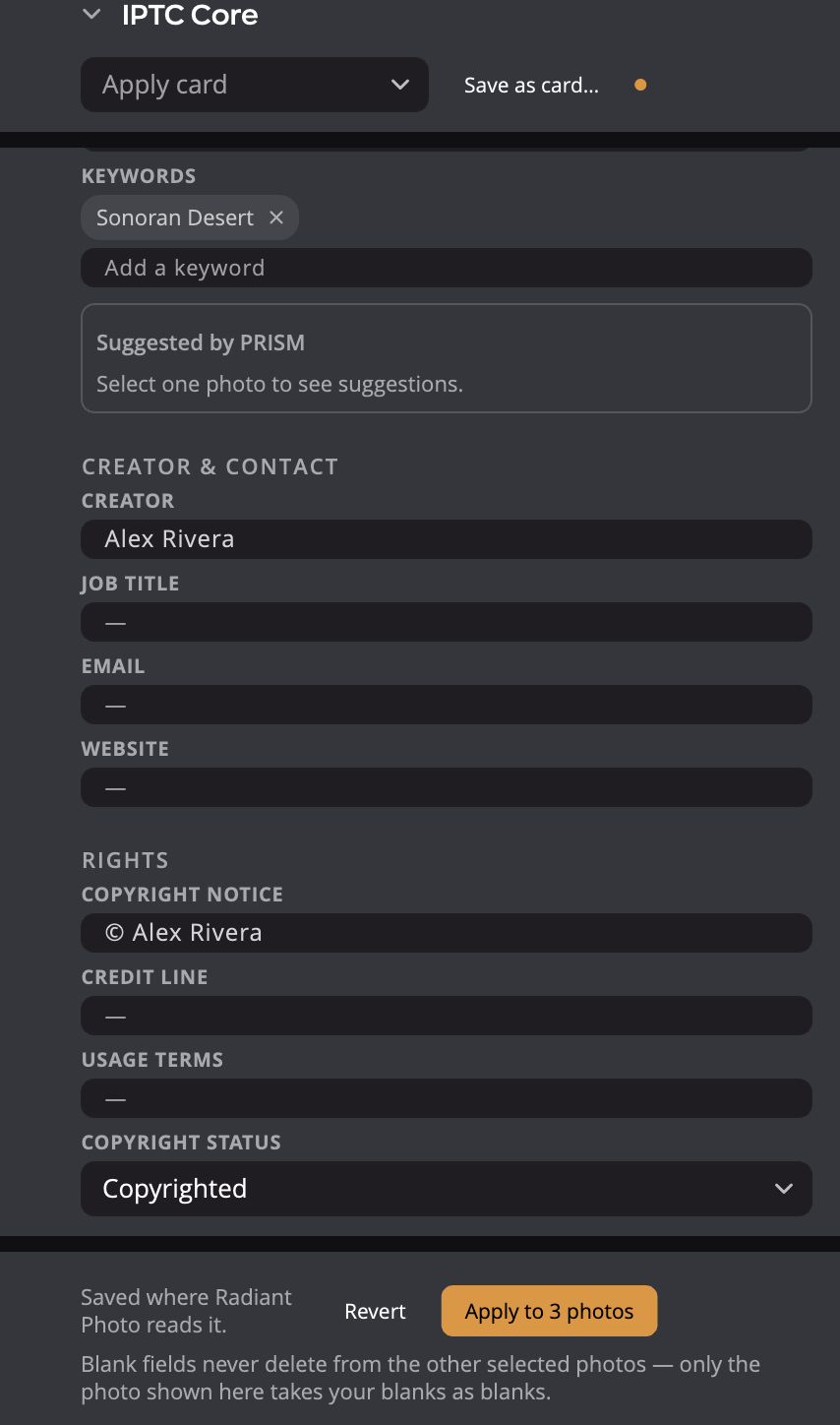
With three photos selected, Apply writes your changes to all three, and blank fields never erase what the others already carry.
Narrow it down
Filter by camera, lens or ISO to compare your gear, or by stars, flags, labels, aperture, shutter speed, focal length, file type, date, film simulation and keywords. Every value shows its count before you pick it, and Option-click (Alt-click on Windows) excludes one.
Send the keepers on
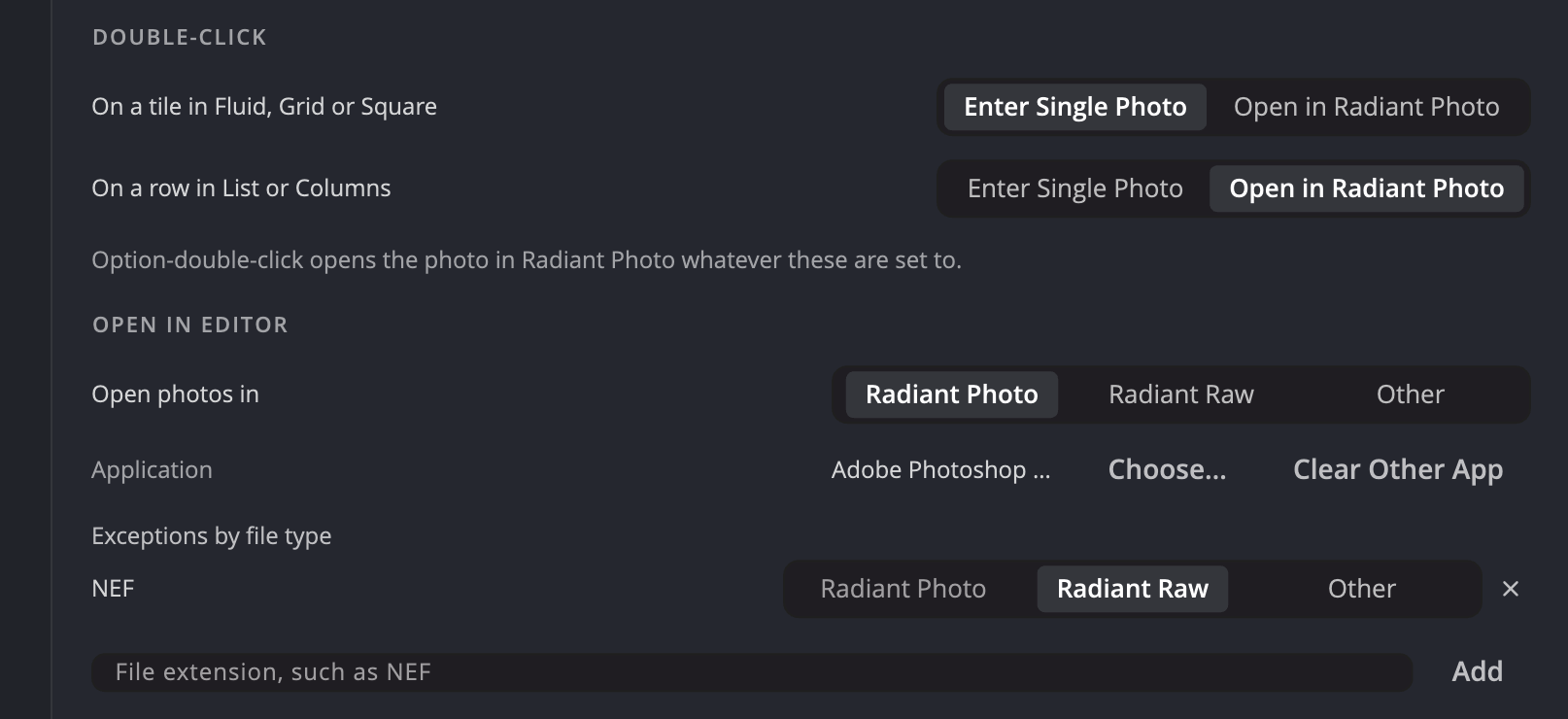
The Open button says where they’re going: “Open 12 in Radiant Photo.” Choose Radiant Raw under Open in Editor (Settings › General) and Flow splits the selection: camera Raw files go to Radiant Raw and everything else to Radiant Photo, in one click, and the button names both apps. Edited photos are marked in Flow’s grid on their own. Prefer another editor? Choose Other there and pick any app, or drag photos out; dragging always copies, so your originals stay put. Once your photos are on your disk, their ratings, labels and keywords are in the files, so the next tool sees them.
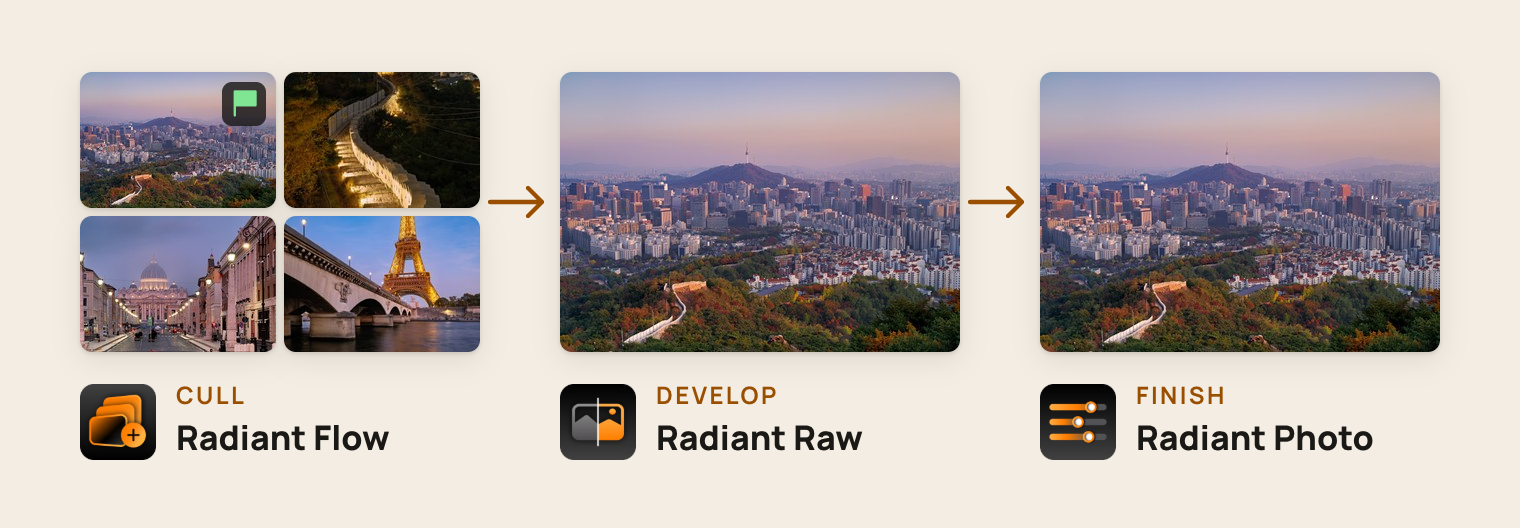
Cull in Radiant Flow, develop in Radiant Raw, finish in Radiant Photo.
Works with the tools you already love
Each of these apps is excellent at what it was built for. Flow is designed to sit beside them.
Lightroom
A cloud-synced library that keeps your photos and edits in step across desktop, phone, tablet and web, with powerful search and editing. With Flow: cull and caption in Flow first, then add only your picks. Your library, and your cloud storage, carry only the photos you meant to keep.
Lightroom Classic
A deep desktop catalog with collections, keywords, Smart Collections and a full Develop module, trusted by working photographers for years. With Flow: open your Lightroom Classic catalog right in Flow, beside your folders, and cull it there. Two-way metadata sync, through the Radiant plug-in for Lightroom Classic, keeps ratings, flags, labels and keywords the same in Flow and in your catalog, while your Develop edits stay in Lightroom Classic. Open a photo in Radiant Photo when you want to finish it. It opens with the rating, flag and color label from your catalog. A switch turns off the writes to the photo files and their XMP sidecars; the catalog stays in sync.
Capture One
Renowned for color, tethered shooting and a choice of Sessions or Catalogs, so studios and commercial photographers can work the way they prefer. With Flow: set Capture One as Flow’s Open app and send your picks straight in. Ratings, labels and keywords travel in the file or its XMP sidecar.
Mylio Photos
Brings photos from many devices and services into one library that stays in sync across your computers and phones, with calendar, map and people views. With Flow: offload and verify cards into the folders your library already watches, sorted by shot date, with metadata in the file or its XMP sidecar.
Apple Photos
Built into every Mac, iPhone and iPad, with iCloud Photos sync, Memories, and search for people, places and things. With Flow: on a Mac, your Apple Photos library appears in Flow’s sidebar, and its photos show in the same grid as your folders. Open any of those photos in your editor and Flow sends a full-size copy.
Browse and filter in Flow, search in your catalog
Search is what catalogs do best. Lightroom, Lightroom Classic, Capture One catalogs, Mylio Photos and Apple Photos each keep a database of the photos you’ve brought in, with their keywords, dates and places, and search it in a moment: “Grandma, beach, 2019.” The more your library has learned over the years, the better that works.
Flow works differently: it’s a browser, not a database. Go to a place (this card, this drive, this folder), see everything in it at once, then filter what’s in front of you by what’s already in the files. Typing narrows the view too: a file name in the Filter field at the top right of the window, or two or more letters of a folder’s name in Filter folders at the top of the sidebar.
Browse and filter suits new photos nobody has tagged yet, which describes every shoot you’ve just come home from. Flow is built for the question “which of these 2,000 frames are worth keeping?” Once you’ve answered it, your catalog’s search takes over.
For every level
Flow uses the plain words photographers already know: rate, flag, label, sidecar, preview. Almost everything works from the keyboard too, with keys you can change.
Just starting out
Open a folder and press a number key to give a photo its stars. Move to Trash (Move to Recycle Bin on Windows) asks first.
Shooting often
Verified imports, copyright on every shoot, and each Raw file stacked with its JPEG as one photo.
Working to deadlines
Two-drive imports, renaming that keeps the camera’s filename in the sidecar, and your own shortcuts, on Mac and Windows.
The first hour, handled
Our mission
Make the first hour after every shoot fast, safe and calm, and leave your photos ready for every tool you love.
Flow does the looking, choosing, labeling, copying and checking, then steps aside. Bring it your next full card.
Radiant Flow, Radiant Raw and Radiant Photo are products of Radiant Imaging Labs. Lightroom and Lightroom Classic are trademarks of Adobe Inc. Capture One is a trademark of Capture One A/S. Mylio and Mylio Photos are trademarks of Mylio, LLC. Apple Photos, Aperture, iCloud, Finder, Macintosh, Mac, iPhone and iPad are trademarks of Apple Inc. Windows is a trademark of Microsoft Corporation. FUJIFILM and X-T5 are trademarks of FUJIFILM Corporation. Other product names are mentioned only to describe how Radiant Flow works alongside them.
More from the blog
Radiant updates
Meet Radiant Flow: see every photo, keep the best ones
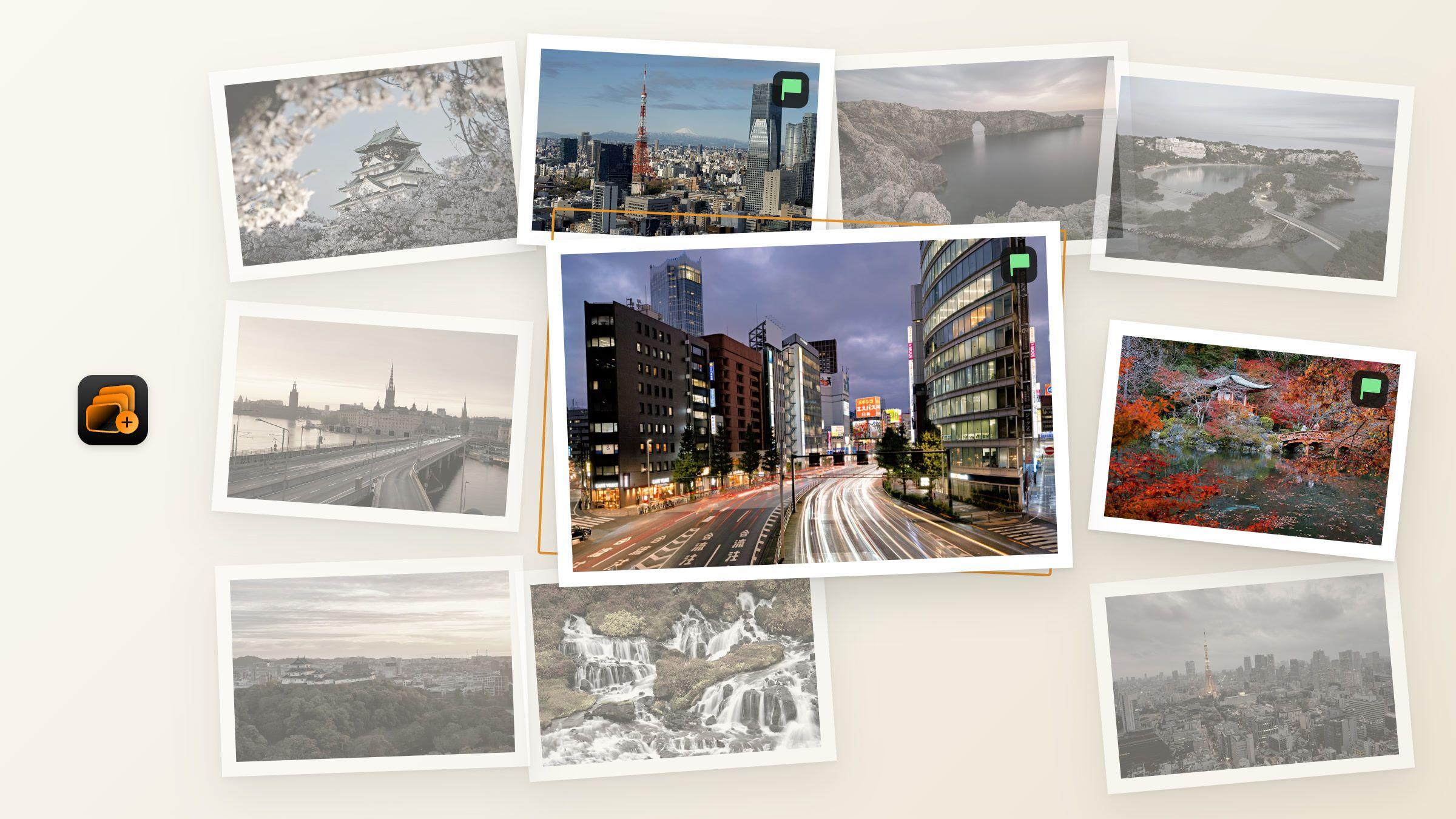
Radiant Flow 1.0 is the new browse-and-cull app in the Radiant family. It opens your folders, memory cards and catalogs where they are, gives every photo a PRISM Photo Score, and hands your keepers to Radiant Photo 2.5 or Radiant Raw 1.0.
Radiant updates
Assistive AI, and a more open way to build Radiant
Our AI suggests and you decide. Starting now, you can also see what we’re building, tell us what to build next, and, as a member, test new features in betas as they open.
Radiant updates
From card to client in one window
Follow one portrait session through Radiant Raw, the raw developer for Mac and Windows, from the moment the folder lands on the window to a set of watermarked files ready to send.
The Radiant newsletter
A weekly email from Radiant Imaging Labs: new articles, photo tips and release news.