
The bottom bar and filmstrip
The bottom bar moves you between open photos, rates them, and copies settings from one photo to others. The filmstrip above it shows every photo you have open.

| # | Control | What it does |
|---|---|---|
| 1 | File name and arrows | Choose any open photo from the list, or step with Previous Image and Next Image |
| 2 | Info | File details and location for this photo |
| 3 | Per image settings (…) | Save or clear this photo's settings file |
| 4 | PRISM Photo Score | Shows quality scores from Radiant Flow on the filmstrip |
| 5 | Selects and Sort | Filter and order the filmstrip |
| 6 | Counter | Photo n of total, plus how many photos are selected |
| 7 | Flags, stars and label | Pick, Reject, a star rating and a color label |
| 8 | Copy, Paste, Copy Settings… | Copy settings from this photo to another |
| 9 | Sync buttons | Apply this photo's settings to other open photos at once |
The filmstrip
Click a thumbnail to show that photo. Moving to another photo doesn't save or close the one you were on.
- Press ⇧Space to collapse or expand the filmstrip. Press ⇧⌘Space (Ctrl+Shift+Space) to hide or show it.
- Drag the filmstrip's edge to resize it.
- ⌘-click (Ctrl-click) or ⇧-click thumbnails to select several photos.
Each thumbnail has a … button, Photo options. Right-click a thumbnail to open the same menu.
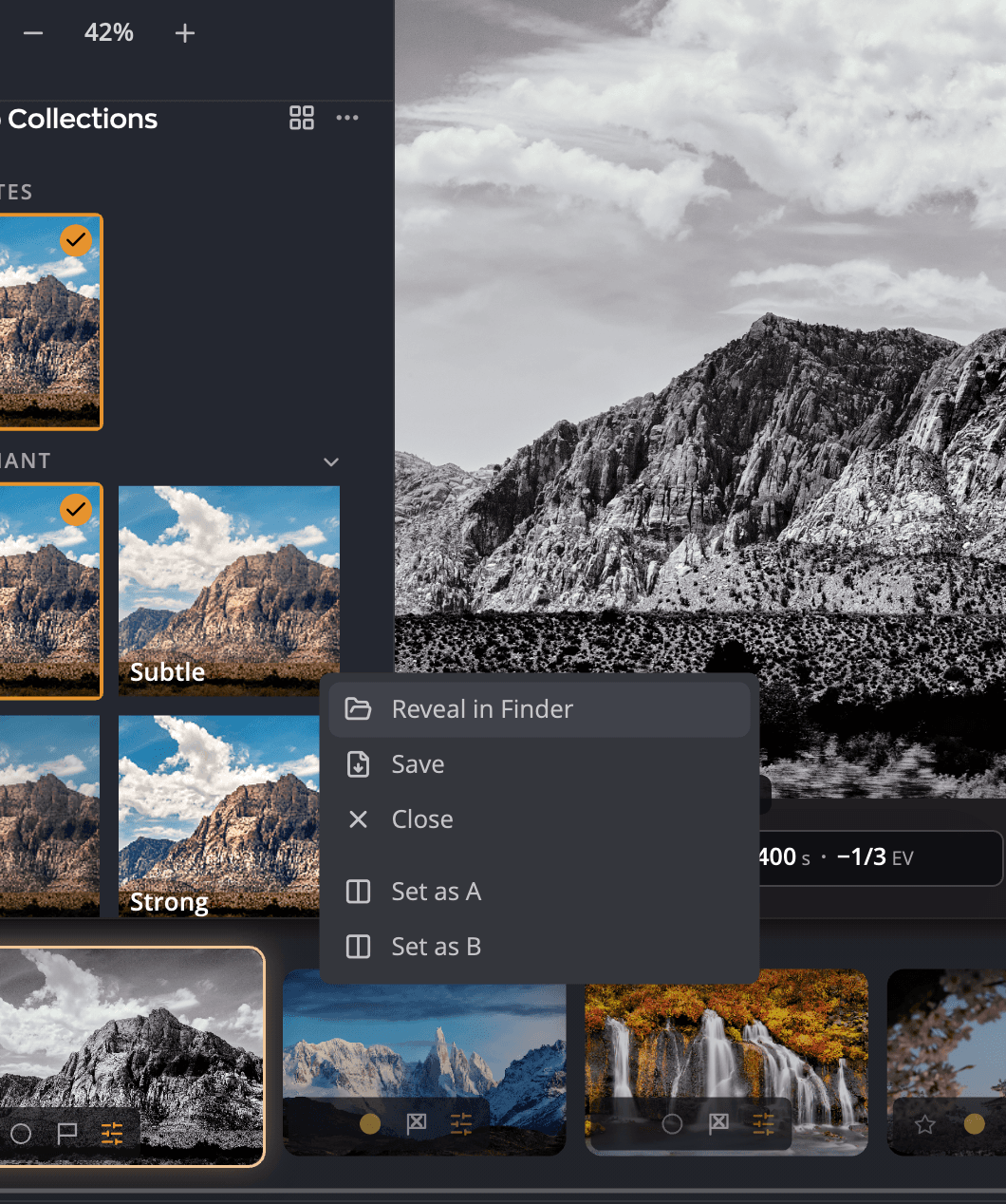
| Choice | What it does |
|---|---|
| Reveal in Finder (Show in Explorer on Windows) | Shows the original file on your disk |
| Save | Saves this photo |
| Close | Closes this photo without saving |
| Open Stack or Close Stack | On a photo in a stack made in Radiant Flow. Shows or hides the stack's other photos. |
| Set as Stack Cover, Remove from Stack | In an open stack. Makes this photo the one the closed stack shows, or takes it out of the stack. |
| Reveal in Radiant Flow | Opens Radiant Flow on this photo's folder with the photo selected |
| Set as A, Set as B | Marks two photos to compare side by side |
| Compare A ↔ B | Shows the two marked photos side by side. See Comparing before and after. |
Once a photo is marked A or B, its menu reads Remove A from Compare or Remove B from Compare instead. While a slot is taken, the other photos read Replace A or Replace B in place of Set as A or Set as B.
A raw file can also show Develop Raw… when Radiant Raw is installed. If Radiant Raw isn't activated, choosing it only shows a message with Activate Radiant Raw. See Raw files and Radiant Raw.
Rate and flag photos
| Mark | Keys |
|---|---|
| Pick, Reject, Clear flag | P, X, U |
| 1 to 5 stars, no stars | 1 to 5, 0 |
| Red, Yellow, Green, Blue, Purple label | 6, 7, 8, 9, − |
| No label | ⌥⌘0 (Alt+0) |
Add ⇧ to any mark key to apply it and move to the next photo. On Windows that works for every mark key except No label, which has no ⇧ version there. On the Mac, ⌥⇧⌘0 still works.
Selects and Sort
- Selects shows only picked, rated or rejected photos. Choose Show All Photos to see them all again. ⌥⌘F (Ctrl+Shift+F).
- Sort orders the filmstrip by Manual (Open Order), Capture Date, Import Date, Modified Date, File Name or Star Rating. Reverse Order flips it.
- Tile style shows thumbnails as Fluid (by aspect ratio) or Square.
See Reviewing photos for Selects and Grid view and sorting for sorting.
Copy and sync settings
- Click Copy Settings… and check the tools you want to copy.
- Click Copy on the photo whose settings you like.
- Go to another photo and click Paste.
To skip the copy and paste, use a Sync button. For every copy and sync choice, see Copying and syncing settings.
| Button | What it does |
|---|---|
| Sync all | Applies the copied tools to every open photo |
| Sync forward | Applies them to every photo after this one in the filmstrip |
| Sync selected | Applies them to the photos you've selected. It replaces the other two while several photos are selected. |
If nothing is checked in Copy Settings…, the copy and sync buttons are grayed out.
Per image settings
Radiant Photo can keep each photo's settings in a small file beside the original. Click … (Per image settings) and choose Save per image settings to write it now, or Clear per image settings to remove it. See Saving develop settings beside your photos.
Note
PRISM Photo Score needs Radiant Flow on this computer. Without it, the button is grayed out. See PRISM in Radiant Photo.