
For Radiant Photo 2 owners
Meet Radiant Photo 2.5.
Everything you love, and a whole lot more.
Clean up dust and distractions, find the perfect frame in one click, and take every photo all the way to finished. Your Looks, Recipes and settings come right along. And now it has company: Radiant Flow, free, to find your best shots, and Radiant Raw to develop your raws your way.
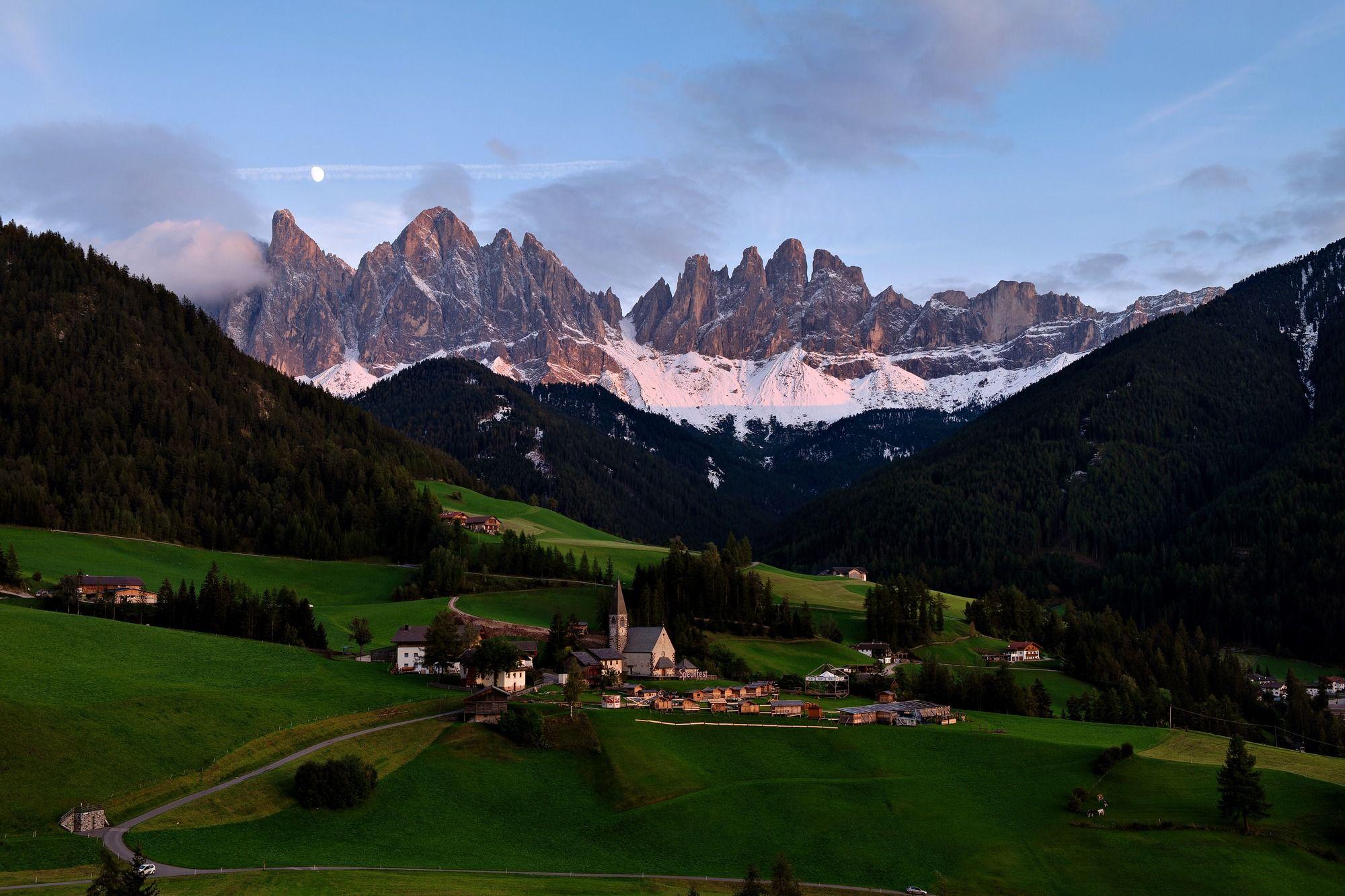
Native raw, start to finish
Every bit your camera captured.
Right where it belongs.
Straight from the raw
Radiant Photo 2.5 develops your raw files natively, straight from the data your camera recorded, not from a converted copy. That means more detail in the highlights, richer shadows, and more room to make the photo yours. It opens most camera raw files on Mac and Windows, including .arw, .cr2, .cr3, .nef, .orf, .raf, .rw2 and .dng. Your original raw file is never changed, and your edits live alongside it, ready to revisit any time.

Built with Mylio
Our raw engine is the Mylio Image Pipeline, from the makers of Mylio Photos. It's the same engine inside Radiant Raw, so your raw files develop the same way in both apps, and Radiant Flow sends your picks straight to Mylio Photos.
HDR that shines
Edit HDR photos right in the Tone section and save HDR JPEGs that keep their extra brightness on HDR screens, on Mac and Windows. Want HDR from a single raw, up to +8 stops? Radiant Raw brings it.
Right on your computer
Raw developing, scene recognition and every edit happen on your own computer. Your photos are analyzed on your computer and are not uploaded for it. Maps stay off until you turn them on.
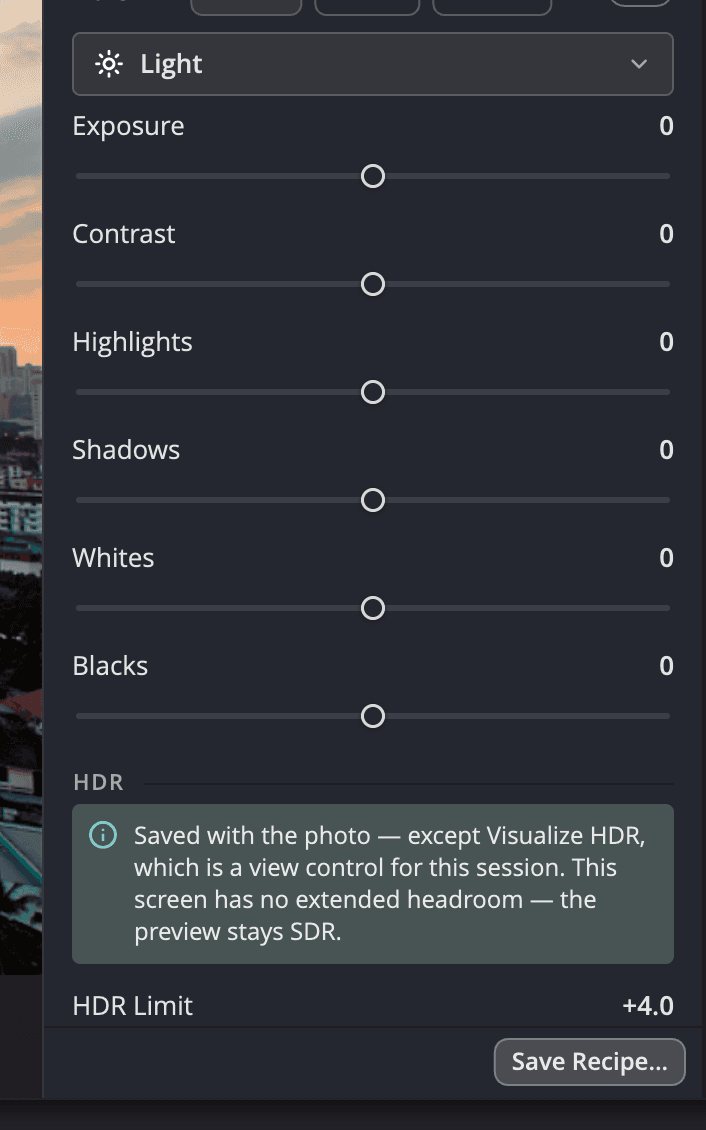
New in the Tone section
The Light card: six sliders, your call
Want hands-on control? Click Light at the bottom of the Tone section for six manual sliders on top of the automatic start: Exposure, Contrast, Highlights, Shadows, Whites and Blacks, each from −100 to +100.
Hold Alt (⌥ on a Mac) while you drag to see exactly where the photo clips. The card ends with HDR: HDR Limit sets how far above standard white the brightest areas reach, up to 8 stops, and Visualize HDR shows you that range.
Check your camera: Does Radiant Photo support my raw files?
Made for you
Built around Radiant Photo owners.
Every step of the way.
Radiant Photo 2.5 is a brand-new app, shaped by what owners told us they wanted most.
Smooth from the first click
Activation, updates and the Store live right inside the app. Raw files open without add-ons. Workflows install the moment you buy them, and plug-ins set themselves up.
The tools you asked for
Finish every photo without leaving Radiant Photo: Spot Removal with Heal and Clone, Auto Crop and Perspective, Levels and Curves, the Light card's six tone sliders, and the Focus page for checking sharpness.
A raw engine of its own
Radiant Photo 2.5 brings its own raw engine, powered by the Mylio Image Pipeline, so your raw files open beautifully, and the same way, on Mac and Windows.
Built in the open
Our roadmap is public now. See what we're exploring, building and testing, and why each item moved. Suggest an idea or vote from any Radiant app. See the roadmap
Good to know
Radiant Manager is retired
Radiant Photo 2.5 doesn't need it. Activation, updates and the Store now live inside each app. Installing 2.5 doesn't remove Radiant Manager.
Still using Radiant Photo 2? Keep Radiant Manager, because Radiant Photo 2 uses it to activate and update. Done with Radiant Photo 2? You can remove Radiant Manager with it. Import your settings into 2.5 first.
Radiant Manager keeps working for Radiant Photo 2 for now, so there's no rush.
Your next step
Radiant Photo 2.5 is where it all happens
New features and updates now go into Radiant Photo 2.5, from Spot Removal and Auto Crop to the Focus page and PRISM Photo Score. Radiant Photo 2.2 won't receive further updates.
Switch whenever you're ready. Everything you made comes with you.
Local and Assistive AI
Smart help.
Your photos, your call.
Generative tools make new pixels. Assistive AI works with the ones you captured.
Your pixels, perfected.
Radiant never adds, removes or replaces objects, skies or faces. It recognizes the scene and finds faces and skies, then adjusts the pixels you captured, much like dodging and burning in a darkroom.
Analyzed right where they are.
Your photos are analyzed on your computer and are not uploaded for it. Your pictures stay yours.
Runs on your computer
Scene detection, face finding, masks, Auto Crop and PRISM Photo Score run on your computer. Radiant Flow downloads its scoring model once, in the background (about 360 MB).
Online only for the basics
Radiant Photo goes online to check your license, for the Store, and for its own updates and help pages. Maps and place search stay off until you turn them on.
Every choice stays yours
Assistive AI suggests a starting point, and every slider stays adjustable. To start from scratch, turn off Choose develop settings automatically from the scene in Settings › AI.
Lighter on the planet
Because the work happens on the computer you already own, your edits aren't sent to a cloud data center to be processed. That saves the energy and data each round trip would use.
Your name and your terms,
on every photo you export.
Your copyright, added once
In the Info panel, open Metadata to add your name, contact details and copyright. Save them as a copyright card to add them to every photo. Radiant Flow can stamp them on a whole shoot as it comes off the card.
They're standard IPTC fields that Lightroom Classic and most photo apps read, and Radiant Photo writes them into its JPEG, PNG, TIFF and JPEG XL exports.
A "no AI training" flag
In the Info card, the AI & Data Mining section has an AI training field, from Allowed to Prohibited. In Radiant Flow, choose Edit › Rights › AI Training, or tick Add a "no AI training" notice when you import a card, and every photo of the shoot is marked as it lands.
Your choice travels in the photo's metadata into every export. It declares your terms, but it isn't a lock: some websites strip metadata when a photo is uploaded.
Image details matter
Everything about your photo
comes through intact.
A finished picture is more than pixels. Radiant Photo 2.5 keeps your camera's information, your dates and your colors where they belong, and lets you decide what leaves with the file.
Metadata that travels
- Camera details are kept. Preserve capture metadata is on by default, and carries EXIF, IPTC and GPS into every file you save.
- Your camera's maker notes. Radiant Photo reads the private block your camera writes, such as shutter count, film simulation and focus distance, in the Info card. It reads notes from Canon, Nikon, Sony, Fujifilm, Olympus and OM System, Panasonic, Leica, Pentax and more.
- Kept in your exports, with ExifTool. Install the free ExifTool once, in one click on a Mac, and Preserve maker notes on export copies the camera's private block into every photo you save.
- Works with your other apps. Ratings, labels, keywords, caption, copyright and location go into an .xmp file that Lightroom Classic and most photo apps read. Raw files are never written to.
Capture date and IPTC, done right
- The capture date stays with the photo. When the picture was taken travels into every saved file, so it sorts in the right place in any app.
- Sort by when it happened. Order the filmstrip by Capture Date, and Radiant Flow files each shoot into shot-date folders, verified.
- Standard IPTC fields. Title, caption, keywords, contact details and copyright, in the fields Lightroom Classic, photo agencies and most photo apps read. Find them in the Info card, under Metadata.
- Your choice what leaves. In Settings › Metadata, remove location, the capture date, camera info, or creator and copyright from saved files.
Color, managed properly
- Three settings, kept apart. The space you edit in, how the photo shows on screen, and the profile it's saved with. Changing one never changes the others.
- Each photo keeps its own profile. A raw file gets Adobe RGB (1998), and you can choose sRGB for the web.
- Wide color, no banding. Display P3, Adobe RGB (1998) and ProPhoto RGB keep more of what your camera captured, and wide spaces are saved at 16 bits. A JPEG is never saved in ProPhoto RGB.
- Ready to print. Soft proofing previews a printer and paper, with a gamut warning.
How to get 2.5
Already own Radiant Photo 2?
Version 2.5 is yours.
Three simple steps, and nothing to uninstall. Radiant Photo 2.5 is yours at no cost, and updates from Radiant Photo 2.6 on come with a Radiant Toolkit membership. See Pricing.
- 01
Get the installer
Go to the Downloads page in Support. Installers come from there, not from your account.
- 02
Install it beside Radiant Photo 2
You don't need to uninstall anything. On a Mac, the new apps go at the top level of Applications, and your old folder is renamed Radiant Imaging Labs (Legacy), with Radiant Photo 2 inside.
- 03
Activate with your new keycode
We've emailed you a new keycode for Radiant Photo 2.5. It starts with RP4. You can also sign in to your account on our website to see it.
In Radiant Photo 2.5, choose Already own Radiant Photo? and click Continue. Enter your email and keycode, then click Activate.
Can't find it? Click Find my purchase, and we'll email you a code to restore your purchase.
Runs on a Mac with Apple silicon or Intel, macOS 14 or later, and on Windows 10 or 11, 64-bit. Every new purchase has a 30-day money-back guarantee. See Pricing's FAQ.
Why update
Less time fixing.
More time with finished photos.
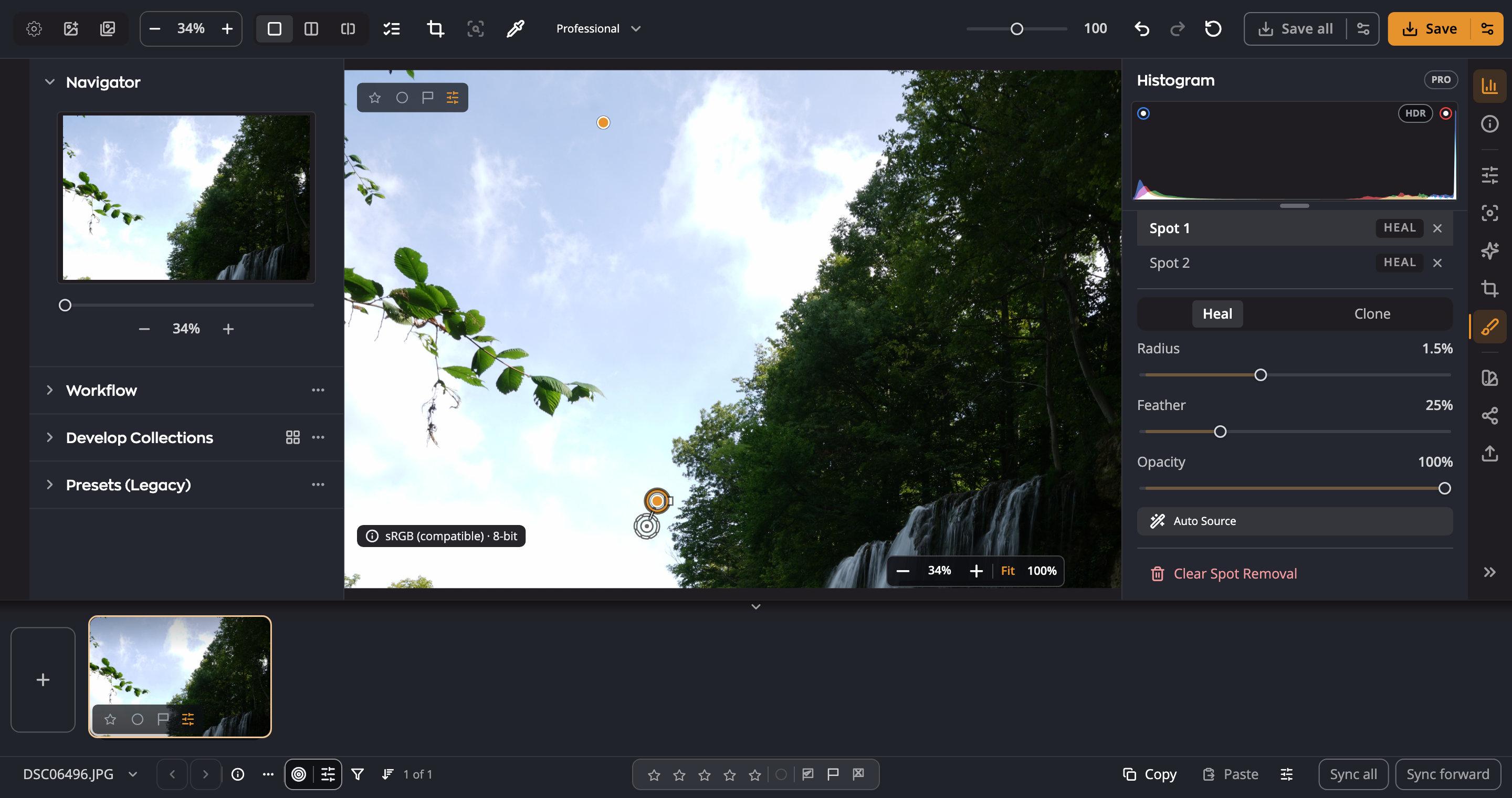
Paint out spots and dust
Heal and Clone, built in. Click a speck or drag along a wire, and a clean source is picked for you.
 Head and shoulders
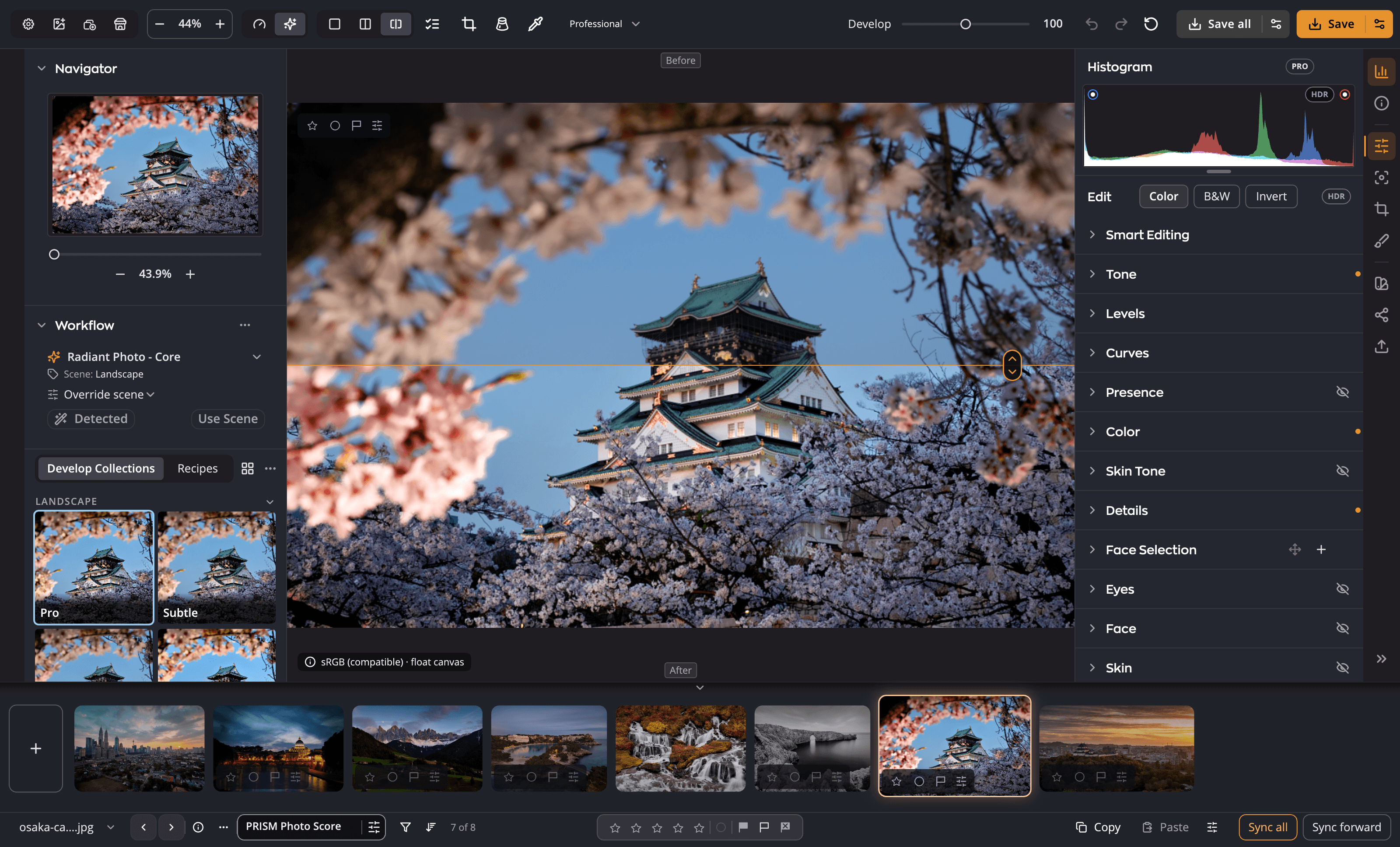
Let Auto Crop frame it
The best framing first, with the others kept in a list, each with a reason. Straighten and Perspective sit right beside it.
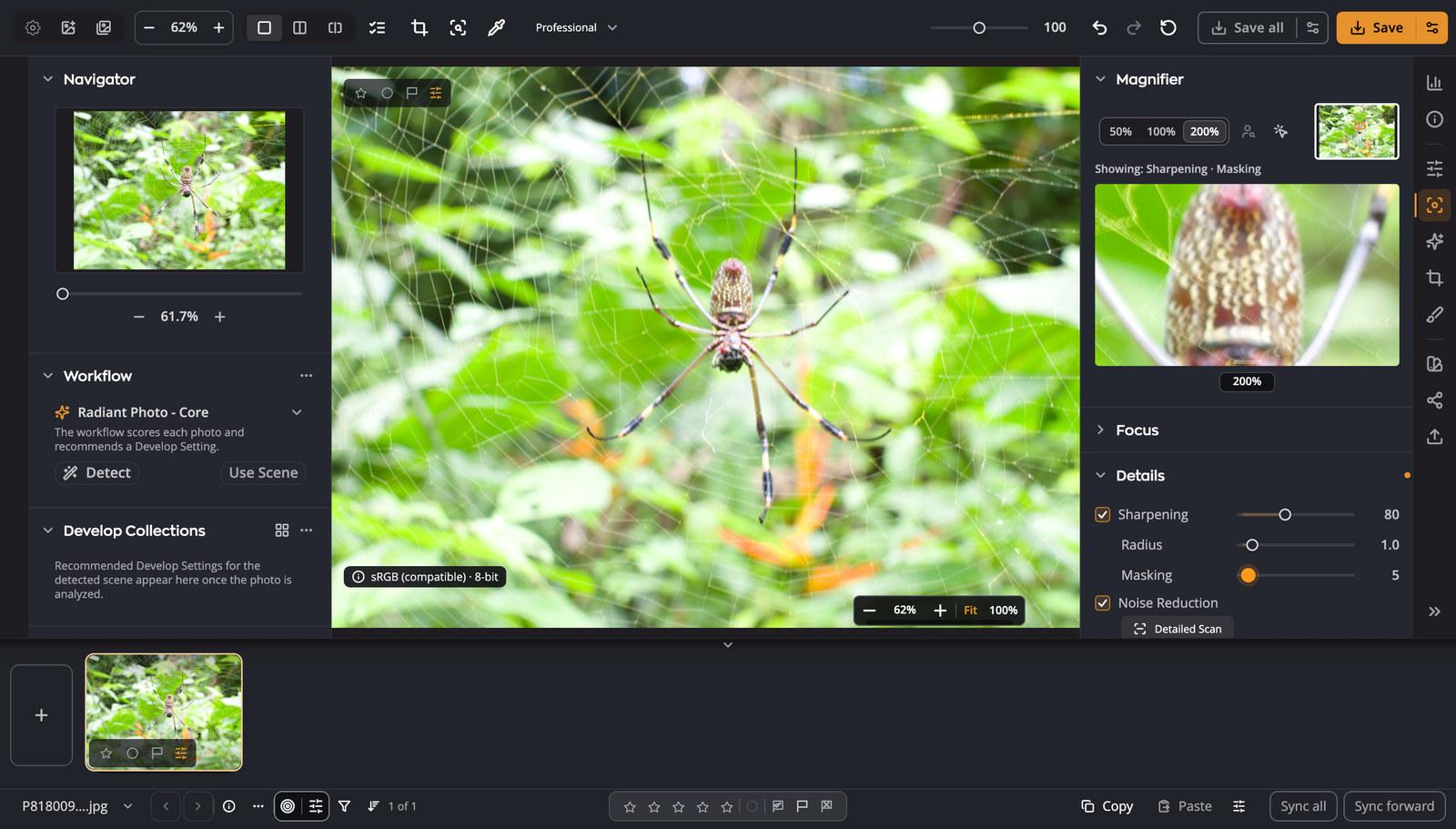
See what's sharp
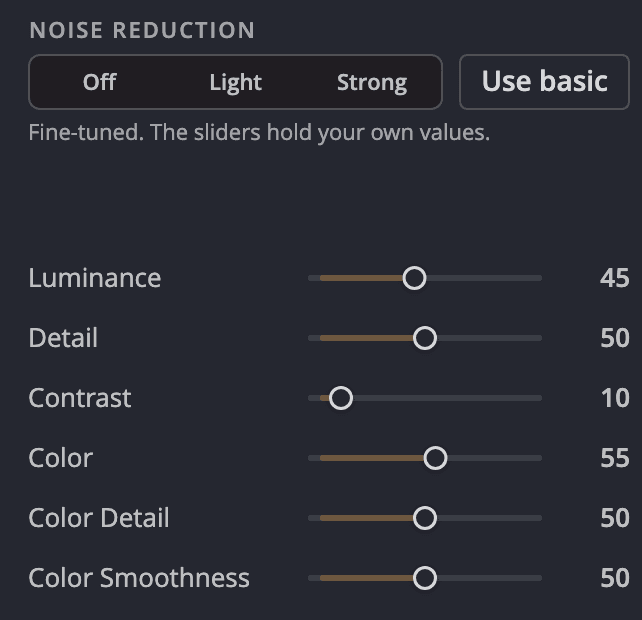
The Focus page puts the Magnifier, focus points and the focus mask beside Sharpening and Noise Reduction.
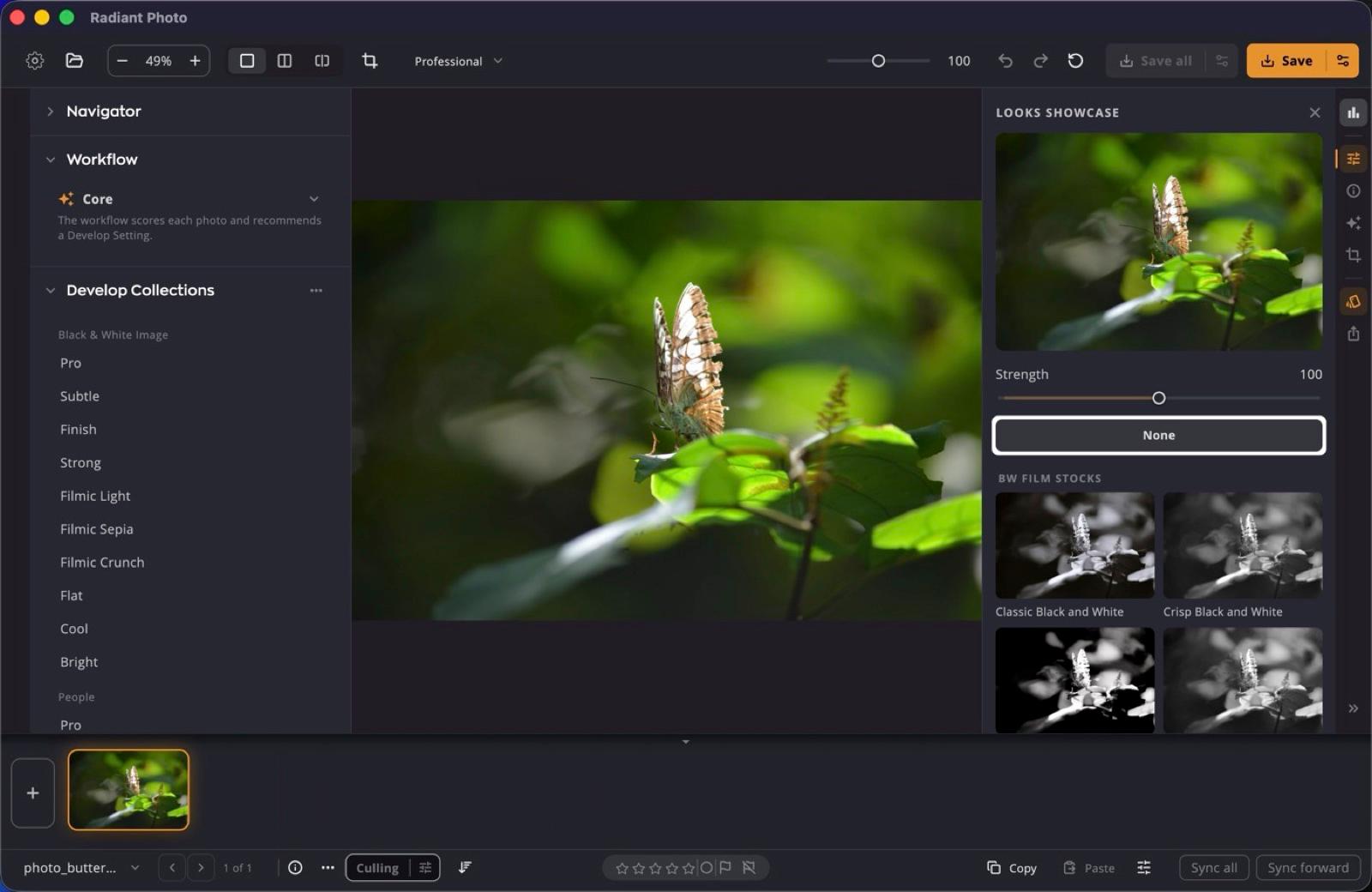
Choose Looks on your own photo
Browse Looks on the picture you're editing, with up to nine suggested by PRISM.
 88Keep
Pick faster with PRISM Photo Score
A score from 0 to 100 for every photo, from Radiant Flow, so the keepers rise to the top.
Everything inside the app
Shop, restore, activate and update without ever leaving your edit.
What you buy installs right away, with no restart. Bought a pack on our website? It's already yours in the Store. Restore Purchases brings everything back on a new computer.
 Golden Smoke
PRISM, new in 2.5
Every photo, understood.
Right on your computer.
Meet PRISM. It reads each photo once and turns what it sees into help you can use: a score that finds your keepers, a suggested star rating, and Looks that suit the shot.
 BEST93Keep
- 88Keep
 86Keep
 77Review
 66Review
 58Review
Read the score card
Click PRISM Photo Score in the bottom bar, and the card stands beside your photo. Hold the pointer over it for the full card.
- 1Score. From 0 to 100.
- 2Band. Keep, Review or Reject, from where the score falls.
- 3Scored as. The scoring profile PRISM used, such as Portrait, Landscape, Night or General.
- 4Signals. What the score is made of: Eyes open, Sharpness, Exposure, Facing, Noise and Tilt, as they apply.
- 5Lifted by, or Held back by. The two signals that earned the most points, or cost the most.
- 6Check eyes and Accept. Zoom to the eyes to check focus, and accept the suggested star rating with one click.
93 against 88: five points or less apart, so PRISM calls it too close to call. Photo: Elia Locardi
A score that shows its work
0 to 100, built from what photographers check: eyes open across every face, sharpness where the subject is, exposure, noise, and a level horizon for landscapes. Every score shows its parts.
Judged for the scene
Nine scoring profiles, from Portrait and Newborn to Night, Animals and Black & White. PRISM recognizes the scene, so a city at night is judged as a night shot.
Best of the burst
Frames taken within two seconds are grouped, and the strongest is marked. When the top two are too close to call, it says so.
Why a shot is soft
On photos without people, PRISM tells you if it's missed focus or motion blur, as a hint that doesn't count against the score.
You're in charge
It suggests and never decides. It never sets the Reject flag, never deletes a photo, and never changes a rating you set. One switch turns it all off.
Careful with people
PRISM finds faces only to judge focus and eyes. It never tries to recognize who anyone is, and won't suggest words about a person's appearance.
Bring your work with you
Your purchases and settings,
moved in a few clicks.
The import shows what it found before a single file is copied. It doesn't change Radiant Photo 2, so you can keep both while you settle in, and undo the import any time.
- 01
Restore your purchases first
Open the Store in Radiant Photo 2.5 and choose Restore Purchases, so your collections open with their Looks.
- 02
Quit Radiant Photo 2
Then in Radiant Photo 2.5 choose File › Import from Radiant Photo 2…
- 03
Look over the list
Develop collections, presets, loaded LUTs, tool presets, crop sizes, per-scene defaults, favorites and settings.
- 04
Click Import
If two names clash, you keep both copies. Head-crop presets become Portrait presets.
Bought from us with more than one email address?
Bring your purchases together before you restore:
- Sign in at radiantimaginglabs.com with the email address you'll use in Radiant Photo 2.5.
- On your account page, under Email addresses, choose Add an address and add your other address.
- Then open Radiant Photo 2.5 and choose Restore Purchases with the same address as in step 1.
Please add the other address on the website before you use it anywhere else, including in the app. If the website says the address belongs to another account, our Support Team will help you.
What stays in Radiant Photo 2
Custom workspaces, window layout, and files installed with Radiant Photo 2 or your purchases. The import report lists them. Your old edits still open in 2.5, and opening a photo changes nothing.
Two new apps
Meet the family.
Each app made for its job.
Browse and rate in Radiant Flow, develop raws in depth in Radiant Raw, and finish in Radiant Photo. Flow culls, Raw develops, Photo finishes.
Free · Comes with Radiant Photo
Radiant Flow
Your photos at a glance. Browse, cull, import from a card, verify and add metadata. Star ratings, stacks, PRISM Photo Score, and Jobs you send to Radiant Photo.
- 93 · Keep
- 88 · Keep
- 86 · Keep
- 77 · Review
- 66 · Review
- 58 · Review
Its own license · 30-day free trial
Radiant Raw
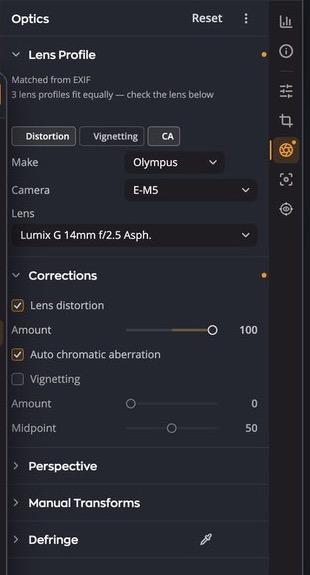
Full raw developing, optics and HDR. More than 1,500 lens profiles, six-slider noise reduction and gain-map HDR JPEG. Re-develop Raw… in Radiant Photo sends a photo back and keeps your edits on top. Radiant Photo still opens raw files on its own.
Side by side
Radiant Photo 2 and 2.5,
at a glance.
| Radiant Photo 2 | Radiant Photo 2.5 | |
|---|---|---|
| Opening raw files | Your computer's built-in decoder | Its own raw engine, powered by the Mylio Image Pipeline |
| Spot Removal | None: automatic portrait retouching only | Heal and Clone, with Find Dust and sync across photos |
| Cropping | By hand | Auto Crop, Compare Crops and portrait framing |
| Straighten | A slider | −45° to 45° in 0.1° steps, draw a line, or Auto Level |
| Perspective | None | Vertical and Horizontal, in the crop panel |
| Sharpening | Three sliders, no previews | Masking with a smooth ramp, previews and the Focus page |
| Looks | Custom LUTs | Look Browser on your own photo, Looks Showcase, suggested Looks |
| Choosing keepers | No browser, ratings or card import | Radiant Flow, free, with PRISM Photo Score |
| Watermarks | None | One library in three apps, with Signature watermarks |
| Store, activation and updates | Website, emailed installers and Radiant Manager | All inside the app, with no restart |
| Sharing with other apps | No .xmp file | Ratings, keywords and copyright in .xmp |
Top 25
25 things you'll notice
coming from Radiant Photo 2.2.
Fix
5 new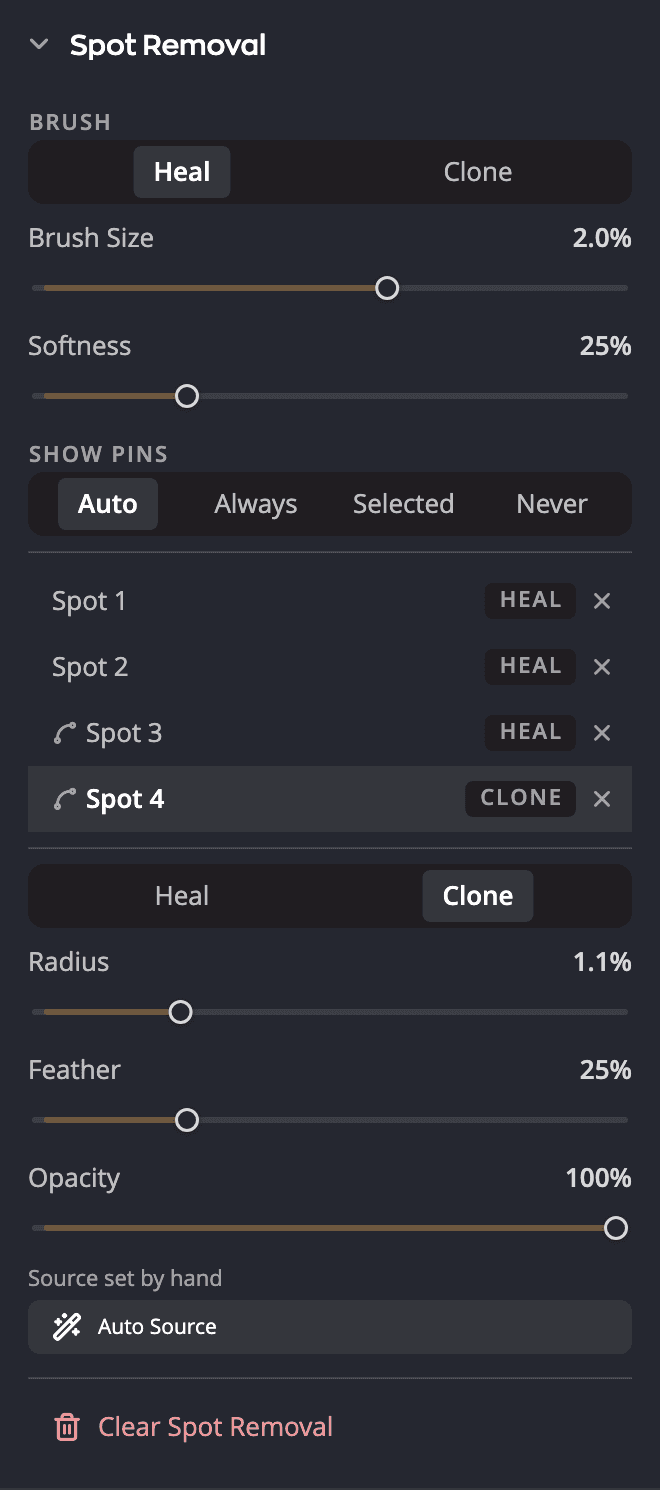
Heal and Clone. Click a speck or drag a line, and a clean source is picked.
Drag a fix or its source pin. Radius, Feather and Opacity for each one.
In this photo or all open photos. Fix or Turn Down each possible spot.
Makes sensor dust easy to see before you print.
Add or Replace, with each photo choosing its own clean source.
Frame
6 newApplies the best framing and keeps the rest in a list, each with a reason.
In a grid or one at a time, beside your crop and no crop.
Headshot and Head and shoulders presets. Groups are framed together.
−45° to 45° in 0.1° steps, draw a line, or Auto Level.
Vertical and Horizontal, right in the crop panel.
Exact rectangle, same ratio, or Auto Crop or Portrait for each photo.
Focus and sharpen
3 new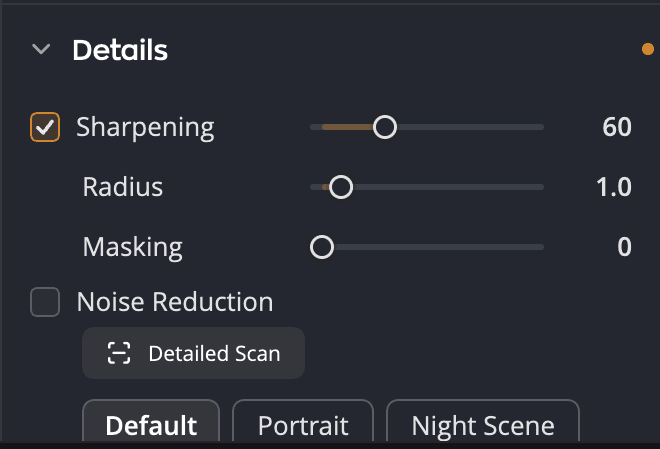
Magnifier, focus points, focus mask, Sharpening and Noise Reduction on one page.
50% to 800%. Aims at the focus point and snaps to eyes.
Masking with a smooth ramp and live previews. Healing happens first, so seams stay clean.
Looks and color
4 new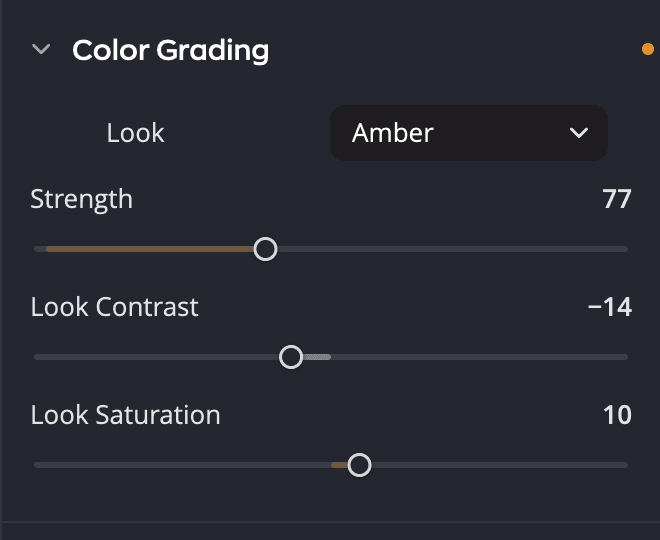
See each Look on the picture you're editing.
A new way to explore the Looks collection.
Up to nine Looks suggested by PRISM for this photo.
For Sky Toning and a Sky shape in the Graduated Filter, with a brush to tidy it.
Review
4 new
0 to 100, in Keep, Review and Reject bands, from Radiant Flow.
Show Faces lines up each face in a group shot, closed eyes first.
A BEST mark on each burst's top frame, and Compare by numbers for two photos.
With the Pro histogram, drag across it to set Blacks through Whites.
Finish and work your way
3 new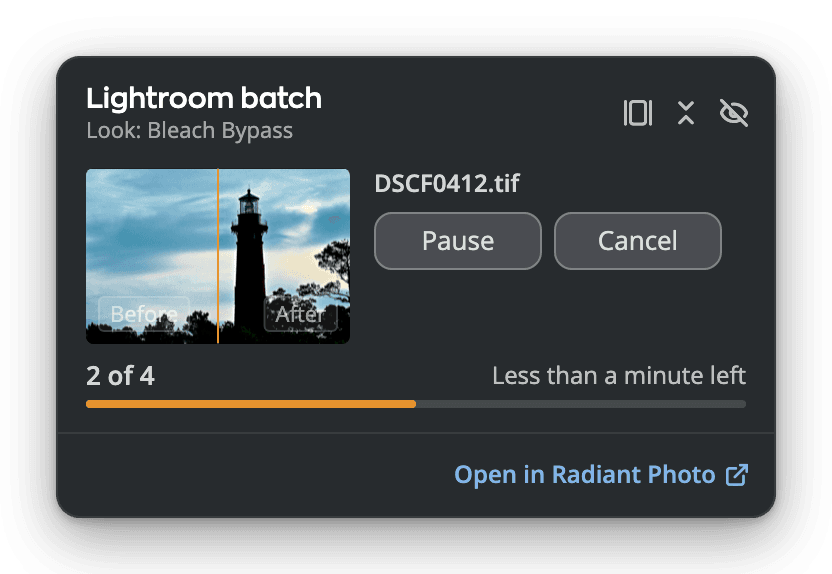
One library in all three apps, with templates, legibility checks and Signature watermarks.
Looks, Recipes and Workflows install with no restart. Restore Purchases on a new computer.
Lightroom Classic, Photoshop, Apple Photos and Capture One, each with deeper tools than before.
Questions
Will my old edits still open?
Yes. Settings files from Radiant Photo 2 open in Radiant Photo 2.5. Opening a photo changes nothing.
Do I have to uninstall Radiant Photo 2?
No. Radiant Photo 2.5 is a new app, and it installs beside Radiant Photo 2. Keep both while you settle in. Here's where things go:
- On Windows: Radiant Photo 2.5 goes into its own folder, Program Files\Radiant Imaging Labs\Radiant Photo 2.5. Your older Radiant Photo stays where it is. If Radiant Photo 1 is installed too, the new desktop shortcut is named Radiant Photo 2.5, so each app keeps its own.
- On a Mac: the new apps go at the top level of Applications. Your old Radiant Imaging Labs folder, with Radiant Photo 1 and 2 inside, is renamed Radiant Imaging Labs (Legacy). They still open from there. If something else named Radiant Photo, Radiant Flow or Radiant Raw was in Applications, it moves to a folder named Moved by Radiant Installer.
- In Lightroom Classic: you'll see only the new Radiant Photo commands. Find them under File › Plug-in Extras and Library › Plug-in Extras. The installer sets Radiant Photo 2's plug-in and its Edit In entry aside. If you uninstall Radiant Photo 2.5 while Radiant Photo 2 is still installed, they go back where they were.
- In Photoshop: Radiant Photo 2's filter stays, beside the new Radiant Photo 2.5…, and your old actions still play.
Is the update free?
Yes. Every Radiant Photo 2 owner gets Radiant Photo 2.5 at no cost. Later updates, from 2.6 on, come with a Radiant Toolkit membership.
Where do I browse and rate photos?
In Radiant Flow, which is free and comes with Radiant Photo.
Does Radiant Raw come with it?
Radiant Raw has its own license. Activating one doesn't activate the other. Try it free for 30 days, no card needed.
Is Radiant Raw covered by Toolkit?
No. Radiant Toolkit belongs to the app you bought it for, which is Radiant Photo. Radiant Raw is a separate app with its own license, so Toolkit doesn't extend to it.
Something not right after the move? Write to us and we'll check what applies to you.
Keep learning
Learn the new tools.
At your own pace.
Short tutorials on Learn show you how, on real photos. The manuals cover every control in detail.
Tutorials for the new tools, on Learn
All tutorialsTutorialSpot RemovalHeal or clone away dust and distractions TutorialCrop and straightenFrame and level for a stronger photoTutorialSharpeningCrisp detail without halos
 TutorialGive a photo its style with a LookTry Looks on your own photo
 TutorialLens correctionsFix distortion, fringes and dark corners
 TutorialNoise reductionClean up high-ISO noise
Documentation
The manuals
More questions from owners
What Radiant Photo 2 owners ask most
What's improved in this release?
We focused on what Radiant Photo 2 owners asked us for most:
- Raw files without add-ons. Radiant Photo 2.5 reads most camera raw files itself, on Mac and Windows.
- Every raw file opens. If a raw file can't be developed yet, Radiant Photo 2.5 opens the camera's preview and tells you so.
- Everything in one app. Activation, updates and purchases are now inside Radiant Photo.
- Workflows, ready right away. Radiant Photo 2.5 installs a Workflow as soon as you buy it.
- Lightroom Classic. The installer now adds the plug-in for you, with no Edit In setup by hand.
- Photoshop's Filter menu. Settings › Plug-ins shows where the plug-in is installed, and Repair puts it back.
- Sharing with other apps. Radiant Photo 2.5 writes ratings, keywords and copyright to an .xmp file, which Lightroom Classic and most photo apps read.
Where's my license key, and how do I move to a new computer?
Your license key is in your account on our website, and installers are on the Downloads page in Support. When you change computers, deactivate on the old one first. Then activate on the new one and choose Store › Restore Purchases to bring back what you bought.
Can I still open photos the way I did in Radiant Photo 2?
Yes. File › Open… (Ctrl+O on Windows, ⌘O on a Mac), drag and drop, and opening from File Explorer or Finder all work as before. On Windows, right-click a photo and choose Edit with Radiant Photo (in Windows 11, under Show more options). On a Mac, Control-click and choose Open With › Radiant Photo. A photo you edited before opens with its saved settings, read from the .radiant file beside it.
How does Radiant Photo handle raw files?
Radiant Photo opens camera raw files on its own, with no other app needed. It reads most formats, including .arw, .cr2, .cr3, .nef, .orf, .raf, .rw2 and .dng. Your original raw file is never changed. In Settings › Raw › When opening a Raw, choose Automatic (no Develop), Apply recipe, Develop in Radiant Raw or Ask each time.
Why is Radiant Flow a separate app?
Because it does a different job, and it's free for everyone. Flow is a browser, not an editor. It shows what's on a card, drive or folder right away, with no import, and sends your picks to Radiant Raw, Radiant Photo, Photoshop, Lightroom Classic, Capture One, Apple Photos or Mylio Photos. Radiant Photo works fully without Flow. You'd just miss PRISM Photo Score and the Looks PRISM suggests, which Flow works out.
Why add Radiant Raw?
To develop the raw file yourself. Radiant Photo gives you a good automatic start, but it has no develop window of its own. Radiant Raw adds thirteen Edit sections, more than 1,500 lens profiles, Level, Vertical, Full, Guided and Auto perspective, a filmstrip with Copy, Paste and Sync, and Re-develop Raw… to go back from Radiant Photo. Press Auto and you get a good picture. Every control after that is optional.
What comes back to Lightroom Classic from Radiant Photo?
A new 16-bit TIFF in ProPhoto RGB, named name-Radiant.tif. It's stacked above the original, in a collection for that run, with its keywords, title, caption and location. Your originals are never overwritten. Plug-in jobs run in Radiant Photo Host, so a Radiant Photo session you have open isn't interrupted.
Can I turn the automatic edits off?
Yes. In Settings › AI, turn off Choose develop settings automatically from the scene. The scene is still recognized and shown, but nothing is applied until you choose. Photos you've already edited are never changed by it.
What is Radiant Toolkit?
A yearly add-on for Radiant apps you own. It gives you a member credit every month toward Looks, Recipes, Develop Collections and Workflows in the Marketplace, and it works with both Radiant Raw and Radiant Photo. Updates to Radiant Photo from 2.6 on come with Toolkit. If you subscribe to Radiant Photo, all three apps or All Access, you don't need it. See Pricing.
Radiant Photo 2 stopped working. How do I reinstall it?
Follow our step-by-step guide to a clean reinstall. It covers a Mac and Windows. Reinstall Radiant Photo 1 or 2
More answers on the Radiant Photo owners page in Support.

Your best photos are waiting.
Radiant Photo 2.5 is free for Radiant Photo 2 owners.
Install it beside Radiant Photo 2, activate with the keycode we emailed you, and pick up right where you left off.