
Color Wheels
Color Wheels tint the shadows, midtones and highlights of your photo separately, the way film colorists grade a movie. Use them for a teal-and-orange look, warm highlights over cool shadows, or a subtle color mood. You'll find Color Wheels in the right panel, just below Color Grading.
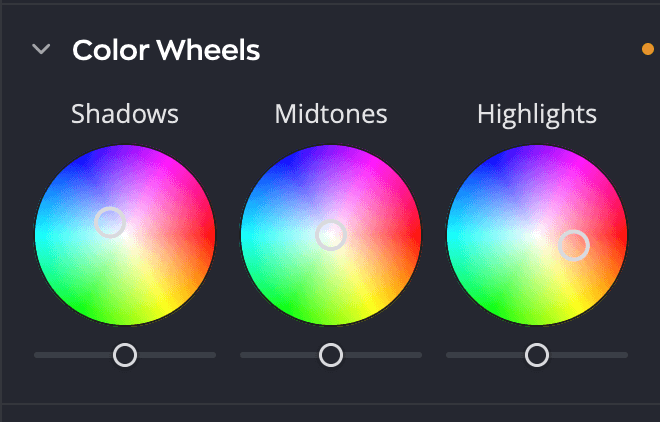
| # | Control | What it does |
|---|---|---|
| 1 | Header eye | Turns all three wheels on or off and keeps their settings. |
| 2 | Shadows wheel | Tints the darkest tones. |
| 3 | Midtones wheel | Tints the middle tones. |
| 4 | Highlights wheel | Tints the brightest tones. |
| 5 | Puck | Its direction picks the hue; its distance from the center sets how strong the tint is. |
| 6 | Luminance sliders | Darken or brighten each range, −100 to +100 (default 0). |
Grade a photo
- Open Color Wheels in the right panel.
- Drag the puck in the Shadows wheel toward the color you want in the shadows.
- Drag the Highlights puck toward a contrasting color, for example orange against teal.
- Use Midtones sparingly. It affects most of the photo, including skin.
- Drag the slider under a wheel to brighten or darken that range.
The farther you drag a puck from the center, the stronger the tint, up to 100% at the rim. The hue runs around the wheel from 0° to 359°, with red at the right. A puck in the center means no tint.

Tip
Opposite colors on the wheel cancel out. Push the shadows and highlights toward opposite hues for contrast, or toward neighboring hues for a gentle, unified mood.
Reset
- Double-click a wheel to put its puck back in the center.
- Double-click a luminance slider to put it back at 0.
- Hold the pointer over the Color Wheels header and click its reset button to reset all three wheels and sliders.
Use the keyboard
Click a wheel, then:
| Key | What it does |
|---|---|
| ← and → | Turns the hue. Add ⇧ for bigger steps. |
| ↑ and ↓ | Raises or lowers the strength. Add ⇧ for bigger steps. |
| Delete | Puts the puck back in the center. |
Color Wheels with Looks and the Graduated Filter
Color Wheels work on top of your correction and alongside a Look from Color Grading. Grade with a Look first, then use the wheels to fine-tune its balance.
The Graduated Filter has its own set of three wheels. Use them to tint the inside and outside (or top and bottom) of the filter differently. See Graduated Filter.