
Can I open images from a Memory Card in Radiant Photo mobile app?
Acest articol nu este încă disponibil în limba română, așa că este afișat în engleză.
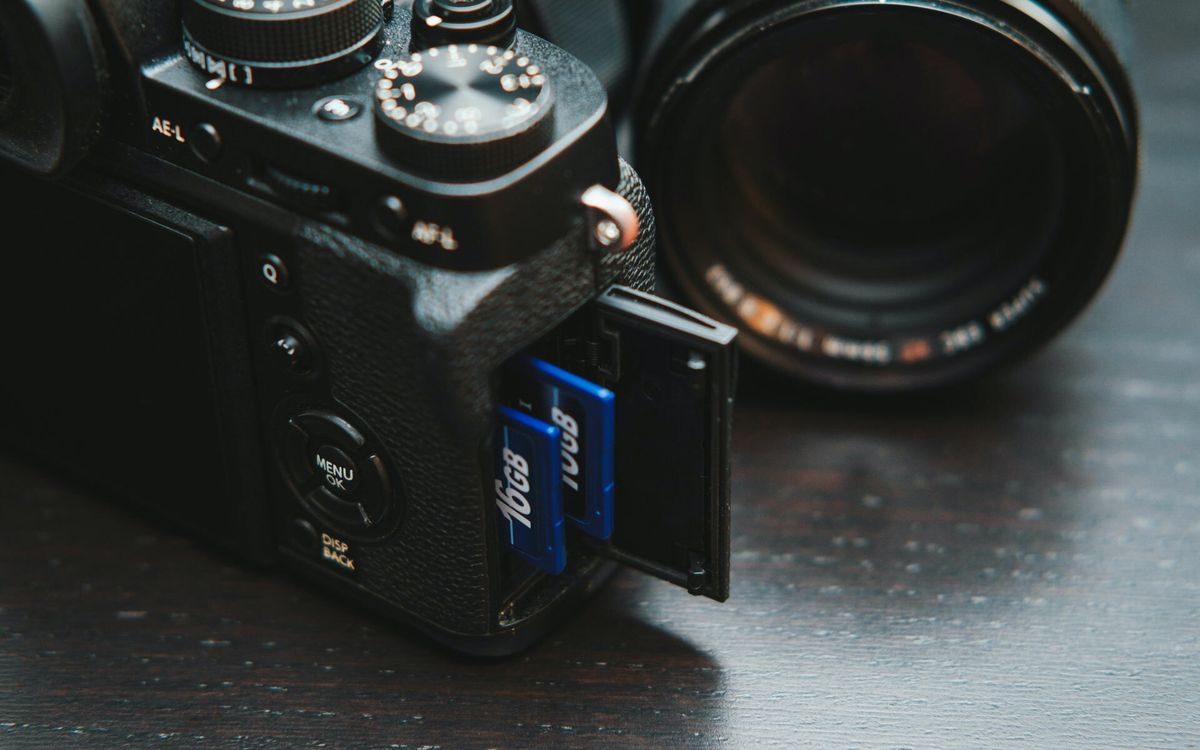
It may be possible to directly attach a memory card reader to your phone or tablet. This allows for directly importing raw files from a camera into the app.
A few points of note
- Your device handles raw decoding. Most cameras are supported, but keep your device's OS up to date for the best results.
- Not all devices can supply enough power for the memory card reader. Tablets work best, but phone card readers may be trial and error. Some readers can also be connected to a USB battery pack for extra power.
- Raw files can take up quite a bit of space, so be mindful of how many you import onto a phone.
- Tablets may also be able to handle external SSD storage.
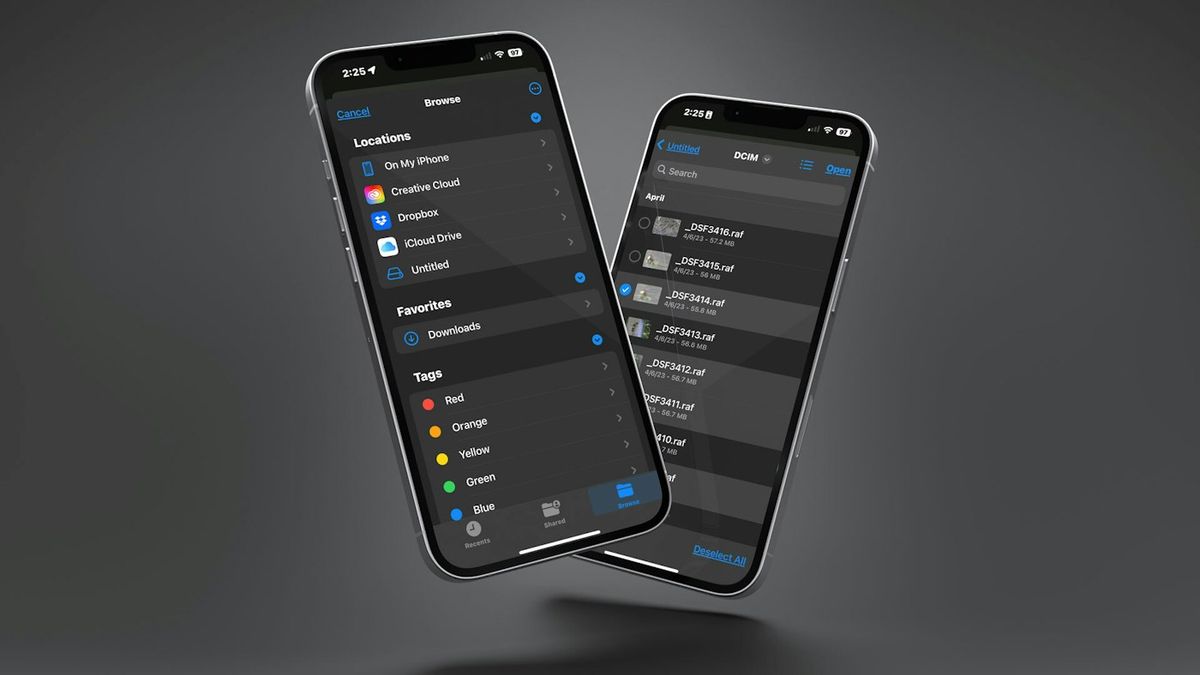
For iOS and iPadOS
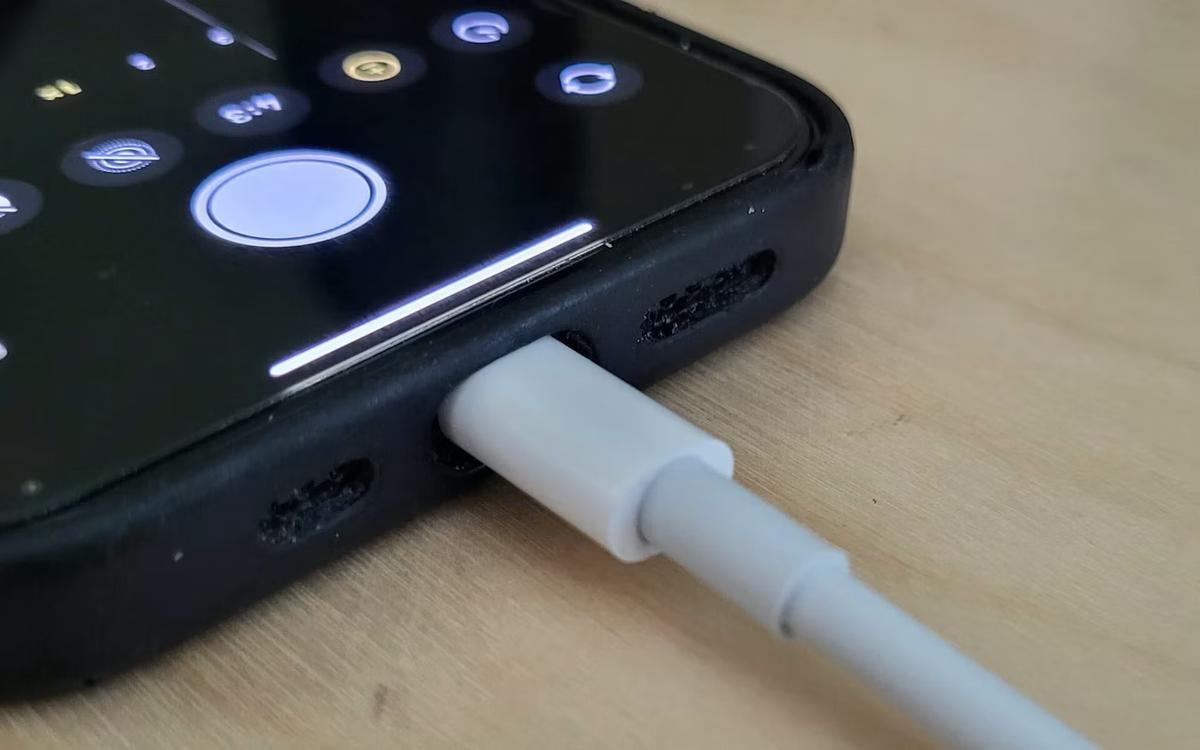
Apple devices tend to prefer the official card readers (albeit more expensive) made by Apple.
Note: If you have trouble connecting the card, quit Radiant Photo mobile app before attaching the card reader.
- Connect the card reader to your device.
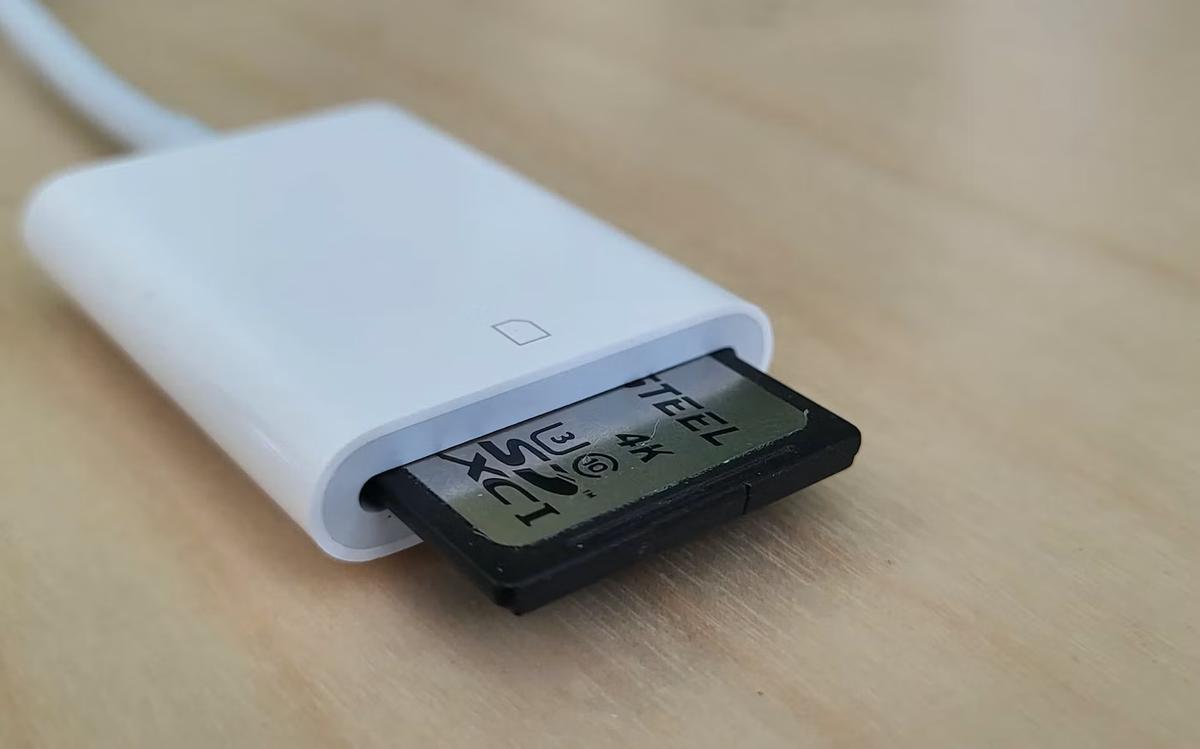
2. Insert the memory card.
3. Launch the Radiant Photo mobile app.
4. In the top bar, tap the Folder icon to browse locations. The Files interface opens.
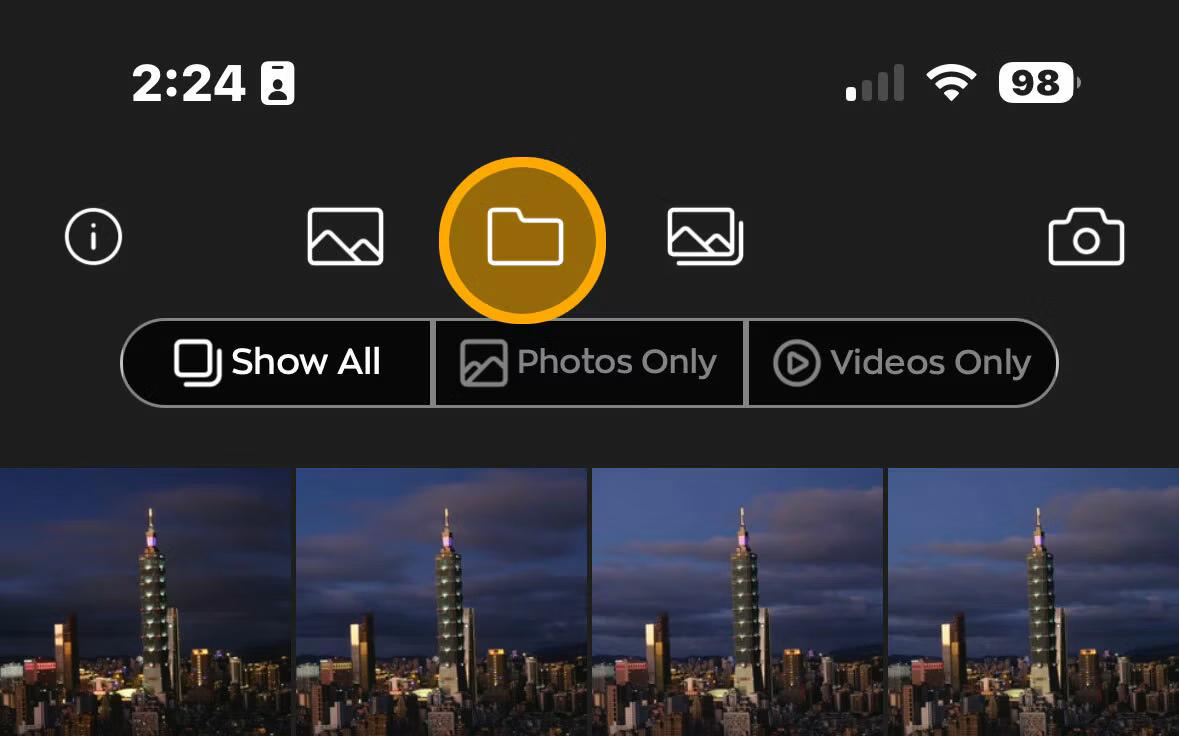
5. Tap the Browse button.
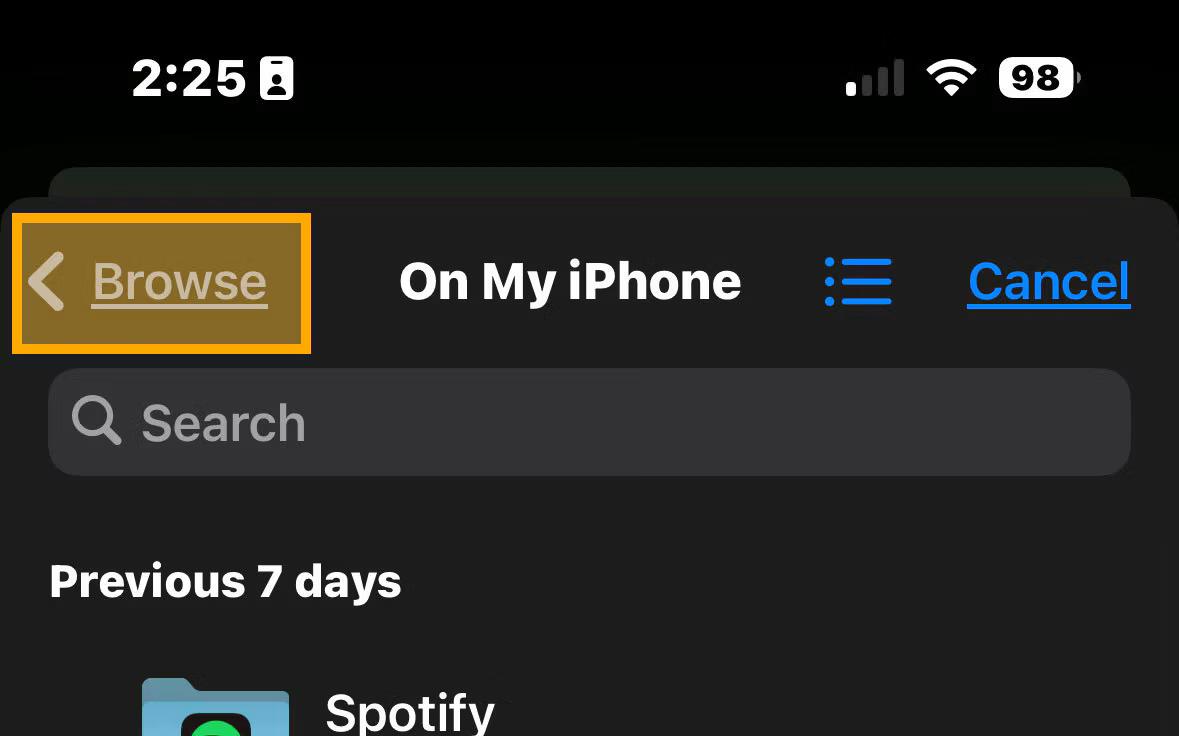
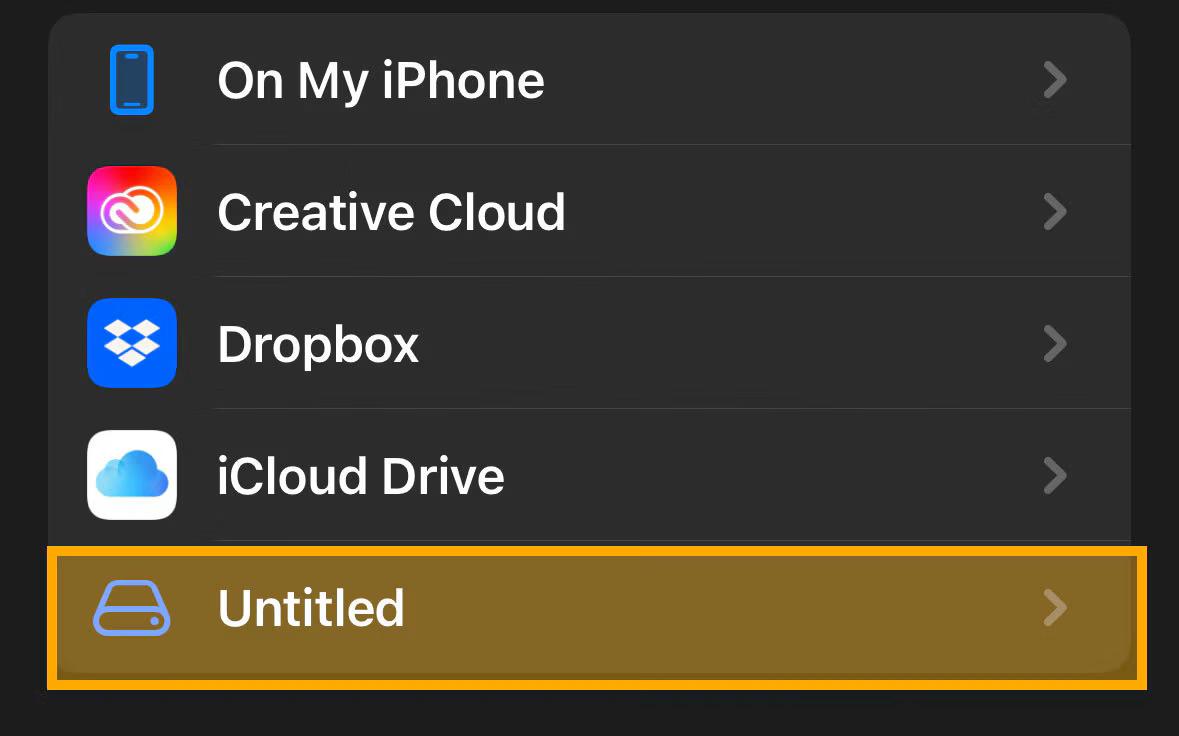
6. Select the memory card (it might look like a drive icon).
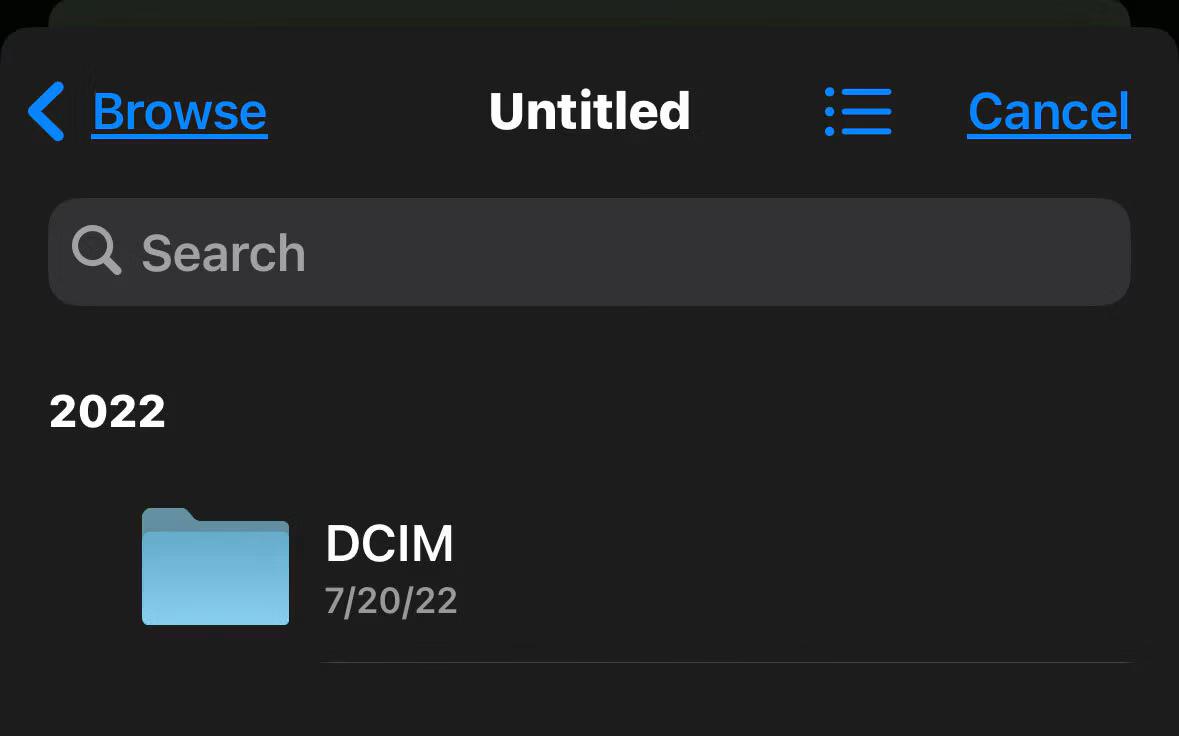
7. Select the appropriate folder (it is likely called DCIM).
8. Tap the View As icon if you want to change your view style
9. Tap on any images that you want to import. You can tap to select multiple images.
10. When ready, tap Open to send them to Radiant Photo mobile app.
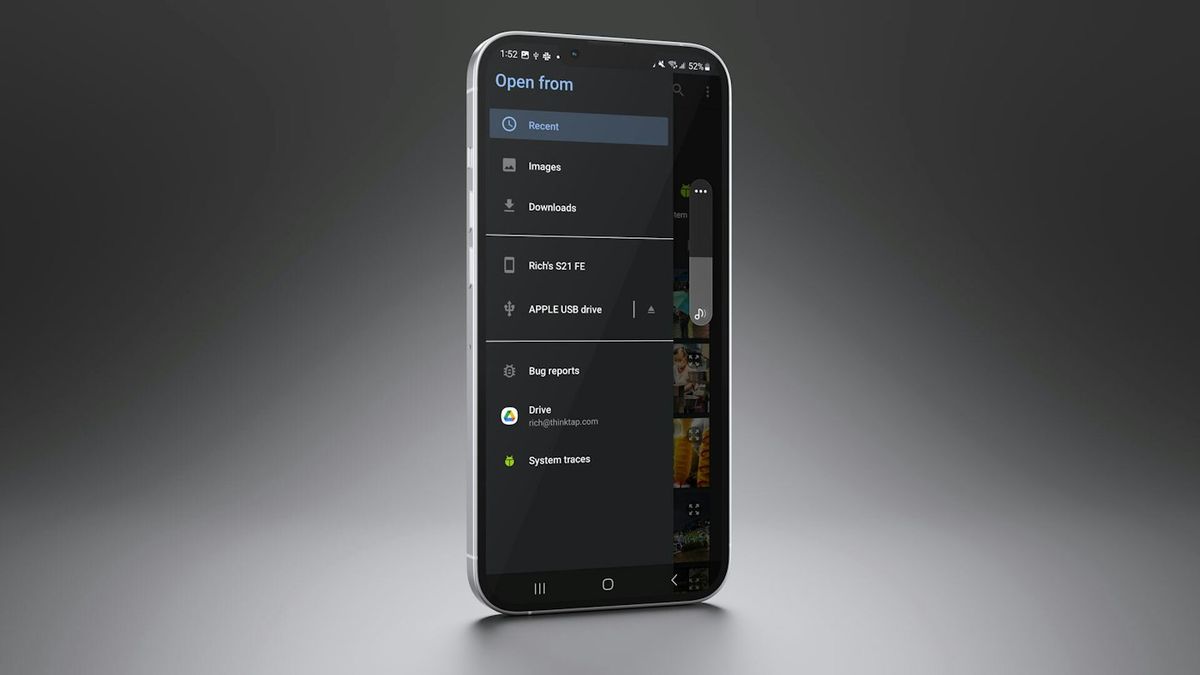
For Android
There are many options available for card readers. Those designed for desktop or laptop use may require too much power from your phone or tablet. Look for ones advertised as specifically for use with portable devices.
Note: If you have any trouble connecting the card, quit Radiant Photo mobile app before attaching the card reader.
Note: You may want to try navigating with the Android Files app to browse to the memory card folder to establish the path.
- Connect the card reader to your device.
2. Insert the memory card.
3. Launch the Radiant Photo mobile app.
4. In the top bar, tap the Folder icon to browse locations. The Files interface opens.
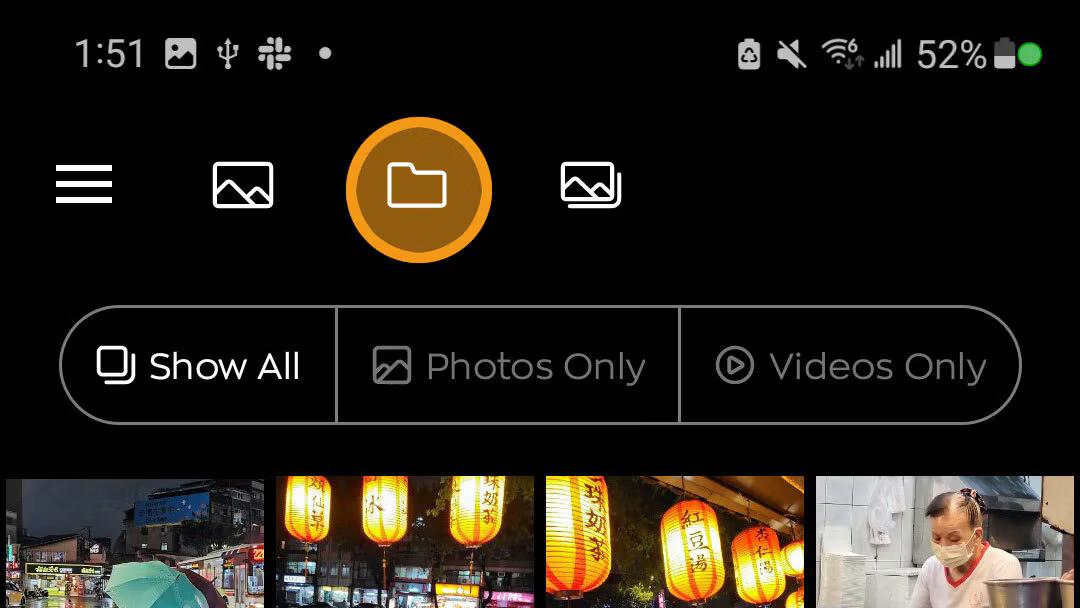
5. Tap the menu button in the upper left corner.
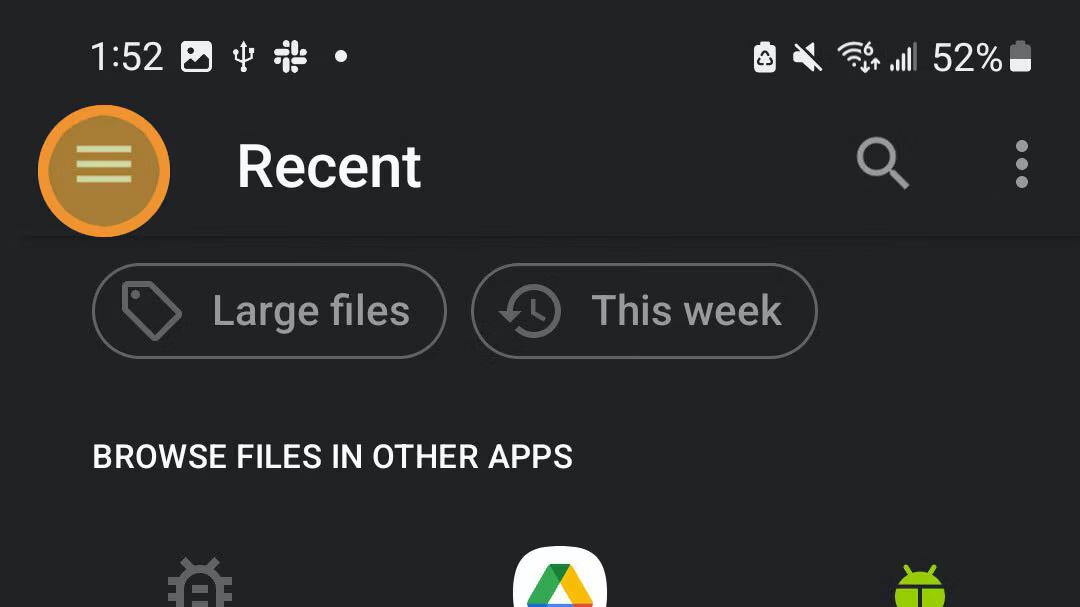
6. Select the memory card (it might look like a USB icon).
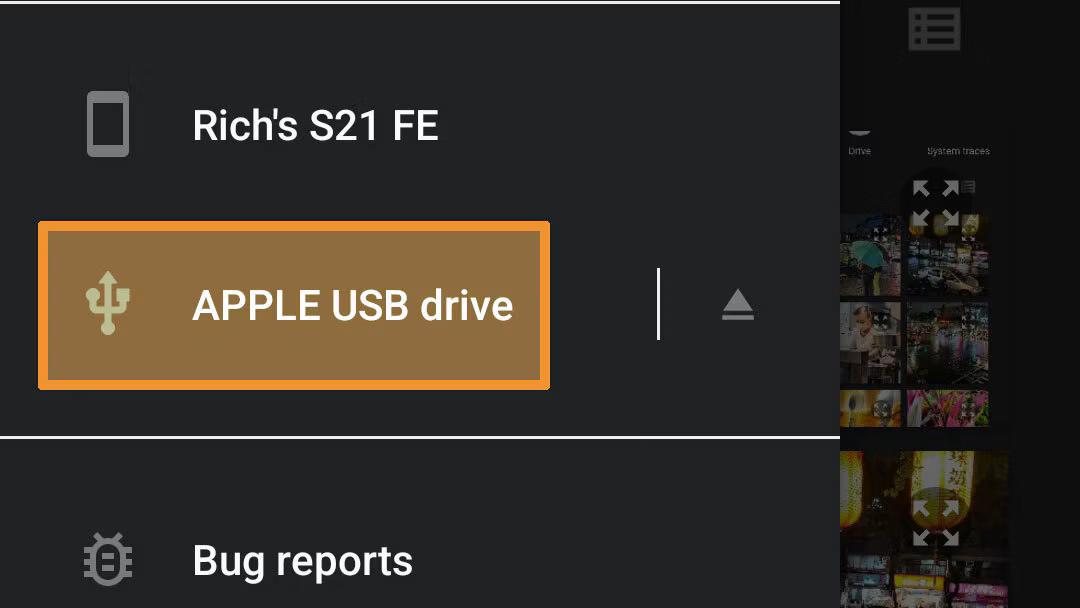
7. Select the appropriate folder (it is likely called DCIM).
8. Long press on any images that you want to import.
You can multi-select images.
9. When ready, tap Select to send them to Radiant Photo Mobile.