
Batch-processing images in Radiant Photo mobile version
この記事はまだ日本語に翻訳されていないため、英語で表示しています。

You can open dozens of images at a time in Radiant Photo mobile app. This is one of its most unique capabilities and can be a giant timesaver. It’s possible to process right after a photo shoot from your phone or tablet for quick review or easy sharing.
- Android devices can currently batch up to 20 photos at a time
- iOS can batch photos and videos and is only limited by the amount of RAM on your device.
Let's get started with batch processing:
- Launch the Radiant Photo mobile app.
- In the top menu bar, tap the Batch button.
Note: to exit batch processing, tap the same button again.
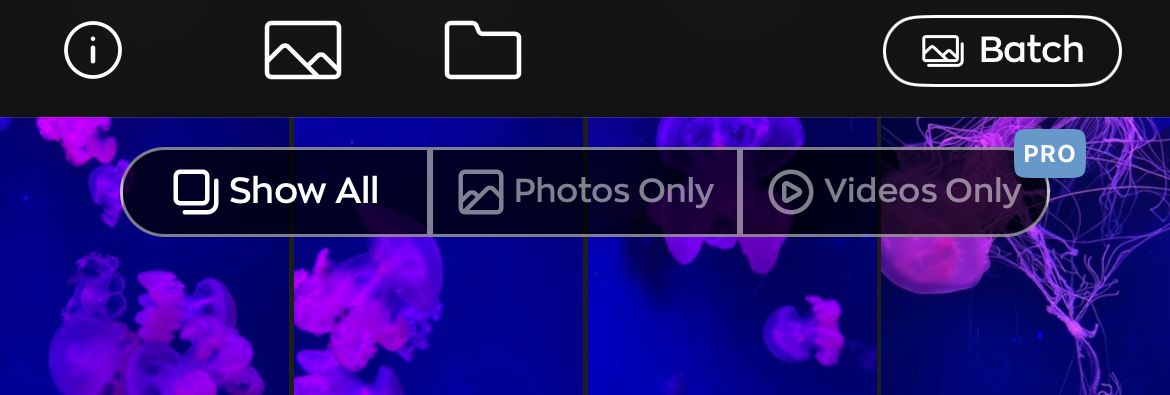
3. Scroll through the photo gallery and choose all the photos you want to edit.
4. Tap on an image to select it for editing.
- A checkmark indicates that a photo is selected.
- Tap again if you want to deselect it.
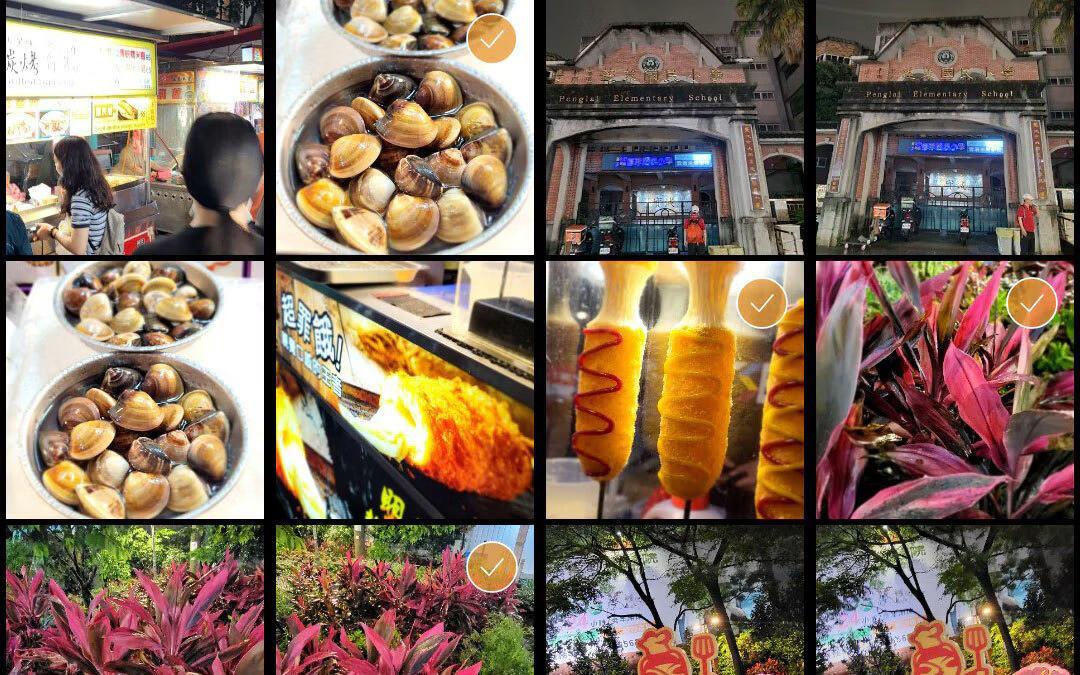
5. When ready to start the batch process, tap the Next button.
- All of the images open on the next screen.
- Each image has the correct Smart Preset applied.
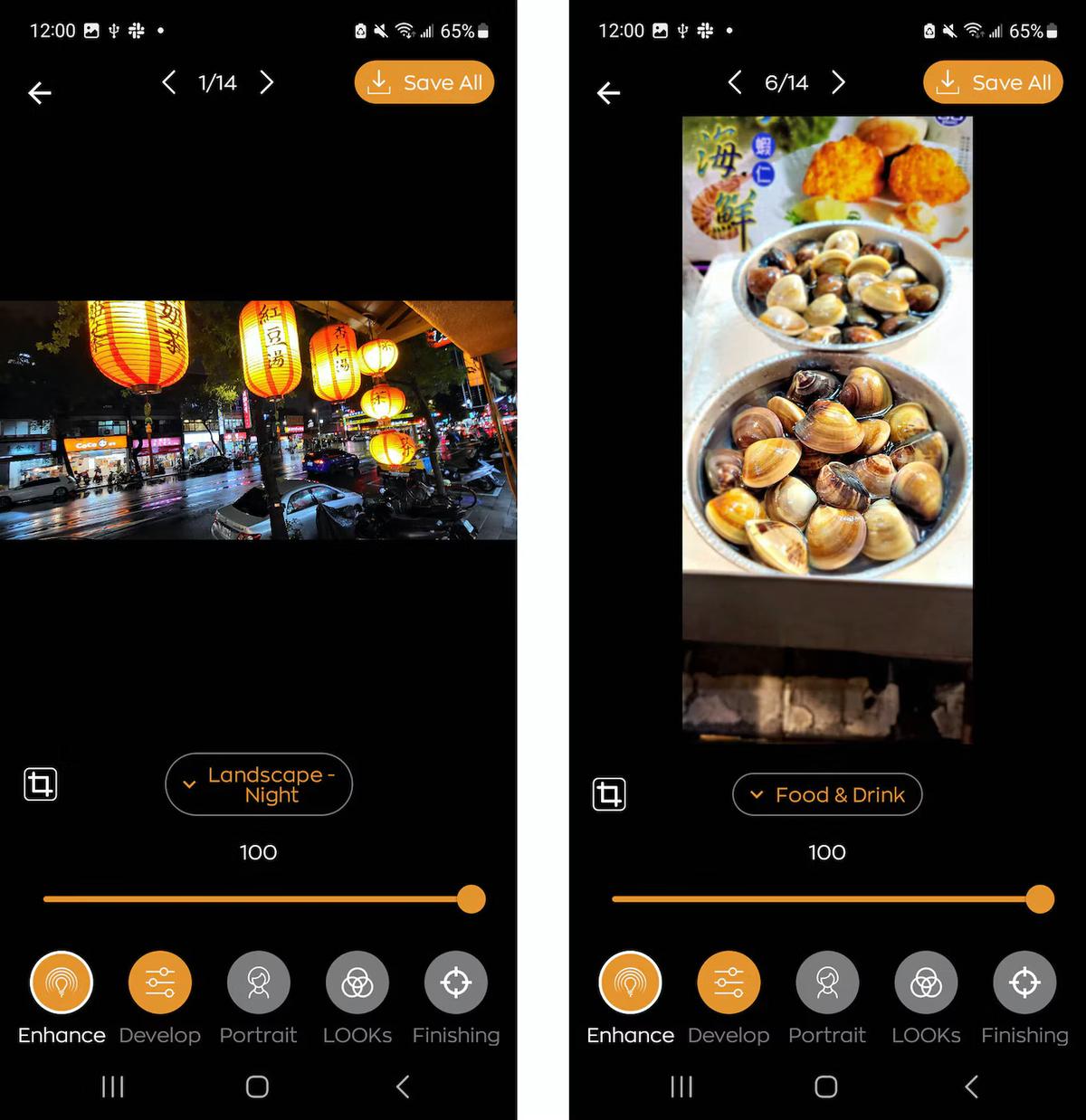
6. Tap Save All to review the images.
The images are processed, and you can see the results on the grid.
7. You can tap a thumbnail if you’d like to skip saving the results.
8. When ready, tap the Save button.
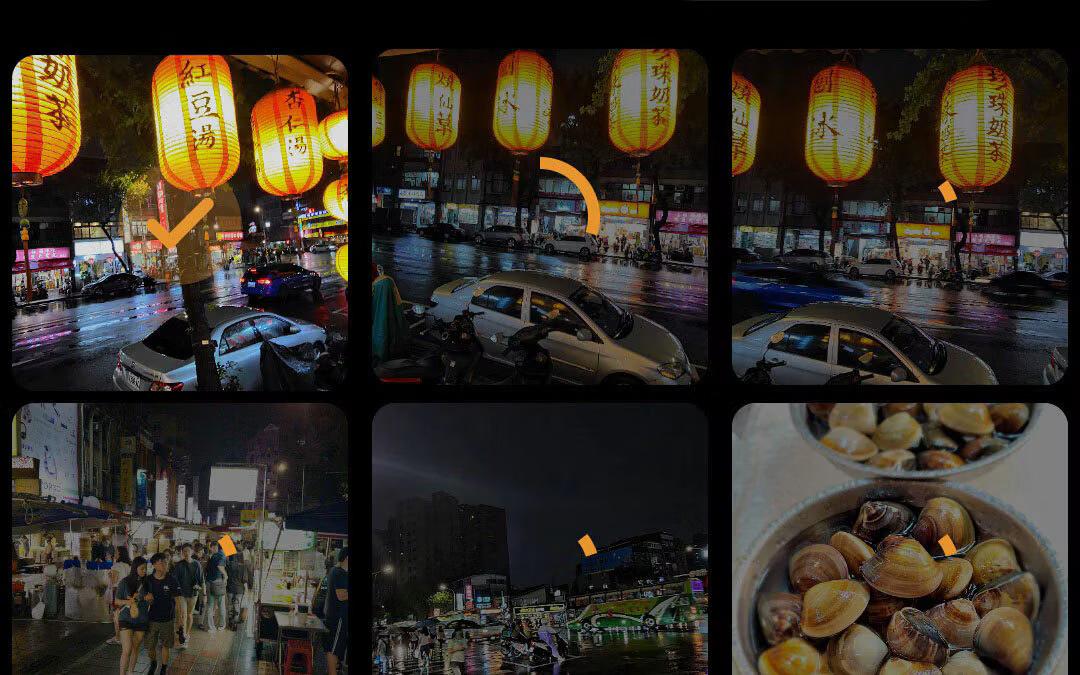
The batch process runs, and you can see the progression on the screen.
When finished, the images are stored on your camera roll.
9. Tap Back to Gallery to process more photos or Close if you want to return to the batch edit for further adjustments.'
Note: At this time, it is not yet possible to Share or Export a batch process with one step. You’ll need to save to your device's camera roll first.