
For Radiant Photo 1 and 2 owners
Moving to Radiant Photo 2.5, at your own pace
Your current version keeps working, and nothing you made or bought is lost. This page walks you through what's changed, one step at a time. If anything is unclear, we're here.
Updated November 23, 2026 · We'll keep this page current as we release updates.
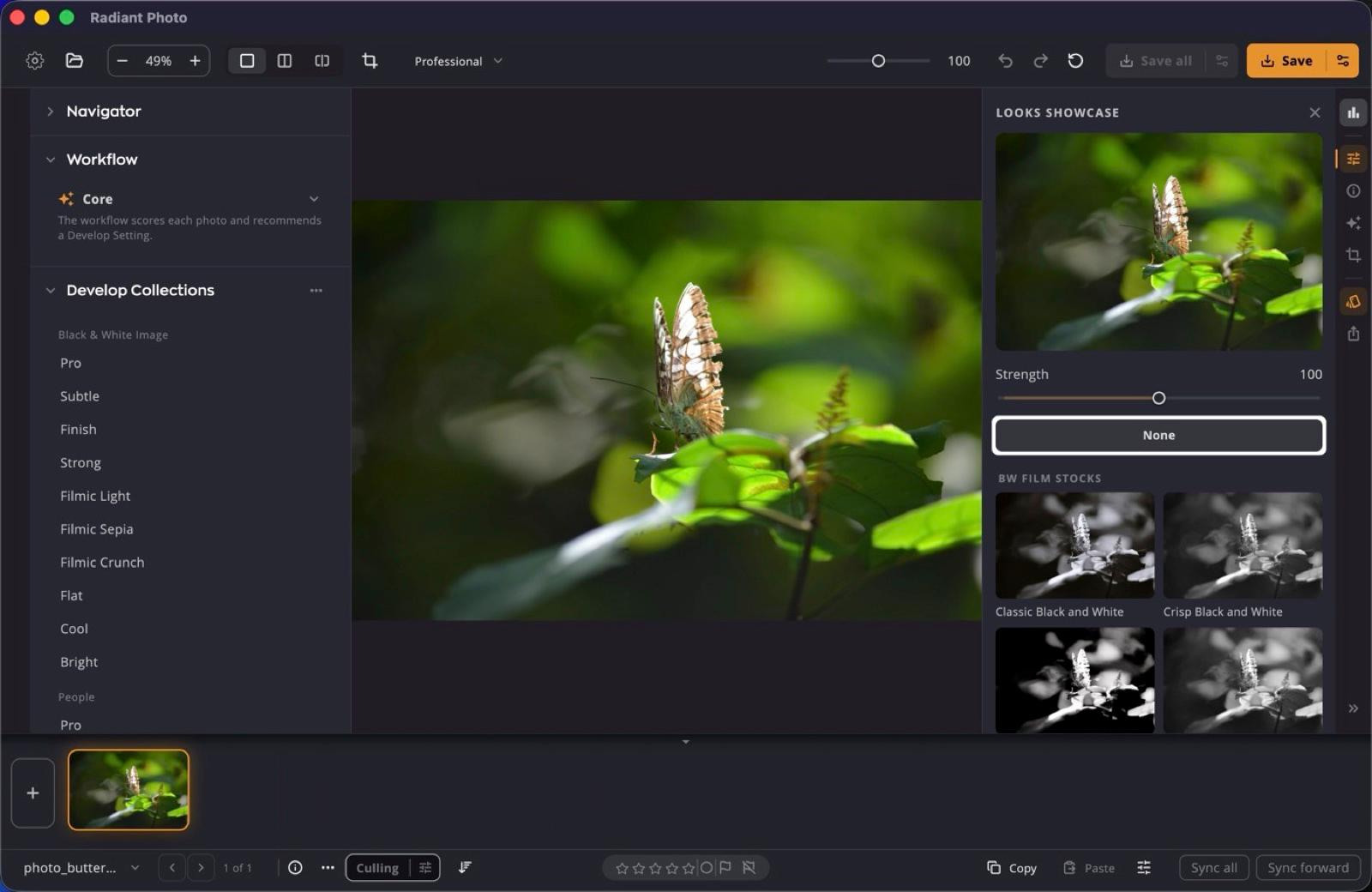
- Your old version staysRadiant Photo 1 and 2 stay installed and keep opening your photos.
- Nothing is lostPurchases come back from your account. Your own settings import.
- No rushMove over when it suits you. Old edits still open in 2.5.
- People to askTalk with other owners or write to our team.
Start here
Most owners only need these four things. The rest is in the questions below, whenever you want it.
Bring back what you bought
Looks, Develop Collections, Workflows and Radiant Toolkit come back from your account with Restore Purchases.
Four steps2Bring over what you made
Your own LUTs, develop collections and settings come over with Import from Radiant Photo 2…
What comes over3Owners of Radiant Photo 1
Your Radiant Photo 1 presets import as Recipes, and both apps can stay installed.
For Radiant Photo 14See what's new
A tour of everything added since Radiant Photo 2, from the raw engine to Recipes.
What's new in 2.5The Radiant family
Three apps, one way of working
If you've only known Radiant Photo, here's how the family fits together. Radiant Photo stays at the center; the other two are there when you want them.
Browse a card or folder right away, rate and pick, then send your best to any app. Free.
About Radiant Flow
Exposure, color, lens corrections and noise, from your camera's raw data. Optional.
About Radiant Raw
The app you know: scenes, faces, skies, Looks and finishing touches.
About Radiant PhotoComing from Radiant Photo 2
What's different, and what stays
The biggest change is how raw files open. Radiant Photo 2.5 has its own raw engine, and two companion apps now handle browsing and full raw developing.
| Radiant Photo 2 | Radiant Photo 2.5 | |
|---|---|---|
| Raw decoding | Your computer's built-in decoder | A dedicated raw engine, powered by the Mylio Image Pipeline |
| Starting points | Develop settings | Built-in Recipes, and your own from Radiant Raw |
| Full raw developing | Not included | In Radiant Raw, with a round trip back to Photo |
| Lens corrections | None: the manual sent you to your raw editor | In Radiant Raw |
| Browsing and culling | In the app | In Radiant Flow, a free app |
Nothing is lost
Old edits open
Settings files from Radiant Photo 2 open in Radiant Photo 2.5 as they are.
Your work comes over
File › Import from Radiant Photo 2… shows what it found before it copies anything.
Radiant Photo 2 stays installed
In Photoshop, its filter stays beside the new Filter › Radiant Imaging Labs › Radiant Photo 2.5…, and old actions still play.
Bring back what you bought
What you bought comes back from your account, not from your old installation, so it's tied to you rather than to one computer.
- In Radiant Photo, choose Store › Restore Purchases.
- Enter your Purchase email and click Email me a code.
- Enter the 6-digit code from the email and click Restore.
- Open My Library and click Install all.
Bought with more than one email address? Run Restore Purchases again with each one. No code? See Restore code doesn't arrive.
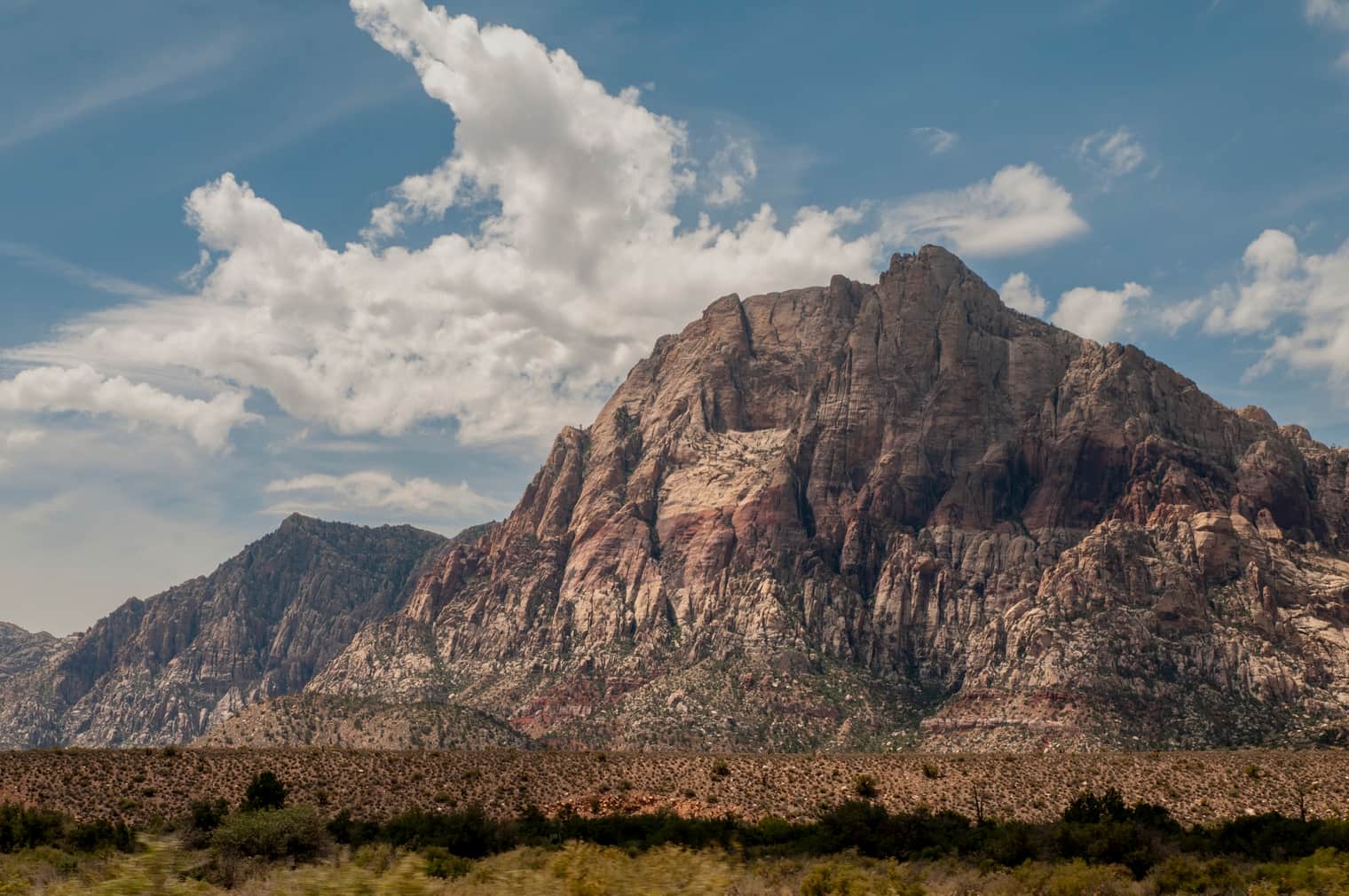
 As shotGolden Smoke
Where each thing comes from
| What you have | How it comes over | Where you'll find it |
|---|---|---|
| Looks you bought | Restore Purchases | My Library, under From Radiant Photo 2 |
| Develop Collections you bought | Restore Purchases | My Library |
| Workflows you bought | Restore Purchases. Radiant Photo installs them for you | The Workflow switcher. Its page in the Store shows Unlocked |
| Looks you loaded yourself (LUTs) | File › Import from Radiant Photo 2… | My Looks. Photos you edited with them still find them |
| Your own develop collections and Develop Settings | File › Import from Radiant Photo 2… | Your collections, now as Recipes |
| Radiant Photo 1 presets | Recipes tab › … › Import Radiant Photo 1 Recipes… | The Recipes tab, under Legacy |
| Radiant Toolkit membership | It carries on. Restore Purchases brings it to a new computer | Settings › Account › Purchases |
- Restore first, then import. Your collections then open with their Looks.
- Looks work in Radiant Raw too. A Looks pack you own works in both apps, once both are activated on that computer.
- Every computer you activate gets your purchases. Something you bought on our website shows in My Library the next time you open the Store.
What did you fix for this release?
We looked at the problems Radiant Photo 2 owners wrote to us about most, and fixed these:
- Raw files without add-ons. Radiant Photo 2 opened only the raw files your computer could already read, so on Windows it needed Microsoft's Raw Image Extension. Radiant Photo 2.5 reads most camera raw files itself.
- Raw files it can't develop. These could fail to open, or open black. Radiant Photo 2.5 opens the camera's preview instead and tells you so.
- No more Radiant Manager. Radiant Manager could crash, bounce in the Dock or freeze on "Updating". Activation, updates and purchases are now inside Radiant Photo.
- Workflows that didn't appear. A Workflow you bought could stay hidden until you activated it separately. Radiant Photo 2.5 installs it as soon as you buy it.
- Lightroom Classic. You sometimes had to add Radiant Photo to Edit In by hand. The installer now adds the plug-in for you.
- Photoshop's Filter menu. If Radiant Photo was missing there, you had to fix it by hand. Settings › Plug-ins now shows where the plug-in is installed, and Repair puts it back.
- Sharing with other apps. Radiant Photo 2 couldn't save an .xmp file. Radiant Photo 2.5 writes ratings, keywords and copyright to .xmp, which Lightroom Classic and most photo apps read.
Do I need to uninstall Radiant Photo 2 first?
No. Radiant Photo 2 stays installed beside Radiant Photo 2.5, so you can open older projects in it while you move over. On a Mac, the installer puts Radiant Photo 2.5 at the top level of your Applications folder and renames the old Radiant Imaging Labs folder to Radiant Imaging Labs (Legacy).
Where's my license key, and how do I move to a new computer?
Your license and downloads are in your account. When you change computers, deactivate on the old one first, then activate on the new one and choose Store › Restore Purchases to bring back what you bought.
Find your license key and downloadsMove your license to a new computerHow many computers?
Something didn't come over the way you expected? Tell our support team and we'll sort it out with you.
Coming from Radiant Photo 1
Your presets come with you
Radiant Photo 1 owners move the same way: restore what you bought, then import what you made.
How do I bring over my Radiant Photo 1 presets?
In Radiant Photo 2.5, open the Recipes tab, click … and choose Import Radiant Photo 1 Recipes…. They appear in the Recipes tab, under Legacy. A My Smart Presets file comes in as a Develop Collection instead.
Can I keep Radiant Photo 1 installed?
Yes. Both apps open. On Windows, Radiant Photo 2.5.1 takes over Radiant Photo 1's desktop shortcut, its right-click entry and its Lightroom Classic plug-in. Radiant Photo 1 is still in the Start menu under Radiant Imaging Labs › Radiant Photo. The known issue says how to get its plug-in back.
Known issue: Radiant Photo 1 on WindowsKnown issue: Radiant Photo 1 on a Mac
Radiant Photo 1 or 2 stopped working. How do I reinstall it?
Follow our step-by-step guide to a clean reinstall. It covers both versions on a Mac and on Windows.
Coming from Radiant Photo 1 too? Compare notes with other owners in the community
Opening photos
The ways you know, and a few new ones
Can I still open photos the way I did in Radiant Photo 2?
Yes. These work as they always have:
| Way | How |
|---|---|
| Open files | File › Open…, or ⌘O (Ctrl+O on Windows) |
| Drag and drop | Drag photos onto the Radiant Photo window |
| From Finder or File Explorer | On a Mac, Control-click a photo and choose Open With › Radiant Photo. On Windows, right-click and choose Edit with Radiant Photo (in Windows 11, under Show more options) |
| From Lightroom Classic or Photoshop | Through the plug-ins: see Plug-ins and other apps |
| A photo you edited before | Opens with your saved settings, read from the .radiant file beside it |
| Recent photos | File › Open Recent (now the last 20), and File › Reopen All Photos from Last Session |
| Whole folders | Drag a folder onto the window |
Every photo you open goes into the filmstrip at the bottom of the window.
What's new for opening photos?
| Command | What it does |
|---|---|
| Browse Photos card, on the Home screen | Opens Radiant Flow, to rate, filter and pick before you edit |
| Open Photos card, on the Home screen | Choose files, or drag photos onto the card |
| File › Browse Photos… (⇧⌘O, Ctrl+Shift+O) | Opens Radiant Flow. So does the Radiant Flow button at the left of the toolbar |
| File › Open Folder… (⌥⌘O, Ctrl+Shift+D) | A menu command for opening every photo in a folder and its subfolders |
| File › Import from Apple Photos… (Mac) | Opens Radiant Flow at your Photos library |
| Develop Raw… and Re-develop Raw… | In a filmstrip thumbnail's menu. Sends a raw photo to Radiant Raw. Needs Radiant Raw |
| Share › Jobs | Runs Jobs sent from Radiant Flow with Process with… |
Radiant Photo 2.5 also opens AVIF, JPEG XL and Photoshop .psd files (8-bit and 16-bit), alongside the HEIF files Radiant Photo 2 opened.
How do I open photos with Radiant Flow?
- Open Flow. Click the Radiant Flow button in Radiant Photo's toolbar, or choose File › Browse Photos….
- Pick your photos. Rate, flag and filter a card, drive or folder.
- Send them. Click Open, or press ⌘↓ (Ctrl+Down Arrow on Windows). The button names the count, for example Open 12 in Radiant Photo. The photos open in Radiant Photo's filmstrip, after any photos already open.
- Choose where photos go. The menu beside Open sends photos to Radiant Raw, Radiant Photo or one other app, such as Photoshop. In Settings › General, you can send one file type elsewhere, for example NEF files to Radiant Raw.
- Edit a whole Job without opening it. Send a Job to Radiant Photo and choose Process with…. Radiant Photo applies a Look, a Recipe or the Workflow to every photo and saves them to a folder you choose.
- Keep Flow beside the editor. With View › Follow Editor on, Flow moves to whatever photo Radiant Photo is showing. Stars and flags you set in either app show in the other.
Why is Radiant Flow a separate app?
Because it does a different job, and it's free for everyone.
- It's a browser, not an editor. Flow shows what's on a card, drive or folder right away, with no import. It's built for the first hour after a shoot: which of these 2,000 frames are worth keeping?
- It works with every app you use. Send photos to Radiant Raw, Radiant Photo, Photoshop, Lightroom Classic, Capture One, Apple Photos or Mylio Photos. You don't need Radiant Raw or Radiant Photo to use Flow.
- It stays open. Flow runs in its own window, and keeps running when you quit Radiant Photo. Put it on a second display.
- It's free. It comes with Radiant Raw and Radiant Photo, or on its own.
Radiant Photo works fully without Flow. You'd just miss PRISM Photo Score and the Looks PRISM suggests, which Flow works out.
Raw files
Raw files in Radiant Raw and Radiant Photo
A simple rule
Radiant Raw works on what the camera captured: light, color and the lens. Radiant Photo works on what's in the picture: faces, skies and mood. The hand-off is 16-bit, and the round trip keeps your finishing edits.
 Flow→
 Raw→
 PhotoDevelop in Radiant Raw
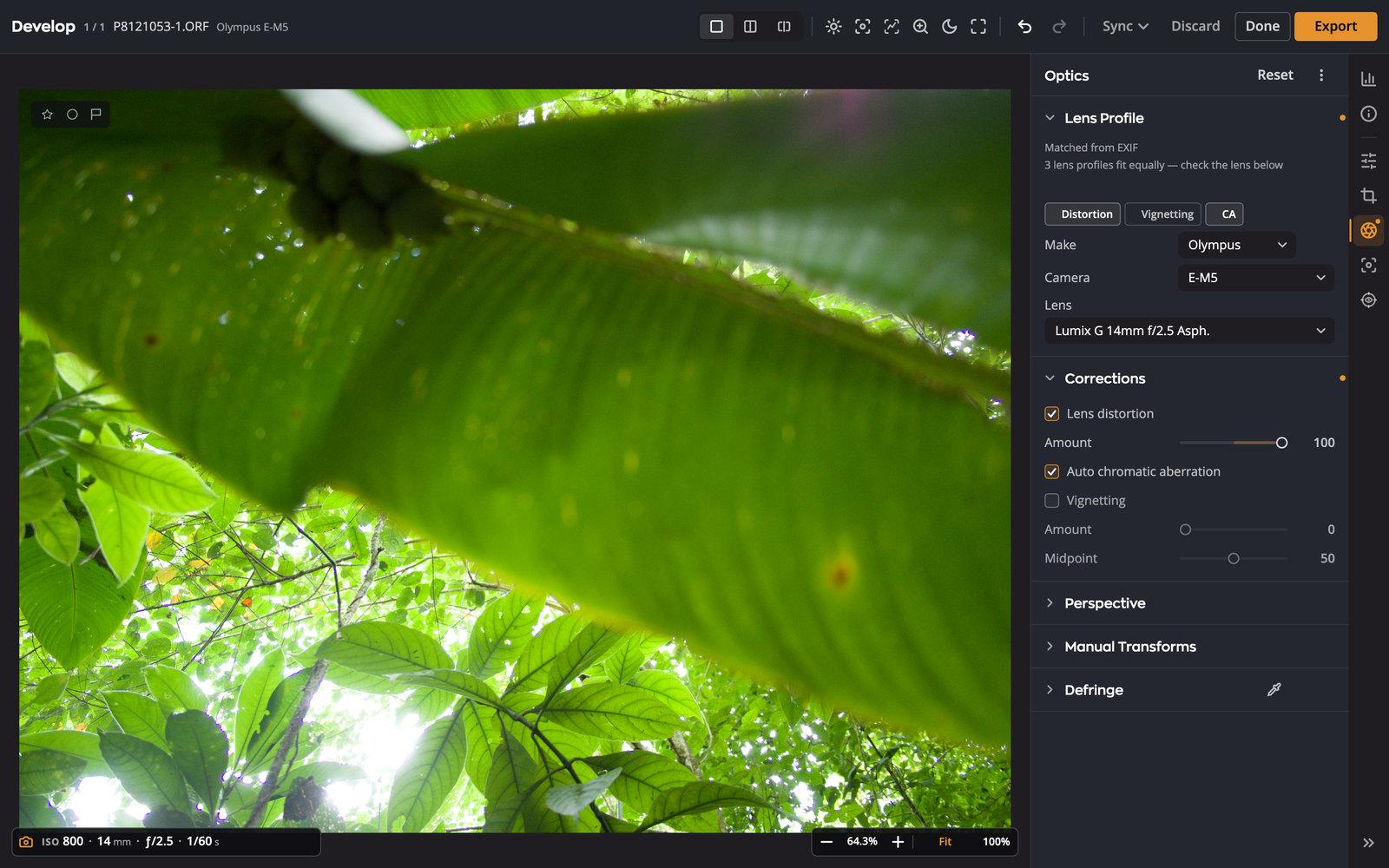
Light, color and the lens, from the raw data.
Finish in Radiant Photo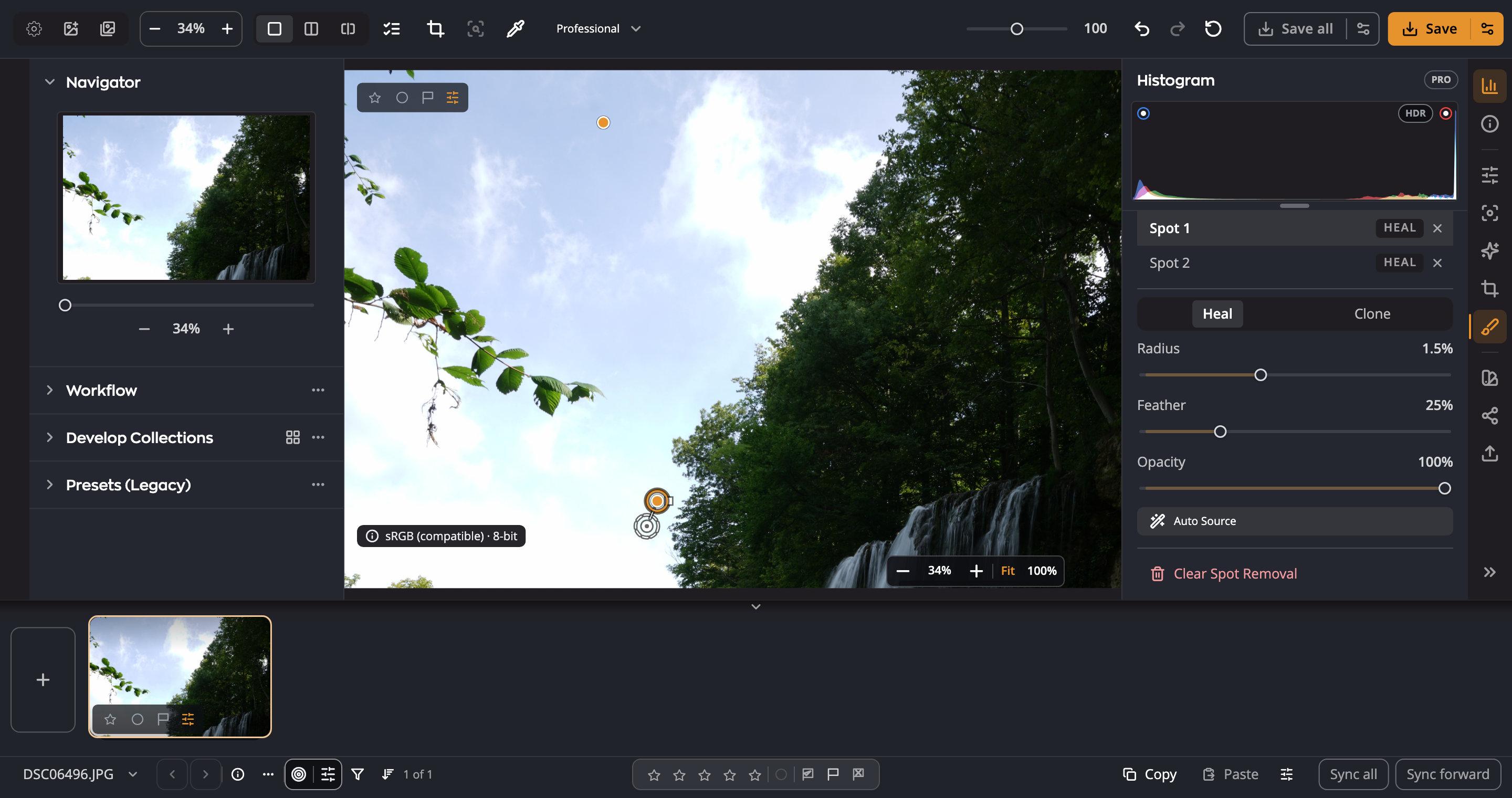
Spot Removal, Looks, faces and skies. Re-develop any time.
Learn the new tools
Lens correctionsFix distortion, fringes and dark cornersTutorialSpot RemovalHeal or clone away dust and distractionsTutorial Noise reductionClean up high-ISO noiseTutorial
 Crop and straightenFrame and level for a stronger photoTutorial
 SharpeningCrisp detail without halosTutorial
How does Radiant Photo handle raw files?
Radiant Photo opens camera raw files on its own, with no other app needed. It reads most formats, including .arw, .cr2, .cr3, .nef, .orf, .raf, .rw2 and .dng. Your original raw file is never changed.
You choose what happens when a raw file opens, in Settings › Raw › When opening a Raw:
| Choice | What happens |
|---|---|
| Automatic (no Develop) | Opens straight into the editor, as shot |
| Apply recipe | Opens with a Recipe you choose |
| Develop in Radiant Raw | Opens in Radiant Raw first, then comes back to Radiant Photo |
| Ask each time | The Open Raw dialog asks you |
If you haven't chosen, Radiant Photo asks each time when Radiant Raw is installed and activated, and uses Automatic (no Develop) when it isn't. To stop the questions, turn on Remember my choice in the Open Raw dialog. If Radiant Photo can't develop a file, it tells you and shows the camera's own preview instead.
Manual: Raw files and Radiant RawIs my camera supported?Trouble opening raw files
How do I choose a Recipe for my raw files?
A Recipe is a starting point for developing a raw file. (Radiant Photo 2 called saved develop settings presets.)
- Open Settings › Raw.
- Under When opening a Raw, choose Apply recipe.
- Pick a Recipe from the menu.
You can also pick one each time in the Open Raw dialog. Which Recipes you see depends on what you have:
| You have | Built-in Recipes |
|---|---|
| Radiant Photo | Four: Neutral, Automatic, Auto Color and Auto Tone |
| Radiant Raw and Radiant Photo, installed and activated | Twelve: the four above, plus Log, three B&W and four Color. Your own Recipes from Radiant Raw show too |
Manage Recipes… lets you duplicate, rename or delete your own Recipes.
Good to know: if a Recipe was saved with an Auto, only Radiant Raw runs that Auto again for each photo. To get the whole Recipe, choose Develop in Radiant Raw and apply it there.
Why add Radiant Raw?
To develop the raw file yourself. Radiant Photo gives you a good automatic start, but it has no develop window of its own. Radiant Raw does.
| Radiant Photo on its own | With Radiant Raw | |
|---|---|---|
| Develop window | None: an automatic develop | Thirteen Edit sections, from Tone and HDR to Color Grading and Detail |
| Built-in Recipes | Four | Twelve, plus your own |
| Lens corrections | None | More than 1,500 lens profiles, plus Defringe |
| Perspective | Vertical and Horizontal, in the crop panel | Level, Vertical, Full, Guided and Auto |
| A whole shoot | One photo at a time | A filmstrip with Copy, Paste and Sync |
| Round trip | None | Re-develop Raw… |
Press Auto in Radiant Raw and you get a good picture. Every control after that is optional.
Why is Radiant Raw a separate app?
So you only add it if you want it. Many photographers are happy with Radiant Photo's automatic start, or already develop raw files in another app.
- It stands alone. Radiant Raw has its own window, its own filmstrip and its own license. Develop a whole shoot there, then export finished files, with or without Radiant Photo.
- It works with the apps you have. Open it from Radiant Flow, Radiant Photo, Lightroom Classic or Capture One, as a second opinion on your raw files. No catalog, no lock-in.
- The apps share your files, not a database. Radiant Raw saves its develop as a small Recipe file beside the raw, so you can reopen it, change it and export again from any of the apps.
Which edits do I make in Radiant Raw, and which in Radiant Photo?
| Edit | Radiant Raw | Radiant Photo |
|---|---|---|
| Exposure and white balance, from the raw data | Yes | Tone and Color tools, on the developed photo |
| HDR from one raw | Yes | No |
| Lens corrections and Defringe | Yes | No |
| Perspective | Level, Vertical, Full, Guided and Auto | Vertical and Horizontal |
| Noise reduction and sharpening | Yes, on the raw data | Yes, on the Focus page |
| Scene-aware Workflows and Smart Editing | No | Yes |
| Portrait tools: Face, Skin, Eyes, Makeup, Face Light | No | Yes |
| Sky and Foliage Toning | No | Yes |
| Looks | Yes | Yes, with the full Look Browser |
| Curves, Levels, Color Wheels, Selective Color | Yes | Yes |
| Spot Removal and Auto Crop | Yes | Yes |
| Blending several develops of one raw | Raw Composite | No |
| Watermarks and finished files | Yes | Yes |
Working with both? Do the first half of the table in Radiant Raw, then finish in Radiant Photo. Re-develop Raw… lets you go back to the first half at any time without losing the second.
How does Radiant Raw work with Radiant Photo?
- Develop. In Radiant Photo, choose Develop in Radiant Raw. The photo comes back as a 16-bit TIFF in Adobe RGB (1998), with the most detail to finish with.
- Finish. Add Looks, portrait tools, Spot Removal and the rest in Radiant Photo.
- Change the develop any time. On a raw photo in Radiant Photo, choose Re-develop Raw…, rework it, and click Done. Your Radiant Photo edits stay on top.
- Reframing. If you change the framing in Radiant Raw, Radiant Photo removes its own crop and rotation from that photo and tells you. Spot Removal fixes move with the picture.
- The other direction. Edit in Radiant Photo in Radiant Raw sends your last export's 16-bit TIFFs, with capture metadata intact.
- Shared settings. Recipes, watermarks and sidecar settings are shared between the two apps.
- Separate activation. Radiant Raw has its own license. Activating Radiant Photo doesn't activate it. A trial counts, and Radiant Photo sees the activation without a restart.
Tutorial: Finish in Radiant PhotoManual: Done, Export and Edit in Radiant Photo
What advanced features does Radiant Raw offer?
| Feature | What it does |
|---|---|
| Auto, with choices | Each Auto menu says what a method sets. Compare Methods… shows every result side by side. Steps run it again Brighter, Darker, Warmer or Cooler. Goal aims it: Keep it dark, Keep it bright, Open up the shadows or Keep the light's color |
| HDR | HDR from a single raw, up to +8 stops, and an HDR JPEG that looks right on every screen |
| Raw Composite | Develop one raw up to four times and blend the results. Masks find a Person (with Hair, Clothes or Body skin), Sky, Background or Objects, or select by Depth range, all on your computer. A Lab Tools feature: new and still being refined |
| Detail and focus | Six-slider Noise Reduction, Sharpening with Masking, and a Focus page that tells you when focus missed the eye |
| Spot Removal | Heal and Clone. Fixes move with the picture when you change lens corrections or Perspective |
| Sync | Sync a photo that holds an Auto, and Radiant Raw measures that Auto again on each photo |
| Export | 16-bit TIFF, rendered DNG, JPEG and PNG, in sRGB, Display P3, Adobe RGB or ProPhoto RGB. A color-flat Log Recipe for grading |
| Cameras | More than 400, plus any camera that shoots DNG |
Tutorial: Lens correctionsTutorial: Noise reductionRadiant Raw manual
Curious how others split the work between Radiant Raw and Radiant Photo? Join the conversation in the community
Color and metadata
Your colors, your information
How does color management work?
Radiant Photo keeps three settings apart. Changing one never changes the others.
| Setting | Where | Default | What it does |
|---|---|---|---|
| Editing space | Settings › Color › Work in | sRGB (compatible) | The space your edits are worked out in. Display P3, Adobe RGB (1998) and ProPhoto RGB keep more of the colors your camera captured |
| Screen preview | Settings › Color › Show it as | Automatic | How the photo is drawn on your screen. It never changes your files |
| Saving | The Save dialog | Same as original / Adobe RGB (1998) | Each photo keeps its own profile. A raw file gets Adobe RGB (1998). Choose sRGB for the web |
- Raw files: with a Recipe, a raw file is in Adobe RGB (1998). With Automatic (no Develop), it's in your editing space. A photo developed in Radiant Raw comes back as a 16-bit TIFF in Adobe RGB (1998).
- Built-in safeguards: a JPEG or other 8-bit file is never saved in ProPhoto RGB (Radiant Photo uses Adobe RGB (1998) instead), and wide color spaces are saved at 16 bits to avoid banding.
- Printing: soft proofing previews a printer and paper, with a Proof profile, a Rendering intent and a gamut warning. It changes only the preview.
How is metadata handled?
Your camera's information comes with you, and you decide what else goes out.
- Camera details are kept. Preserve capture metadata is on by default. It carries EXIF, IPTC and GPS into every file you save. On Windows this needs ExifTool.
- Private details can stay home. In Settings › Metadata, remove location, people and face tags, camera info, the capture date, creator and copyright, or keywords and caption from saved files.
- Add your own. In the Info panel, open Metadata to add a title, caption, keywords, contact details and copyright. They're standard IPTC fields that Lightroom Classic and most photo apps read. Save them as a copyright card to add them to every photo.
- Other apps' changes are respected. If a rating, label or caption changed both in Radiant and in another app, Settings › Sidecars sets which one wins. Keywords from both are always kept.
What are .radiant and .xmp files?
They're small files saved beside your photo, so your work travels with it. Keep both, and copy them along with the photo.
| .radiant | .xmp | |
|---|---|---|
| What it holds | Every Radiant setting for the photo | Ratings, flags, labels, keywords, caption, copyright and location, plus your Radiant edits |
| Who reads it | Radiant apps only | Most photo apps, including Lightroom Classic |
| Example | Saved beside the photo | IMG_0001.CR3 gets IMG_0001.xmp |
- Raw files always get an .xmp file. They can't hold this information inside, and Radiant never writes into them.
- Radiant Photo 2's .radiant files open as they are in Radiant Photo 2.5.
- Where they're saved: Settings › Sidecars › Save to has Sidecar (.xmp), Sidecar (.radiant) and Inside the photo. All three are on by default, and the three apps share this choice. We suggest keeping them on.
- To start a photo over, choose Edit › Remove All Edits. To delete the saved settings, click ⋯ in the bottom bar and choose Clear per image settings. You can't undo that.
Manual: Saving settings beside your photosManual: Where Radiant Raw saves
Plug-ins and other apps
Keep working in the apps you use
Radiant Raw and Radiant Photo open from the apps you already use. The plug-ins come with the apps, so there's nothing extra to buy.
| Host app | Radiant Raw | Radiant Photo |
|---|---|---|
| Lightroom Classic | Edit in Radiant Raw…, in the same menu | File › Plug-in Extras: seven commands, including Edit in Radiant Photo… |
| Photoshop | Develop first, then open the 16-bit TIFF | Filter › Radiant Imaging Labs › Radiant Photo 2.5…, and a Radiant panel |
| Apple Photos (Mac only) | No direct route: see below | Edit › Extensions › Radiant Photo, or Image › Edit With |
| Capture One | Image › Edit With › Radiant Raw | Image › Edit With › Radiant Photo |
| Mylio Photos | None | Photo › Open with › Radiant Photo |
The Radiant Raw commands need Radiant Raw, and the Radiant Photo commands need Radiant Photo. Capture One support is tested with Capture One 16.9.
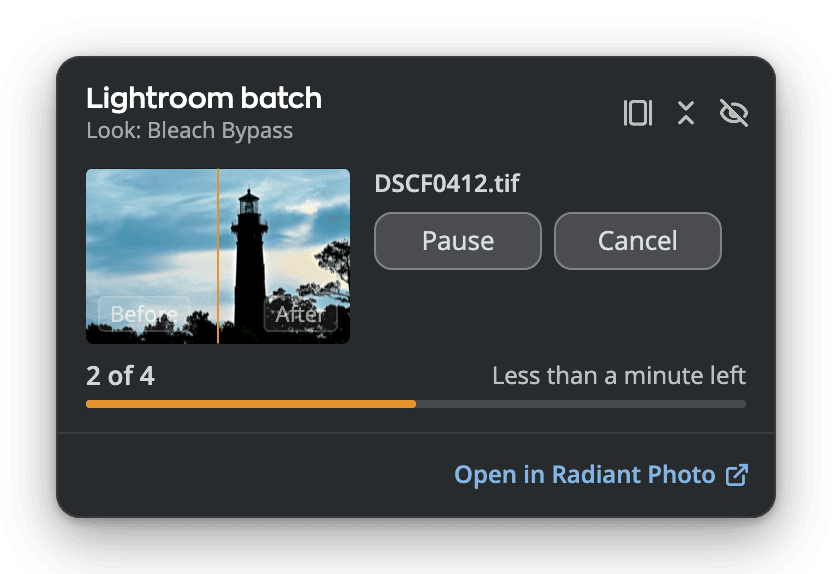
Your Lightroom batches run on their own
Plug-in jobs run in Radiant Photo Host, a separate small window, so a Radiant Photo session you have open isn't interrupted. Pause or cancel any time; results come back to your catalog stacked above the originals.
Can I send raw files from Lightroom Classic or Capture One to Radiant Raw?
Yes. Radiant Raw gets the original raw file, and your raw stays untouched.
- Lightroom Classic: choose Edit in Radiant Raw… from Plug-in Extras. The result comes back stacked above the original in your catalog.
- Capture One: choose Image › Edit With › Radiant Raw. The result comes back as a new variant beside the original.
What comes back to Lightroom Classic from Radiant Photo?
A new 16-bit TIFF in ProPhoto RGB, named name-Radiant.tif. It's stacked above the original, in a collection for that run, with its keywords, title, caption and location. Your originals are never overwritten.
Plug-in jobs run in Radiant Photo Host, a separate app, so a Radiant Photo session you have open isn't interrupted.
Manual: Using Radiant Photo with Lightroom ClassicWhere's Radiant Photo in Lightroom Classic?Where's my edited photo?
Can I change a Photoshop edit later?
Yes, if you apply Radiant Photo as a Smart Filter. Double-click it to bring back your Workflow, Look and sliders. The filter works on 8-bit and 16-bit RGB documents, not CMYK, Lab, Grayscale or 32-bit.
Radiant Photo 2's filter stays beside the new one, and actions recorded with it still play there.
Manual: Using Radiant Photo with PhotoshopNot in Photoshop's Filter menu?
How do I get raw files into Apple Photos?
Radiant Raw has no direct route to Apple Photos yet. Develop in Radiant Raw, choose Edit in Radiant Photo, and use Add to Photos on Radiant Photo's Share panel.
For HDR, export from Radiant Raw instead. Its HDR JPEG keeps the extra brightness when you bring it in with File › Import in Photos.
Does Radiant Flow work with my catalog or library?
| App | What Radiant Flow does |
|---|---|
| Lightroom Classic | Opens your catalog beside your folders. Ratings, flags, labels, keywords and metadata sync both ways through the Radiant plug-in. Edits don't sync |
| Capture One | Browses a catalog, read-only. On the Mac, ratings, color tags, keywords and IPTC fields sync both ways while Capture One has the catalog open |
| Apple Photos | Shows your library and its albums in Flow's sidebar (Mac) |
| Mylio Photos | Imports cards into the folders Mylio Photos watches |
Flow never writes a catalog file itself.
AI and your privacy
AI that helps you, on your own computer
Radiant uses AI to understand your photo, never to invent anything in it. Here's what that means in practice.
No generative AI
It never adds, removes or replaces objects, skies or faces. Radiant recognizes the scene and finds faces and skies, then adjusts the pixels you captured, much like dodging and burning in a darkroom.
Runs on your computer
Scene detection, face finding, masks, Auto Crop and PRISM Photo Score run on your computer. Radiant Flow downloads its scoring model once, in the background (about 360 MB).
Your photos stay private
Analyzing a photo doesn't upload it, and your photos aren't used to train our models. In Radiant Photo, maps and place search stay off until you turn them on.
Lighter on the planet
Because the work happens on the computer you already own, your edits aren't sent to a cloud data center to be processed. That saves the energy and data each round trip would use.
PRISM Photo Score, worked out on your computer
Radiant Flow scores every frame of a shoot from 0 to 100, so the keepers rise to the top. Your photos aren't uploaded to do it.
 93Keep
 88Keep
 86Keep
 77Review
 66Review
 58Review
 44Review
 38Reject
When do the apps go online?
Only for things that need the internet, and never to send your photos: checking your license, updates and Help pages, the Store, a tutorial's sample photo, whether Radiant's Lab (Roadmap and Betas) is open to you, and a font or signature hand for a watermark. Radiant Raw downloads lens profiles, and Radiant Flow downloads its PRISM scoring model. With maps turned on, Radiant Photo looks up the place you type at OpenStreetMap; on a Mac, Radiant Flow's map-pin search sends what you type to Apple. No photo is sent for any of these.
Can I turn the automatic edits off?
Yes. In Settings › AI, turn off Choose develop settings automatically from the scene. The scene is still recognized and shown, but nothing is applied until you choose. Photos you've already edited are never changed by it.
Can I say how my photos may be used for AI training elsewhere?
Yes. In the Info card, the AI & Data Mining section has an AI training field, from Allowed to Prohibited. Your choice travels in the photo's metadata wherever you share it.
Have thoughts on how we use AI? We'd like to hear them in the community
Discounts and Radiant Toolkit
Owning, adding and Toolkit
I own Radiant Photo. Is there a discount on Radiant Raw?
Yes. We have Black Friday offers for owners. We'll email them to you this week and post them in the community, so keep an eye on both.
You can also buy Radiant Raw on its own. You already have Radiant Flow, and nothing you own changes: each app has its own license.
- Try it first. The trial is 30 days, with every feature and no credit card.
- Buy with confidence. Every new purchase has a 30-day money-back guarantee from the date of purchase.
- Thinking about All three apps? It includes Radiant Photo, so write to us first and we'll check what fits.
What is Radiant Toolkit?
A yearly add-on for Radiant apps you own. It gives you a member credit every month toward Looks, Recipes, Develop Collections and Workflows in the Marketplace.
It works with both Radiant Raw and Radiant Photo. Looks you buy with your credit work in both apps, and Toolkit includes upgrades to Radiant Raw. For now, you sign up for and manage Toolkit in Radiant Photo.
If you subscribe to Radiant Photo, All three apps or All Access, you don't need it.
What do Toolkit members receive?
A $15 member credit every month (€15 or £15 in those currencies), toward any pack in the Marketplace.
- It's automatic. The credit is applied at checkout, with no codes to type.
- It's for one month. Each month's credit ends with the month and doesn't roll over. The Store counts down the days you have left.
- It's for add-ons. The credit works on Looks, Recipes, Develop Collections and Workflows, not on new apps.
- It follows your license. On a new computer, choose Store › Restore Purchases, and your membership comes back with your purchases.
How do I claim my monthly credit?
There's nothing to claim. Buy a pack, and the credit comes off the price.
- In Radiant Photo, open the Store and pick a Look, Recipe or Workflow.
- Check the pack's page. While your credit is ready, it says the credit is applied at checkout. Prices in US dollars already show the lower price, and a pack the credit covers in full says Free.
- Buy as usual.
To see whether this month's credit is ready or used, open Settings › Account and look under Purchases.
Had Toolkit before Nov 16? Your membership carries on. Monthly voucher codes stopped working on Nov 16, and the credit now comes automatically: sign in on our website with the email you bought Toolkit with, or choose Store › Restore Purchases in the app.
How do I sign up for Radiant Toolkit?
- In Radiant Photo: open the Store, go to Radiant Toolkit, and click Subscribe. Checkout opens with your license email already filled in.
- On our website: go to Pricing and click Add Radiant Toolkit.
Toolkit is billed yearly. To stop it renewing, open Settings › Account in Radiant Photo and click Turn Off Auto-Renew. Toolkit then ends on its renewal date.
Why don't you save my credit card details?
To keep them safe, we never see or store your card. FastSpring, our authorized reseller, handles payment, tax and your invoice.
- In the app, checkout opens FastSpring's secure page. Card details never reach Radiant Photo.
- To change the card your Toolkit renews with, open Settings › Account and click Update Payment…. It opens FastSpring's secure page in your browser.
- For receipts and invoices, sign in on our website and click Manage billing.
If you write to us about an order, send your order email or order number. Never send a card number.
Keep learning
Tutorials, manuals and answers
Tutorials
Short, hands-on guides on Learn
Manuals
Every control, in detail
Help center
Answers to common questions
You're not doing this alone
Talk it over with other photographers, or ask our team directly. Whichever you choose, someone will help.
Discuss it in the community
Share how you're setting things up, ask how others moved their Looks and presets, and swap tips on Radiant Flow, Raw and Photo.
Visit the communityContact support
Missing a purchase, stuck on an activation, or something not working? Write to us with your order email and which version you're coming from. We'll get back to you.
Contact supportAlso helpful: Known issues · Release notes · Downloads